
This article explains how to configure a user so they can view keystroke and website logs for specific groups only, rather than having visibility across the entire organisation.
This is useful when creating roles for safeguarding staff, pastoral teams, or other users who should only monitor selected groups.
Step 1 – Configure the Required Role Permissions
First, ensure the user’s role permissions allow them to view logs for groups they have access to.
In the Role Permissions settings, enable the following:
View Group Keystroke Logs
Allows the user to view keystroke logs for groups they have been granted access to.View Group Website Logs
Allows the user to view website logs for groups they have been granted access to.
These permissions ensure the user can access logging data, but only for groups they are assigned to.
Step 2 – Disable the Global Group Permission
To prevent the user from seeing logs for all groups in the organisation, ensure the following permission is disabled:
View All Groups

If this permission is enabled, the user will be able to view all groups within the organisation or site, bypassing the group access restrictions configured later.
Step 3 – Assign Access to the Required Groups
Once the role permissions have been configured, you can assign access to specific groups within the Senso portal.
To assign access:
Navigate to Groups within the Senso portal.
Select the group you want the user to access from the panel on the left.
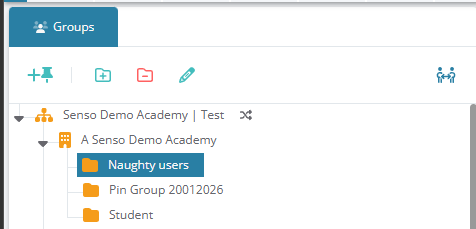
Click on the Access tab.

Select Add User/Role.

Add either:
The user’s email address, or
The role assigned to the user.
Set the Group Access Level to View.
Save the changes.
Repeat this process for each group the user should be able to access.
Result
Once configured:
The user will only be able to view logs for the groups they have been granted access to.
They will not see logs for other groups within the organisation.
Access can be managed easily by adding or removing the user or role from group access.
Additional Notes
Assigning access via roles is recommended when multiple users require the same permissions.
Assigning access via email is useful when access is required for individual users only.
If a user reports seeing logs for all groups, verify that the View All Groups permission is disabled.