This guide is going to explain how to navigate and use the Lite Console in relation to the groups and how this is structured. This will help you locate the group you wish to work with and the functionality available to help do this. The guide has been split into four key areas.
-Groups Landing Page
-Group Filters
-Group Types
-Group Additional Functionality
Groups Landing Page
Once you have logged in to Senso.cloud, your console will open.
The landing page automatically brings you to ‘Groups’. You will see all the groups that you have been given access to.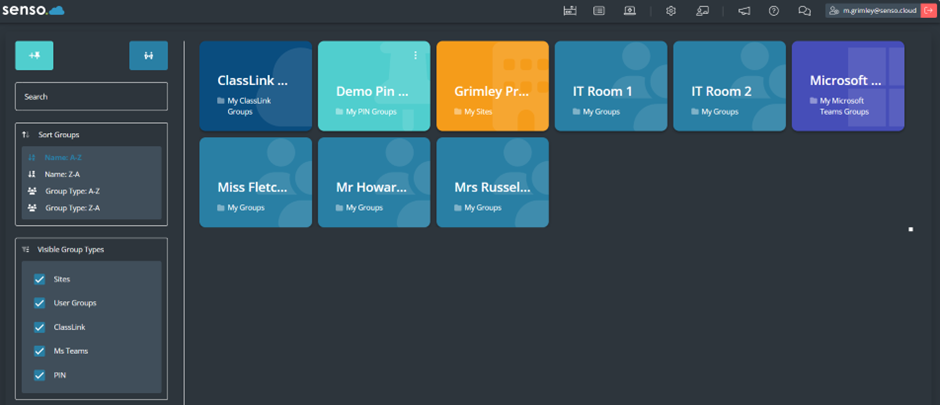
Each group is shown as an individual tile.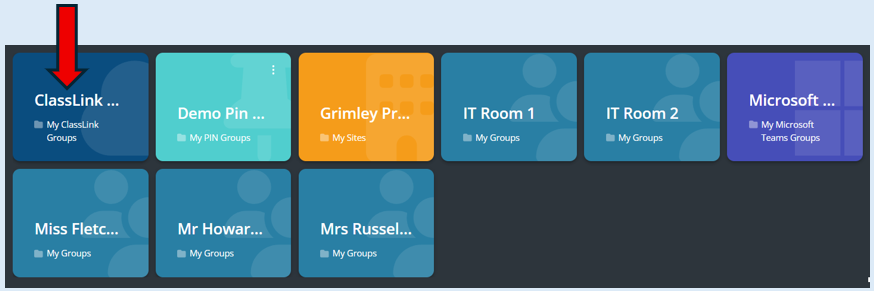
Each tile will provide you with the group name and the how the group has been created.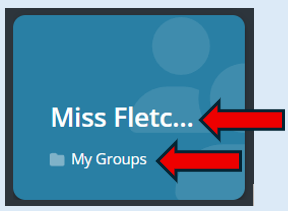
To access a group all you need to do is click on it. All the devices will then show on your screen.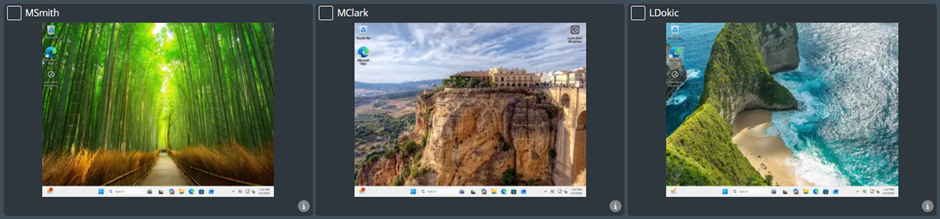
Group Filters
You have the ability to sort how you view your groups through the ‘Sort Group’ filters.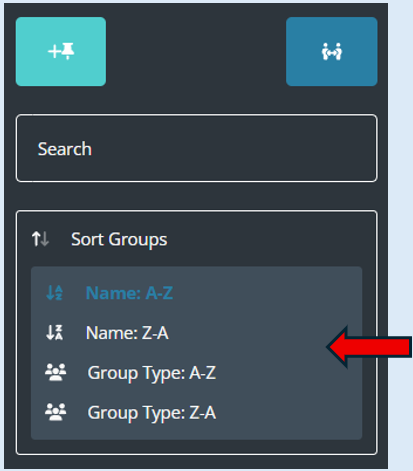
You can also decide which type of groups are visible on your console. The default will show all group types however you can de-select any group if needed.
The default will select all of the groups.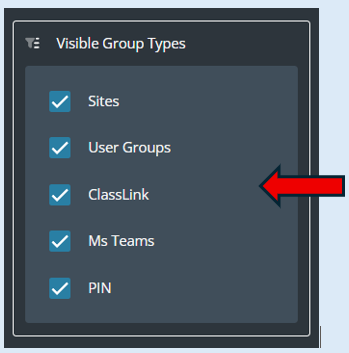
Currently every group you have access to is being shown on your console.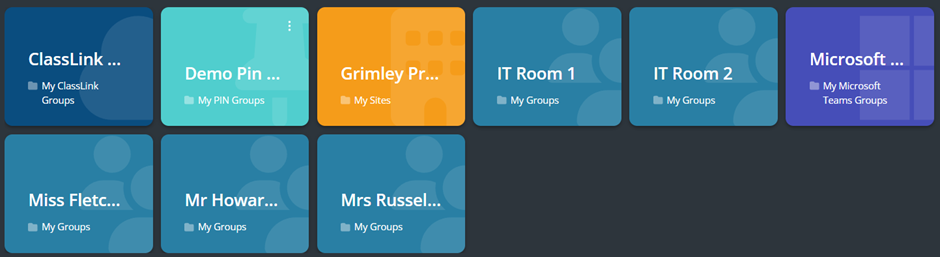
However, you can filter the exact groups that you would like to see. For example, if you would just like to see the groups that you have access to within ‘User Groups’ and ‘MS Teams’ groups. Remove the ticks from the other groups. As you untick the options, that group will automatically be removed from what is visible.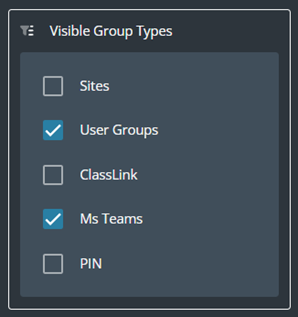

Top Tip – Each ‘Group Type’ has its own unique coloured tile.
Group Types
Sites – These are based on the organisational structure of the business.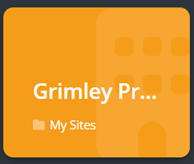
User Groups – These are groups that have been created following the structure of a site.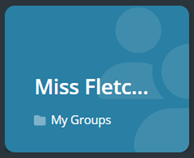
Class Link – These groups will be created from integrations from the organisations current structure.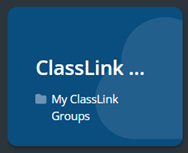
MS Teams – These groups will be created from integrations from the organisations current structure.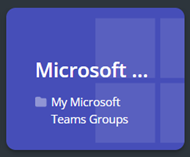
Pin – This is an ad-hoc group that requires a pin code to join. This can be created by the console user at any point in time. They are usually temporary groups.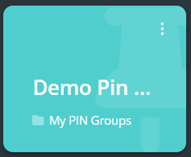
Groups - Additional Functionality
Adding a Pin Group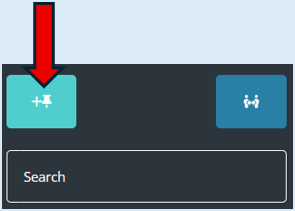
This will allow you to create an ad-hoc group. If will provide a Pin Code which pupils can use to log into the group. This group will stay active until deleted. To create a Pin Group please see ‘How to Create a pin group’ training guide.
Switch Integration User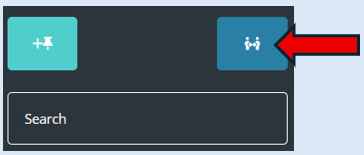
This option will allow you to share your teams/google groups with other users. This would be set up at an admin level.
If you click on this icon a further actions box will open. This will allow you to switch to another user but only if you have been given access.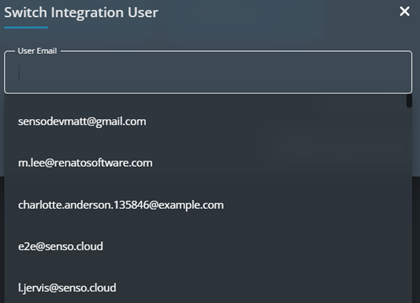
Search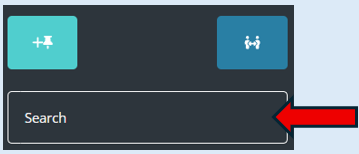
This allows you to start typing in a group name and it will filter the groups that are visible on your screen according to what letters you have typed in.
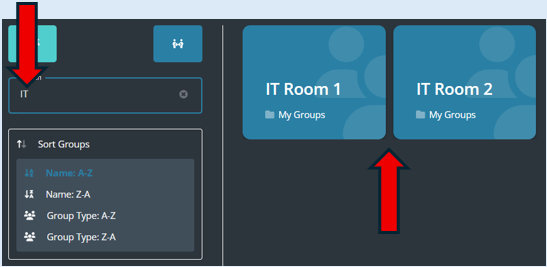
For example, you just need to view any group with ‘IT’ in its title - These are the groups that you can currently see.
Type in ‘IT’ into the search bar. The groups will automatically filter to this criteria as you can see below.