This guide is going to explain how to navigate and use the Lite Console. The focus of this guide is to show you the available functionality and how to use it. The guide has been split into 3 sections for ease of use.
Lite Console – Initial Functionality
Lite Console – Dashboard Functionality
Lite Console - Thumbnail Activation Functionality
The Lite Console – Initial Functionality
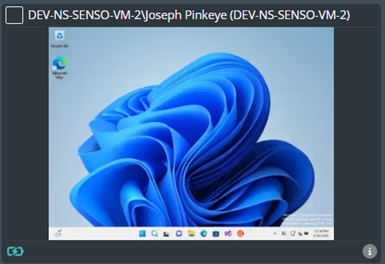
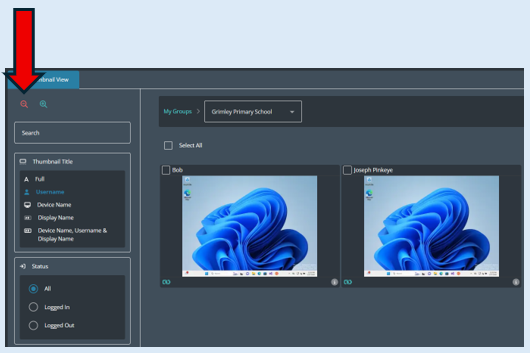
Thumbnail Title - You have the option of selecting the heading/title which appears on the top of each thumbnail. There are five options to select from.
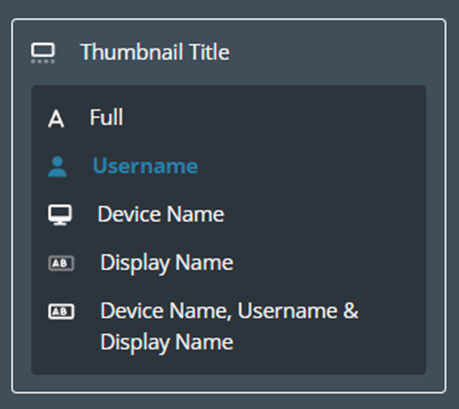
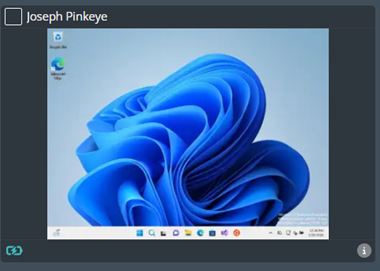
Username
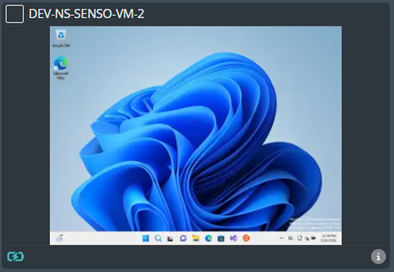
Device name
Display name
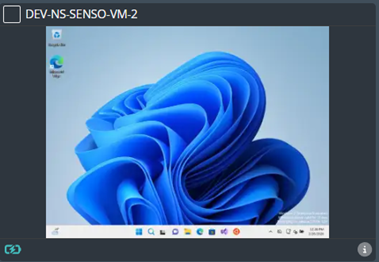
Device Name, Username & Display Name
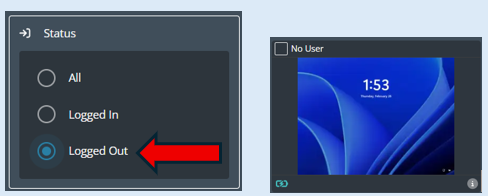
Status
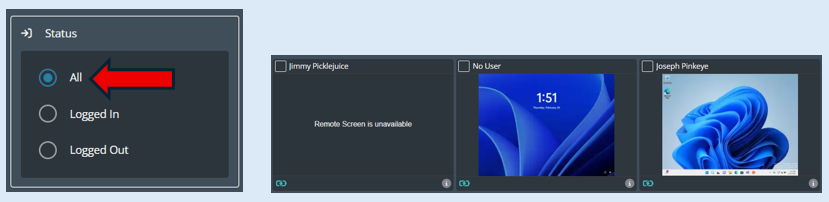
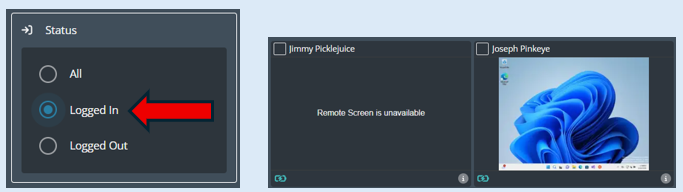
This filter allows you to see all devices that are associated with your group or just the ‘Logged In’ devices or the ‘logged Out’ devices. The default will be set at ‘All’.
Search
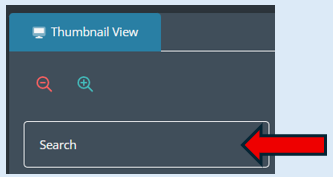
This will allow you to search for a specific user in your current group. Just start to type in the user’s name and the thumbnails automatically filter to the letters you have typed.
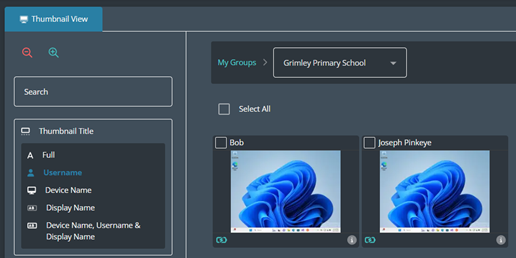
For example, this is what can currently be seen
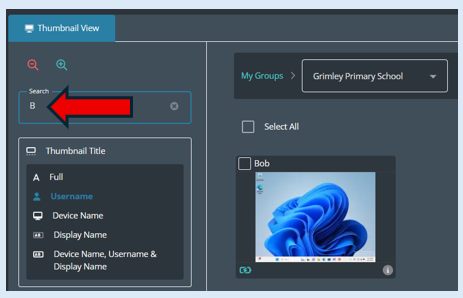
Start to type in a name, the screen automatically filters any thumbnail that doesn’t begin with the letter ‘B’.
Thumbnail size
This option will allow you increase or decrease the size of the thumbnails you are viewing.
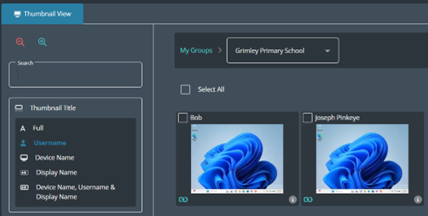
Click on the ‘Increase’ icon and you can now see that the thumbnails have changed size. You can increase or decrease the size of the thumbnails when required.
My Groups
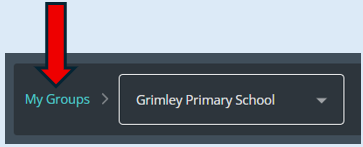
Clicking on this will return you to the landing page for ‘Groups’.
Drop down list
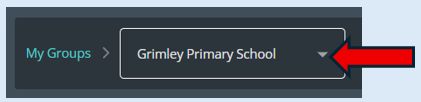
Clicking on this will provide you with a drop-down list of all the groups that you have access to.
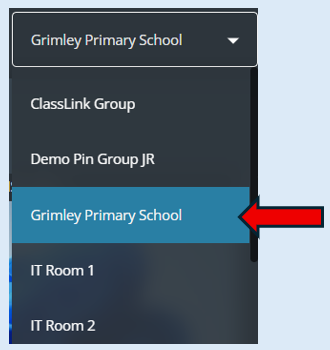
Select the group that you would like to view on your console screen.
Lite Console - Dashboard Functionality
Dashboard

The console has several key functionalities for you to use and manage your groups/sessions.
Top Tip – Always select the devices before you select an action from the dashboard.
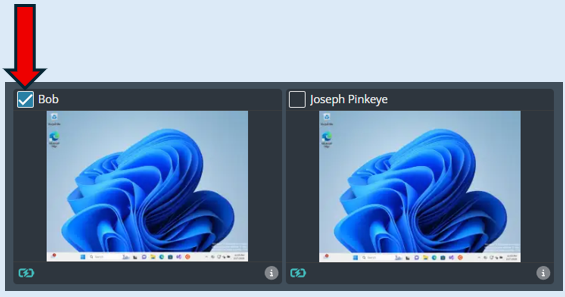
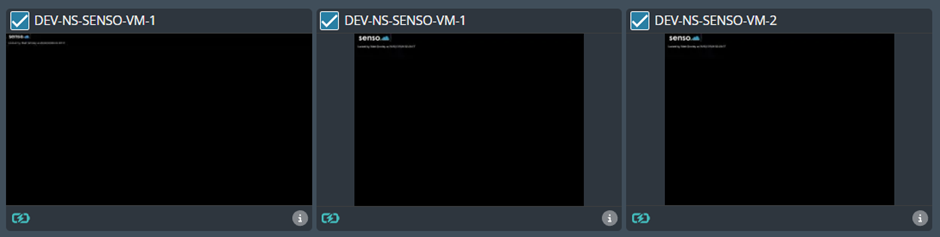
To select a thumbnail, just select the tick box in the corner of the thumbnail
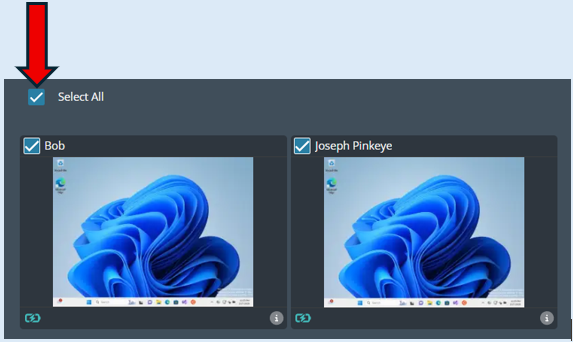
There is an option to select all devices if required. Just tick the box and every thumbnail will automatically be selected with a tick.
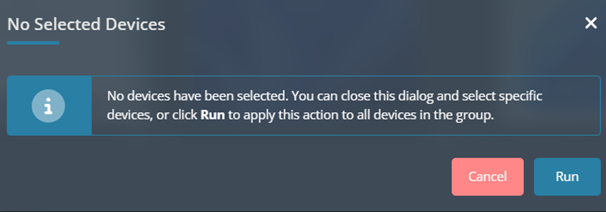
If an action needs devices to be selected but none have been, a pop-up message will show to remind you.
Lock/Unlock Screen
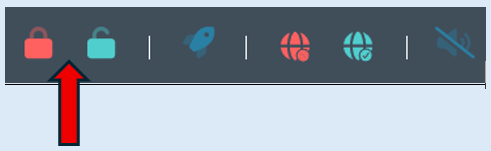
Select the red padlock icon to lock the selected devices. Once you click on the icon the screens will be locked and no user can use their device.
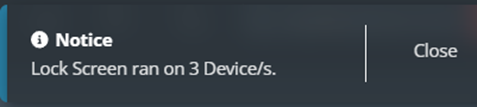
There will also be a pop-up message confirming your action.
To unlock the screens, it is as simple as selecting the blue padlock icon.

Run Website
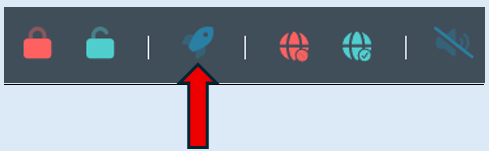
This option will allow you to run a website on any selected devices. Click the icon and an additional option box will open.
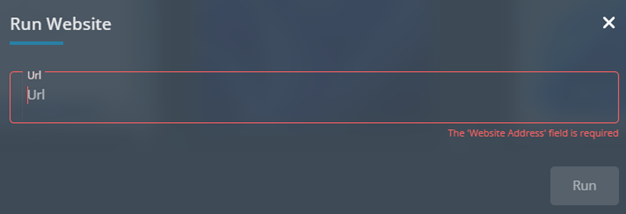
Type in the website address that you want to run.
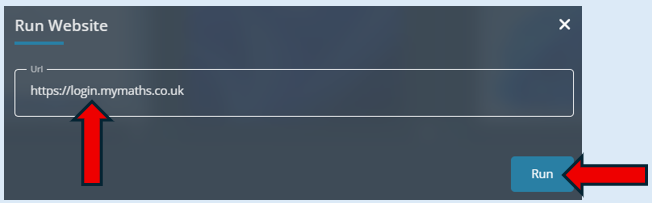
Select the ‘Run’ button.
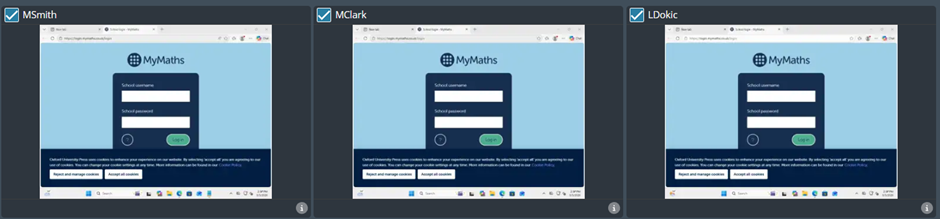
There will also be a pop-up message confirming your action.

Disable/Enable Internet
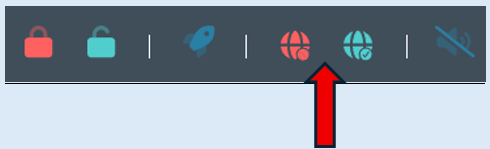
This option will allow you to block/allow access to the internet on any selected devices.
To block the internet simply select the red icon. The red icon will then appear on each thumbnail that you selected to indicate the internet has been blocked. This allows you to clearly see where you have applied this action.
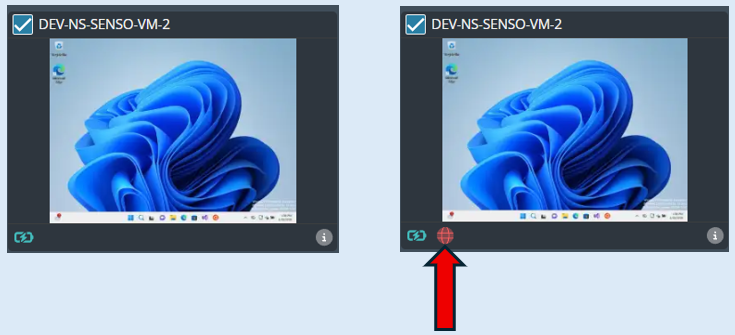
To enable the internet on any devices that is currently being blocked, select the blue icon. Each time you perform an action a pop-up message will confirm what you have done.

Mute Sound
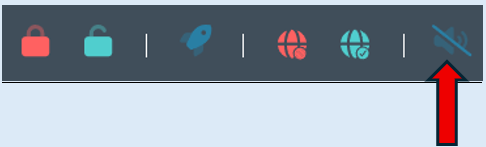
This option will allow you to mute/unmute the speakers on any selected device, mute/unmute any microphone and select the speaker volume on the devices.
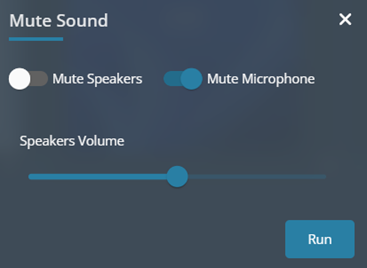
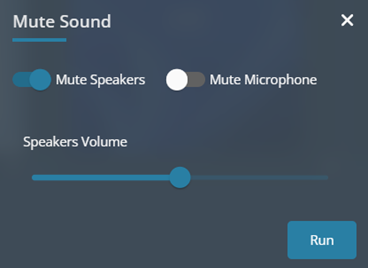
When you select mute/unmute an additional option box will open. The default has the toggle buttons set to mute both speakers and microphones. You can toggle either option to the off position.
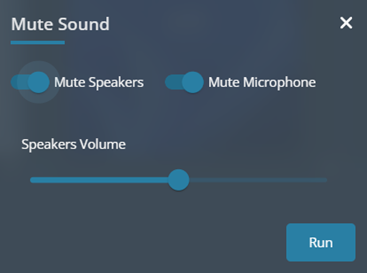
Only the microphone will be muted.
Only the speakers will be muted.
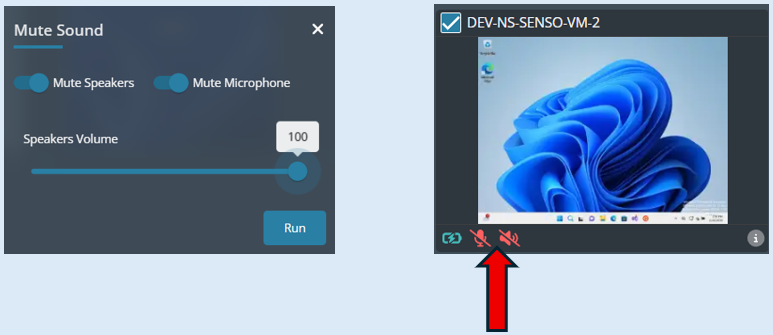
You can also change the maximum volume allowed on the device speakers if users do not have headsets available.
When you have actioned either the speakers or microphone to be muted, icons will show on any thumbnail/device indicating the action has been applied to it.
Lite Console - Thumbnail Activation Functionality
There is additional functionality available to use when an individual thumbnail has been selected to view. Once the thumbnail has been clicked on it will go to a full-size screen.
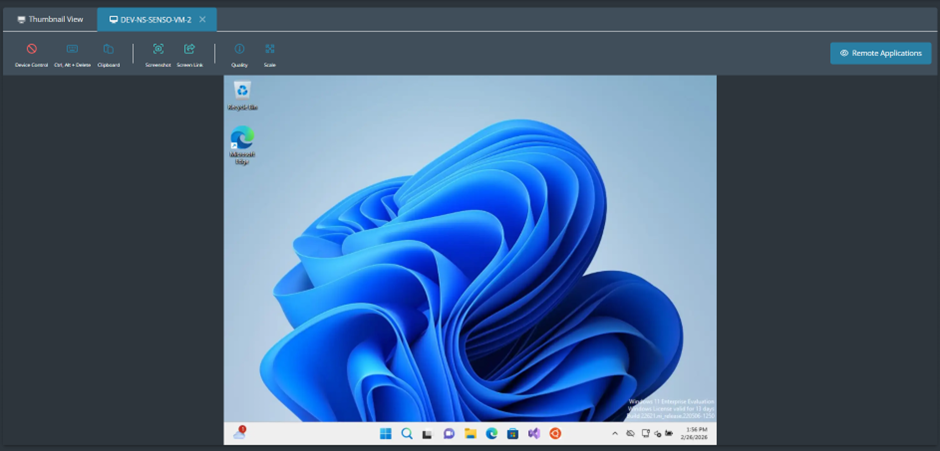
The thumbnail you are viewing will be indicated on the options bar.
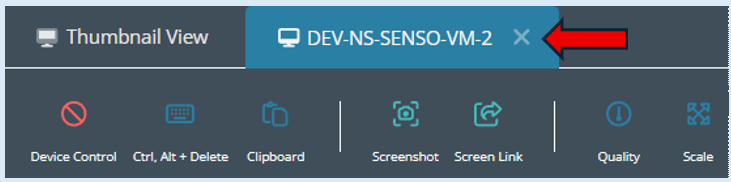
The options available for you to use will show on the actions bar.

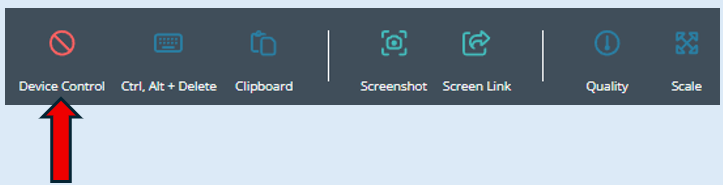
Device Control
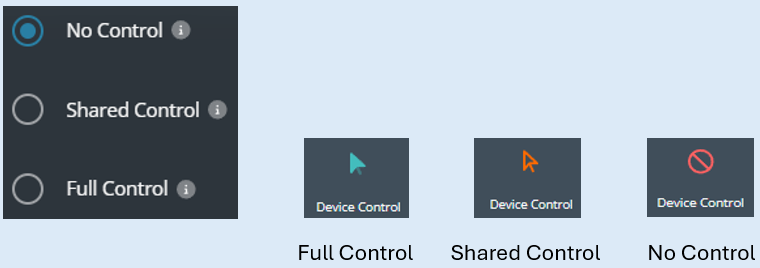
This option will let you take full control or shared control of any selected device. Click on the ‘Device Control’ icon.
A further options box will open. You can then select from the three options. Each option has its own icon which will show once selected.
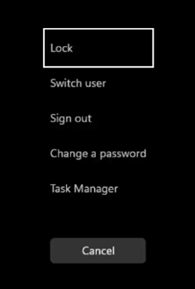
Ctrl, Alt + Delete
This just allows you with one click to activate the ‘Ctrl, Alt + Delete’ keyboard combination on selected devices. Click the icon.
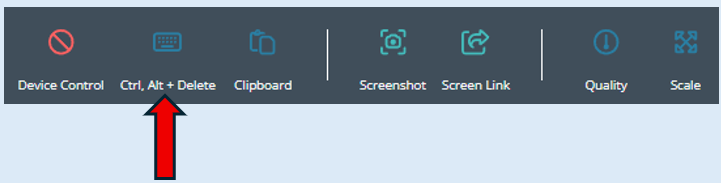
The options box will open on the device screen. If you wish to action one of the options, you will need to take control of the device as explained above.
Clipboard
This option will allow you to copy and paste from your own or the remote devices.
Select the icon.
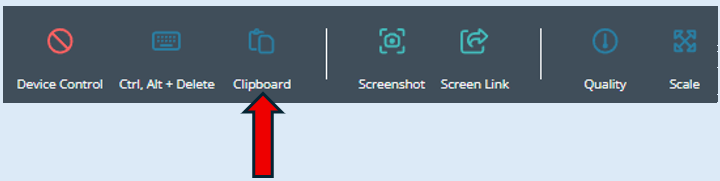
An additional options box will open. You can then decide the action required.
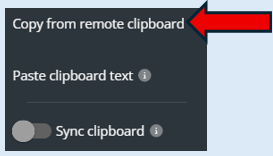
Copies the recent contents of the remote device’s clipboard into your local clipboard.
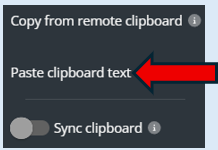
Pastes the current text stored in your clipboard onto the remote device.
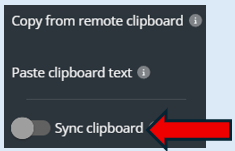
If toggled to the ‘On’ position this Syncs the clipboard contents across your device and the remote device by automatically sharing and updating copied text between them.
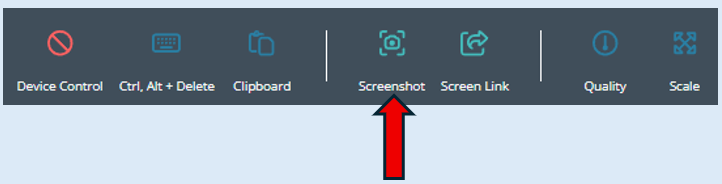
Screenshot
This option allows you to take screenshots of the device that you are viewing. The screenshot will automatically be placed in your download folder.
Screen Link
This option allows you to copy the screen link for the thumbnail directly onto your clipboard.
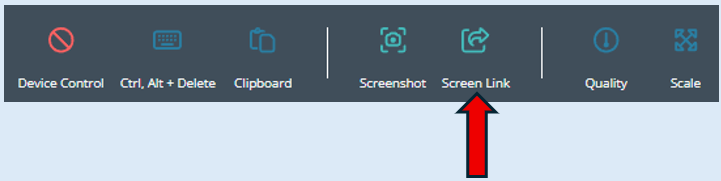
When you click the icon you will receive a pop-up message confirming the action.

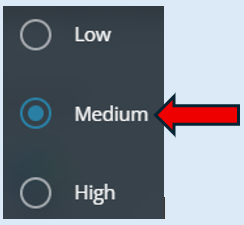
Quality
This option will allow you to decide the quality of the thumbnails that you are viewing. The default is always set to ‘Medium’.
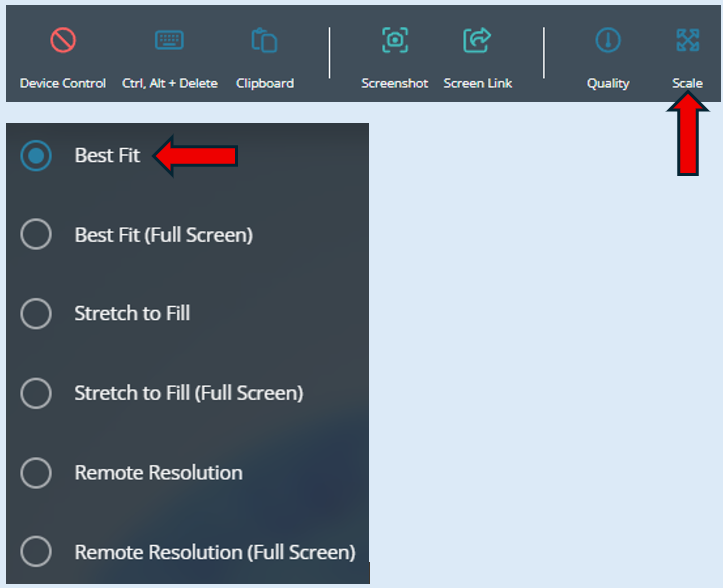
Scale
This option provided a selection of views to view the console in. The default is set at ‘Best Fit’.
Remote Applications
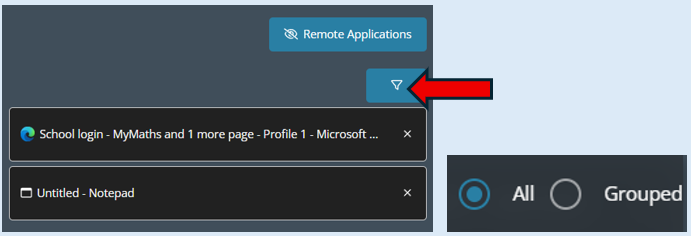
This option will allow you to see all of the applications that are open on a device.
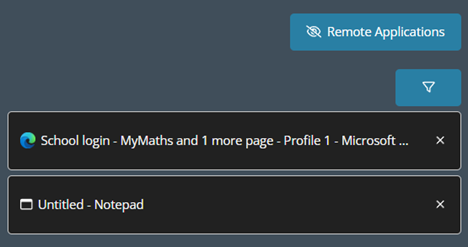
Click on the button and all the applications that are open on the device will show.
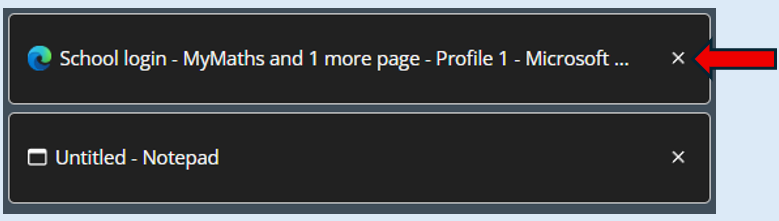
You can close any application by selecting the cross next to it.
If the device has multiple applications open there is a filter button that can be used as it will allow you to show the applications in groups according to the type of application.