
Scenes
This module will allow you to set up a custom list of websites and applications that can either be blocked or allowed. This can be saved as a ‘Scene’ which will then allow you to use it at your convenience. Multiple ‘Scenes’ can be created and will be available to use during any session that you run.
How to access Scenes
Creating a Scene
Using a Scene module
Additional Functionality
How to Access Scenes
To access the Scenes module, select the ‘Teacher Tools’ Icon.

This will open the ‘Scenes’ module and provide you with all the actions available to you.
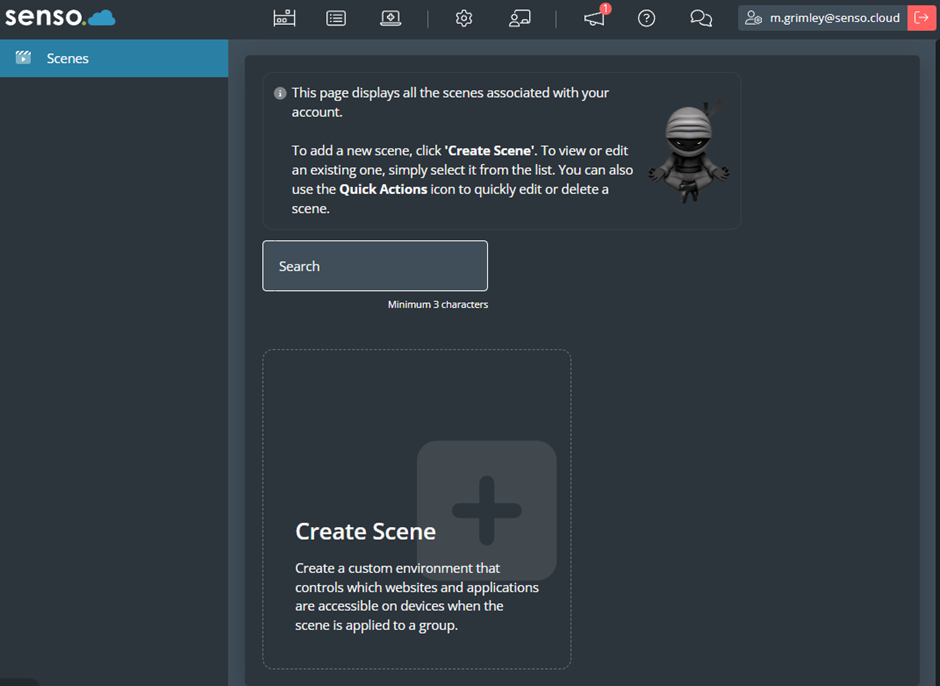
Creating a Scene
To create a new scene, click on the ‘Create Scene’ button.
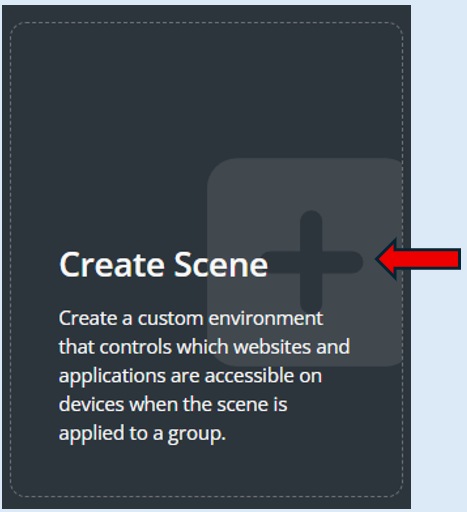
This will open a new page where you will create your scene.
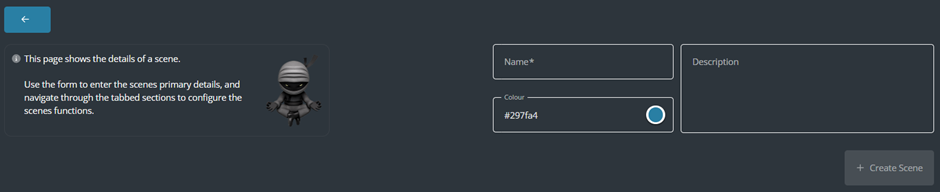
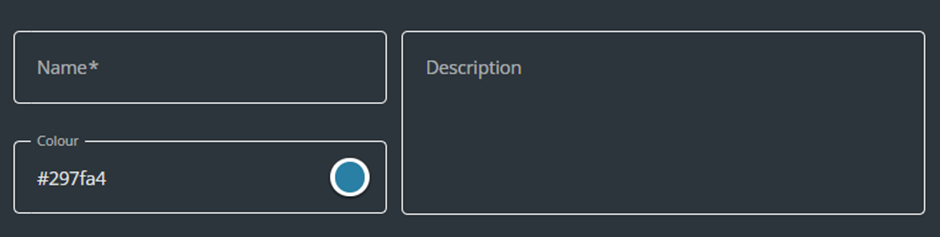
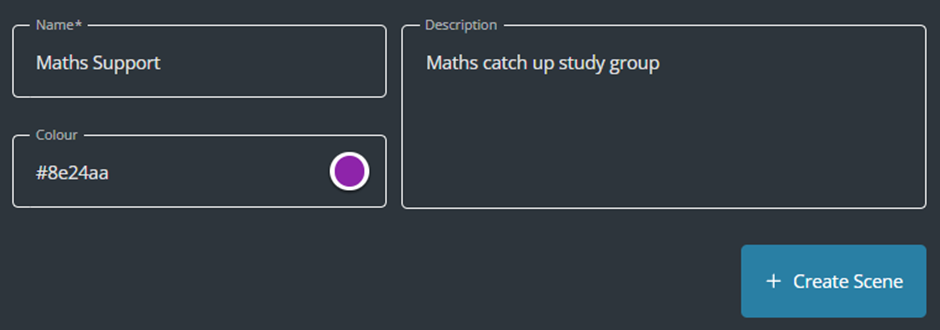
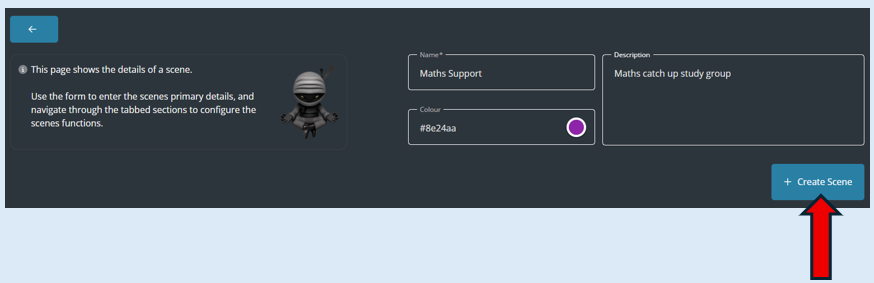
Enter in the scene name, you can choose the background colour (Optional) and add in a description about the scene (Optional).
Now you have completed the first stage of your scene set up you have the option of deciding if you would like this scene to be in the ‘Allow Mode’ or ‘Block Mode’ setting.
Allow Mode
For this scene we are going to select the ‘Allow Mode’. This means the only websites or applications that can be accessed are the ones that you add into your list. Every other website and application will be blocked.
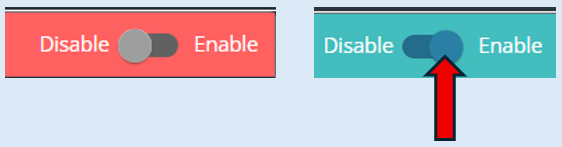
Initially the website Disable/Enable toggle button is set to ‘Disable’.

To start building your list of website addresses this needs to be toggled to the ‘Enable’ position.

Select the ‘Allow Mode’ option.
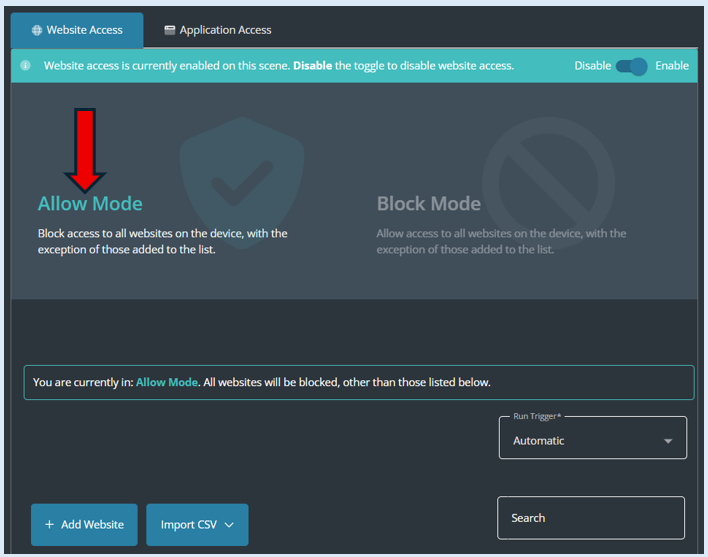
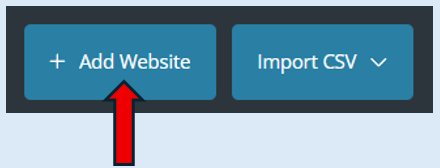
To add a website to your list, select the ‘Add Website’ button.
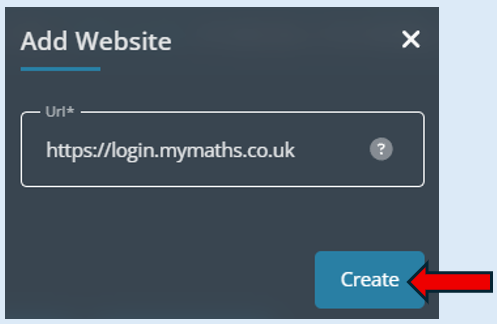
This will open another box, enter the website address that you want to allow access to.
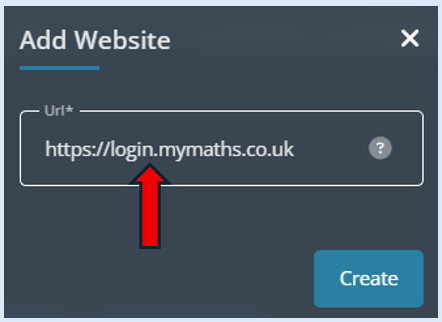
Select the ‘Create’ button.
The website address that you have entered will now appear in the ‘URL’ list.
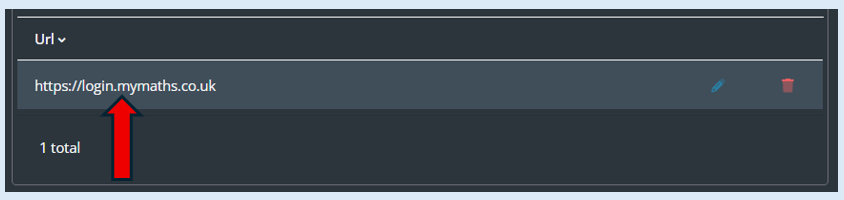
After entering any website address, there is the ability to edit or delete it from the list.

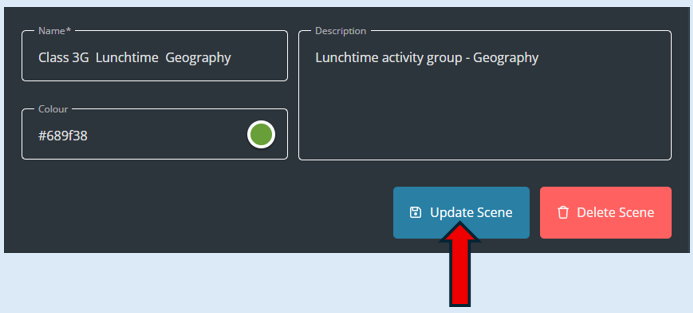
Top Tip – If you make any changes to your scene, you must select the ‘Update Scene’ button for the changes to be saved.
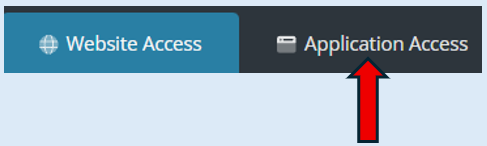
You may also want to add an application to your scene that you would like to give access to within the session. To add this, select the ‘Application Access’ button.
For this part of the scene to be active, toggle the button to 'Enable'.
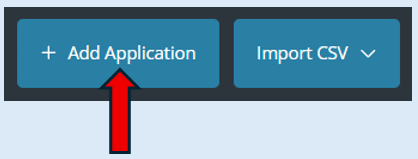
To add an application to your list, select ‘Add Application’.
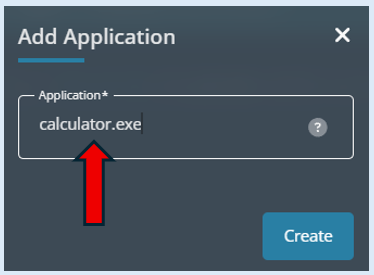
Then add in the application name that you would like to allow and select ‘Create’.
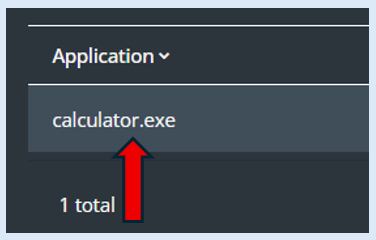
The application will be added to your list.
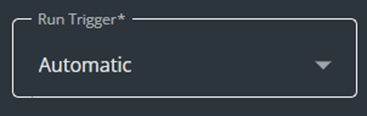
At this stage the scene has been named, you have selected which mode you would like and you have added to either your website or application lists or both. There is a final option that needs to be selected. This is the ‘Run Trigger’ option.
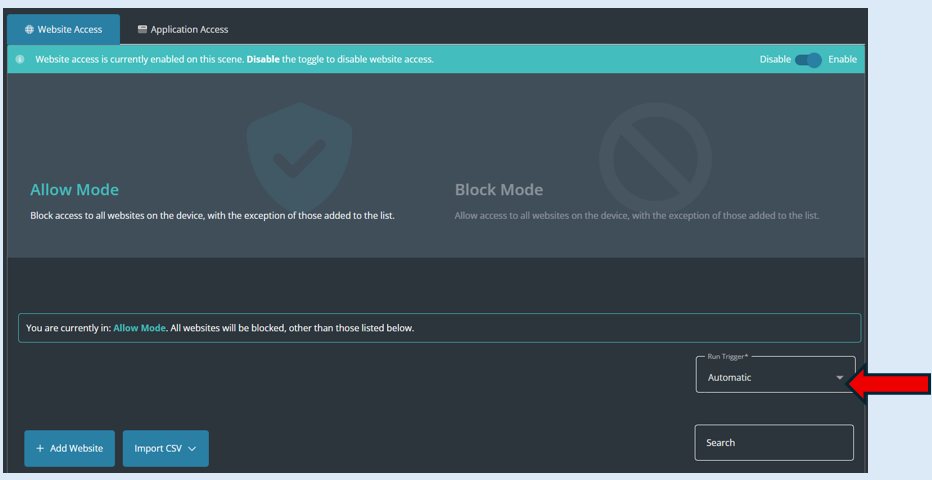
Select the drop-down option. This provided two options to select from.
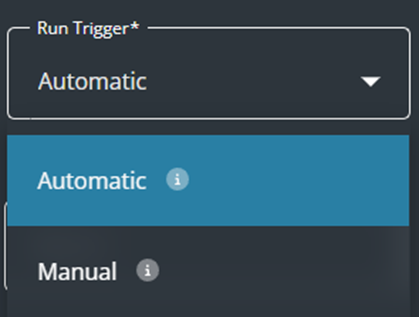
Automatic
Website Access starts automatically when the Scene is applied and remains active until the Scene ends.
Manual
Website Access starts only when manually activated and continues until it is manually paused or the Scene ends.
The default option is set to ‘Automatic’. You can change this option for both your website and application lists.
To complete creating this scene, select the ‘Create Scene’ button.
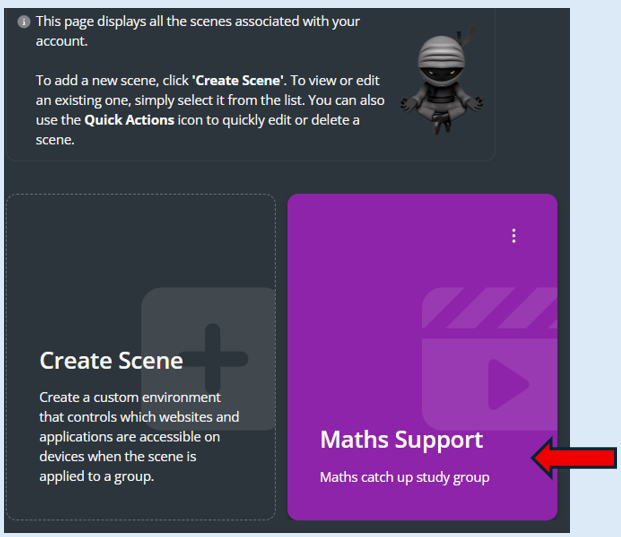
Once selected, this will automatically take you to the landing page of the Scenes module but now you will see the scene that you have just created.
Block Mode
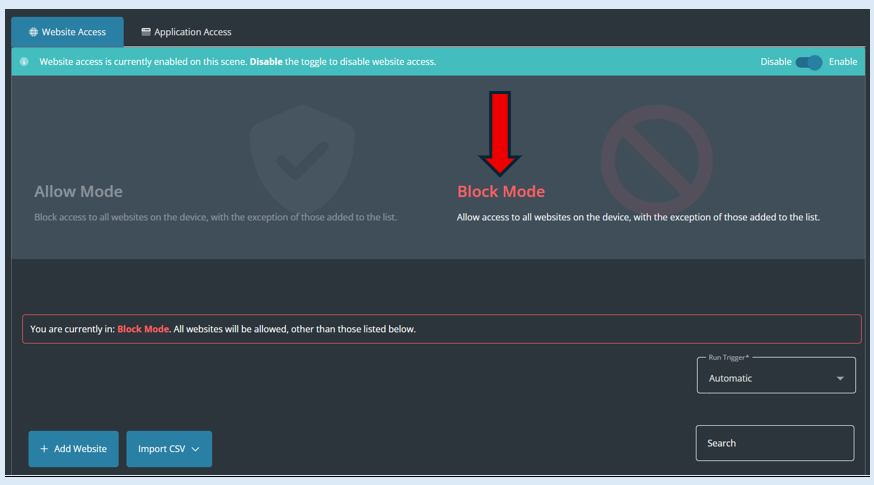
For this scene we are going to select the ‘Block Mode’. This means the only websites or applications that will be blocked are the ones that you add into your lists when creating your scene.
Before you can select the ‘Block Mode’ option, you will need to toggle the Website Access button to the ‘Enable’ position.
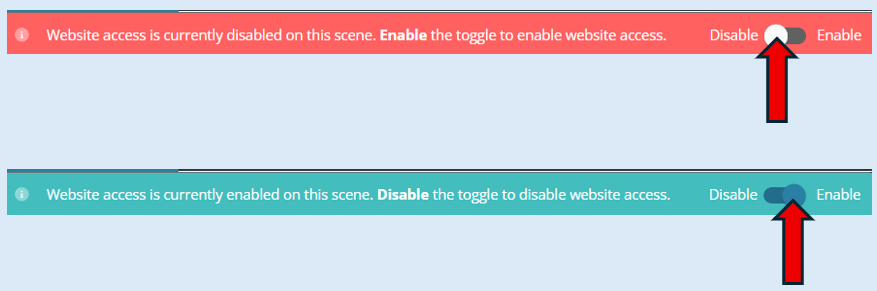
Now this is set at ‘Enable’ you can select the ‘Block Mode’ option.
To add website addresses or applications to this scene it is exactly the same process as explained in the ‘Allow Mode’ above.
Once you have created your lists for website addresses, applications or both you will need to select the ‘Create Scene’ button.
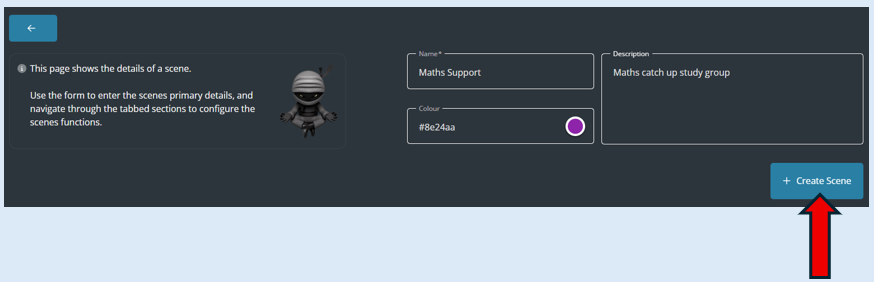
Once selected, this will automatically take you to the landing page of the Scenes module but now you will see the scene that you have just created.
Using a Scene
Now that you have created your Scenes, you will be able to access them at any time. Please note that the scene being used in this scenario was set up in the ‘Automatic’ Run trigger option.
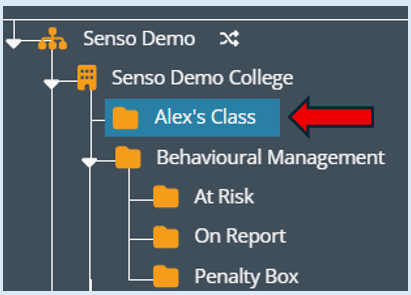
To action a scene, first select the group you are working with from the group list.
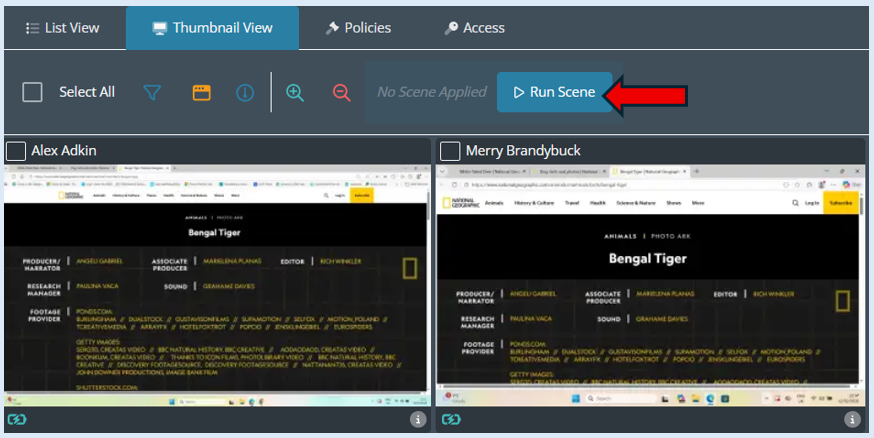
You will see that the option to ‘Run Scene’ will be available. This will only appear if you have created a scene.
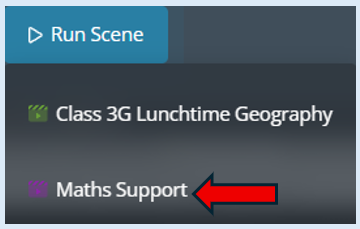
All the scenes that you have created will be available to select from. To see the list of scenes select the ‘Run Scene’ button. Then select the scene that you would like to run.
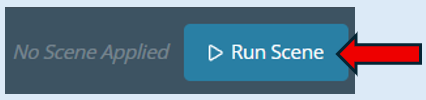
Next select the ‘Run Scene’ option.
You now have the ability to select the time range that you would like the scene to run for. The default time will show an hour in advance of the actual time.
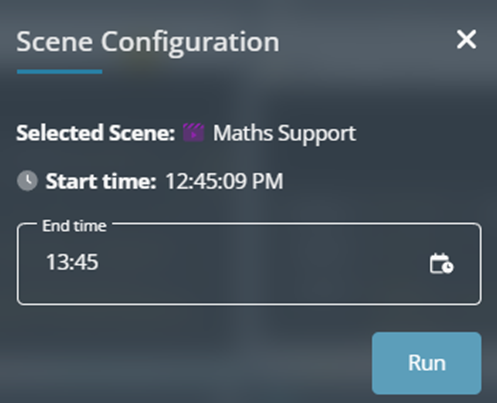
Top Tip – Always set the ‘End Time’ to the time that your session/lesson ends otherwise the scene will continue to run and could affect the users/devices until the scene closes.
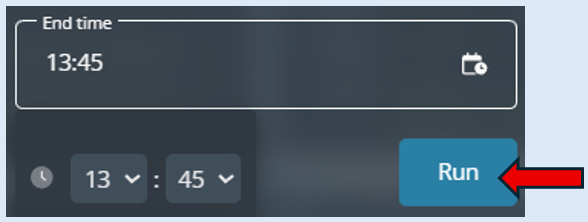
Once you have set the time, click on ‘Run’.
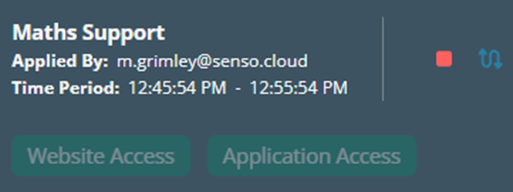
You can now see that the scene is active.
Top Tip – The scene will run across all devices in the group. You do not need to select devices prior to running the scene.
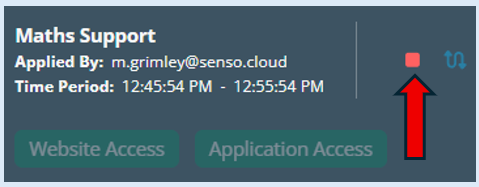
If you would like to stop the scene from running at any time, click the red ‘Stop’ Icon.
An icon will appear at the bottom of each thumbnail indicating that the scene is running on that device.
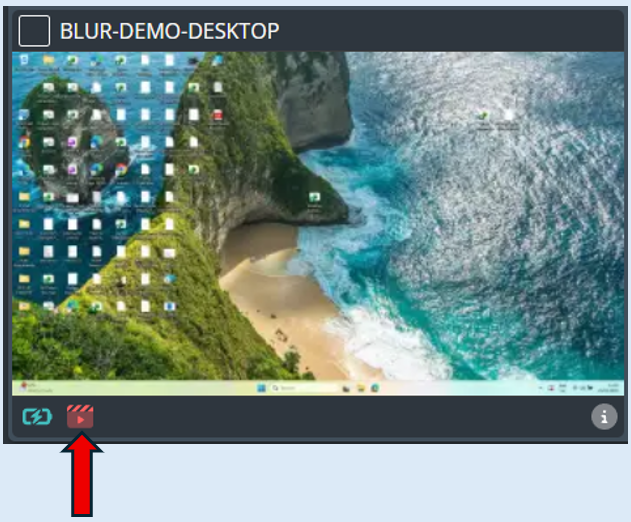
If you run a scene that was set up with the ‘Manual’ Run Trigger option, there are a couple of differences that you need to know about.
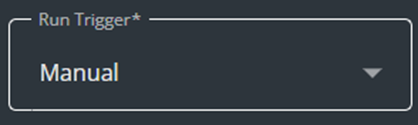
Once you have selected the scene, have set the ‘End Time’ clicked on ‘Run’, the scene information will appear as shown previously however you will notice that the ‘Website Access’ and ‘Application Access‘ buttons are red rather than green.
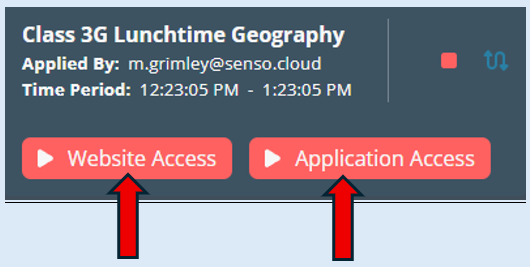
You will need to manually start the lists to be active.
To do this just click on either or both buttons. The buttons will turn green to indicate the chosen list is active.

You can switch these buttons on or off as many times as required during the session.
Additional Functionality
To save time, you can also import a CSV file to quickly add multiple applications to your lists.
There is a search button that will allow you to search for any websites that you have in your current URL list.
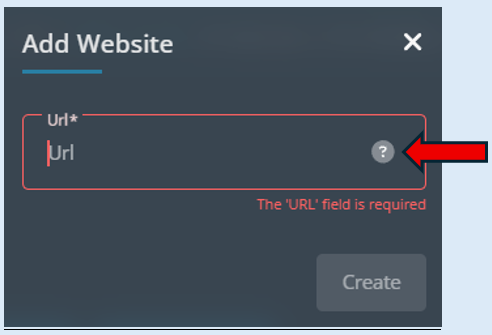
When creating your lists within your scene there is a set of pre-determined websites and application suggestions that you can access and select from. Just select the ‘?’ Icon.
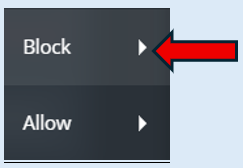
This then opens a new box which allows you to choose from either the ‘Block’ or ‘Allow’ suggestions. Select the option required.
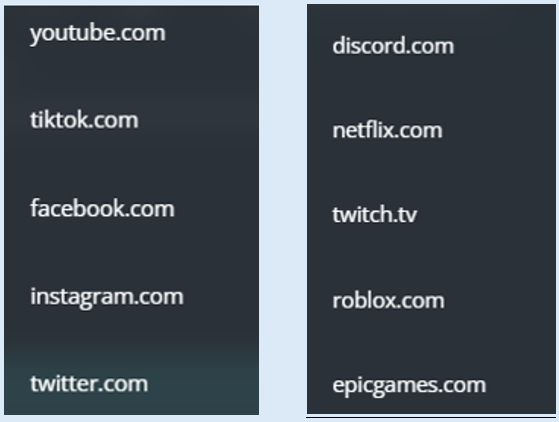
The suggestions list will open for you to select from.
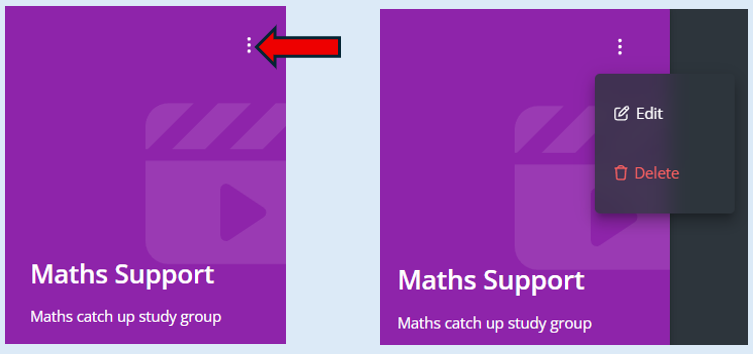
When on the main dashboard, you can edit or delete any scene that you have created. To do this click over the three dots on the tile, this will allow you to then select the required option.
Scene Controls and Permissions
The user who applied the scene can stop the scene at any time during its active period using the stop icon
There is an additional permission, Stop All User Scenes, which enables users with this role to stop Scenes applied by other users
The original user who applied the Scene can also use the switch icon to replace the current Scene with a different one, effectively changing the active controls for the group