
This guide will show you how to create a Scene for a history lesson. The scenario is that the lesson is based on the Romans unit that the class has been working on for the last 5 weeks. The students need to create a list of 10 facts about what they have learnt to add to a class poster.
This guide will take you through this process step by step.
Once logged in to your console you will need to locate the Scenes Module. To do this click on the ‘Teacher Tools’ Icon on the top bar of your console.

This will open the ‘Scenes’ module.
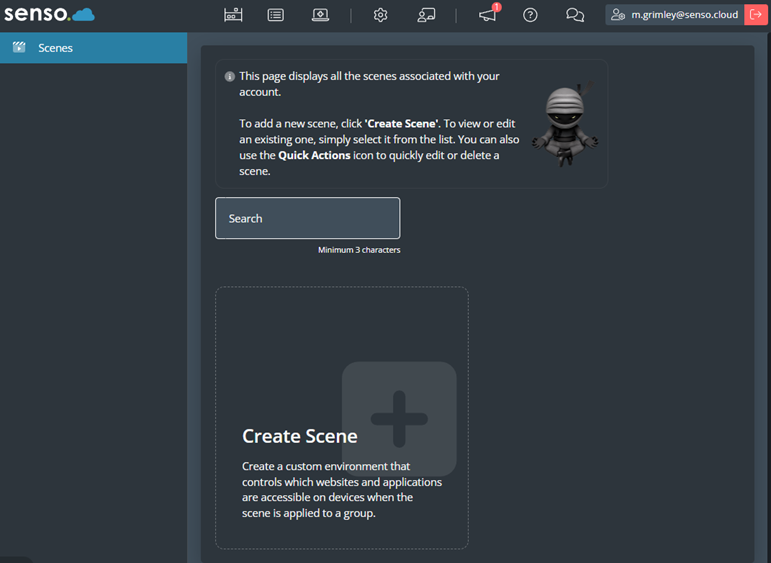
Select ‘Create Scene’.
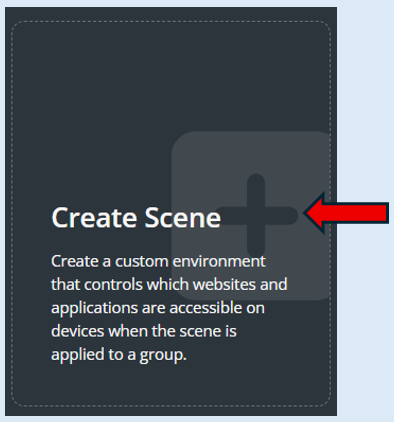
This will open a new page where you will start to create the Scene.
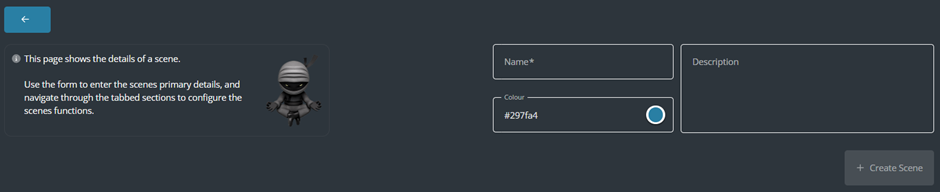
Enter in the scene name, choose the background colour (This is optional) and add in a description about the scene (This is optional).
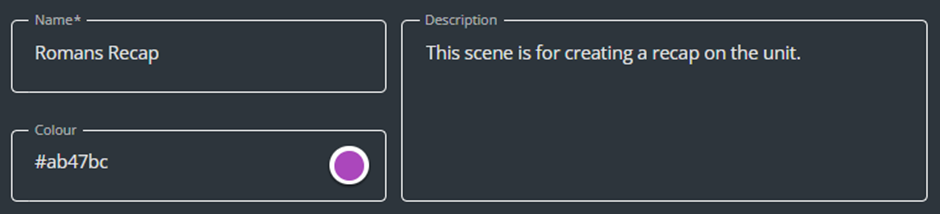
You have completed the first stage of your scene. The next decision is whether your Scene needs to be in either the ‘Allow Mode’ or ‘Block Mode’ setting.
For this Scene we will select the ‘Allow Mode’. This means the only websites or applications that can be accessed are the ones that you add into your list. Every other website and application will be blocked.
Please note – The Default Setting will be in the Allow Mode.
Initially the website Disable/Enable toggle button is set to ‘Disable’.
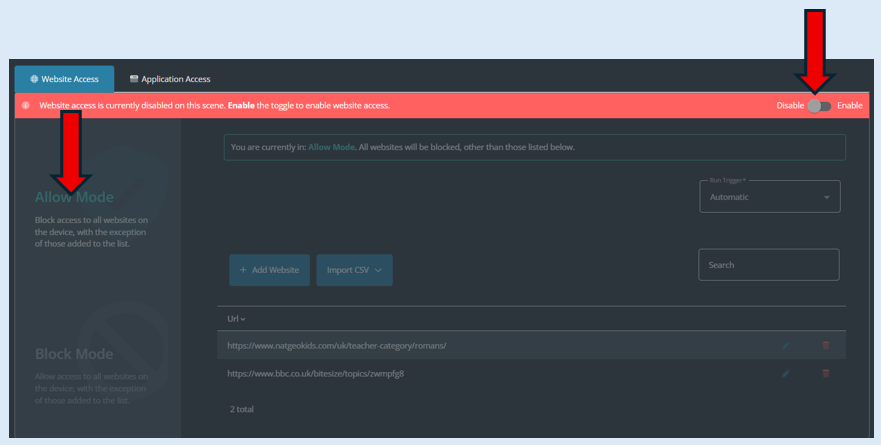
To start building your list of website addresses, this needs to be toggled to the ‘Enable’ position.

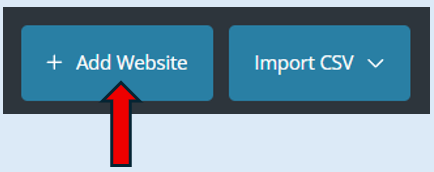
To add a website to your list, select the ‘Add Website’ button.
Enter in the website address that you want the students to be able to access. The first website I have entered is the BBC Bitesize Roman Empire link.
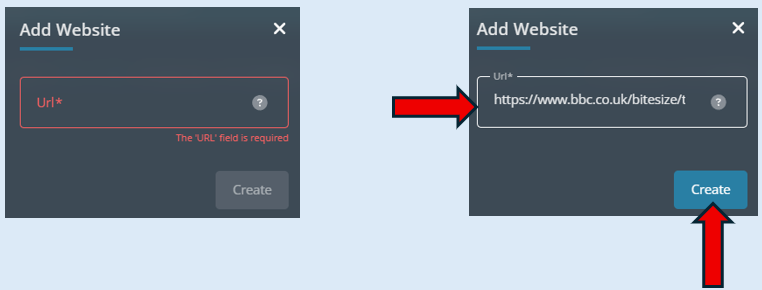
Then select ‘the ‘Create’ button.
The website address that you have entered will now appear in the ‘URL’ list.
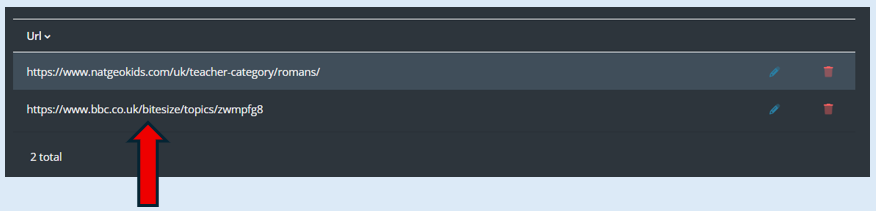
Repeat this process to add in any other websites that the students will need to access during this lesson. For this scene I have also added in the National Geographic Kids website for Roman Resources.
At this point I have added in the two websites that the students will be allowed to use during the lesson.
I now want to add in the application links that will be allowed during the lesson. To do this we need to select 'Application Access'.

Then select ‘Enable’.

I only want the students to be able to access ‘Note Pad’ to add in their 10 facts.
Click ‘Add Application’. Then enter in the application name. To make this quicker there is already a built-in list of most used applications to select from. Click on the ‘?’ icon, hover over the ‘Allow’ option and select the application.
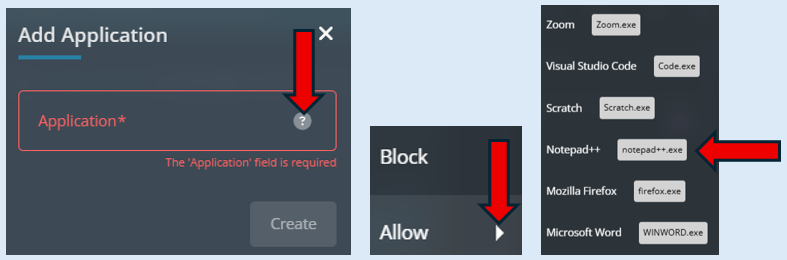
Your selection will then show in the box.
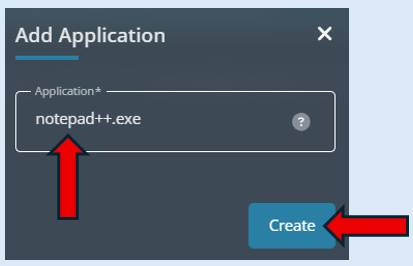
Select ‘Create’. This will now show in your list.

As we need to access websites during the lesson, we must also add in a browser application from the application list. Repeat the process.
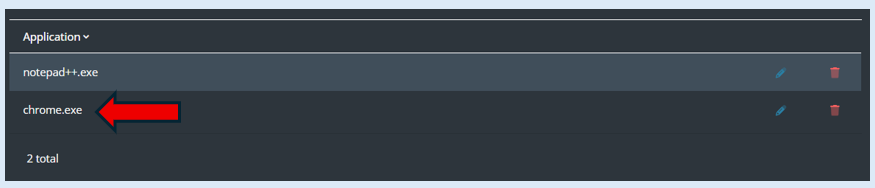
To recap, the scene now includes two websites that can be accessed and two applications.
The final step to complete creating the scene, is to select the ‘Create Scene’ button.
Once this has been selected you will automatically be taken to the Scenes landing page and the scene you have just created will now be visible.
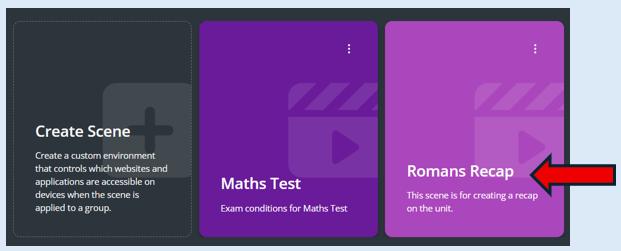
This scene will stay on the landing page unless you decide to delete it. It can be accessed at any time.
Please note there is a full guide which shows you how to use all of the functionality that is available in the Scenes module.