This module will show you how to make personal settings to your console.
The guide covers the 4 sections within the module.
Account
Switch Organisation
Layout Preferences
Module Preferences
Click on your email address which is located on the top dashboard

This will open the user preference options.
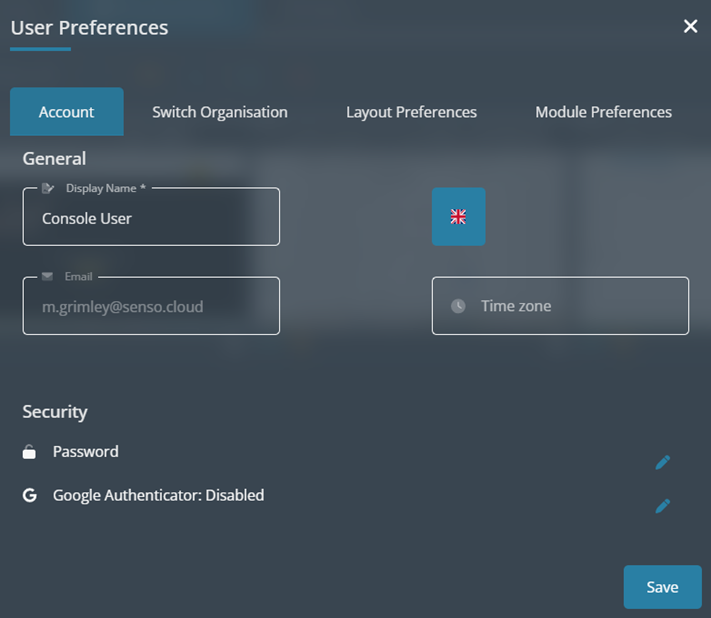
Account

Once selected the options for the page will open.
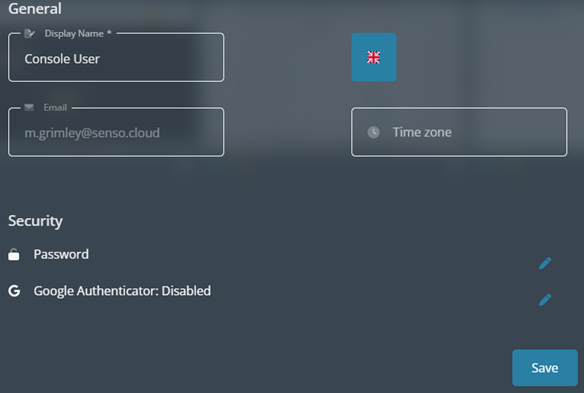
Display Name
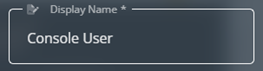
The display name that you enter here will be seen if you send a message through the portal.
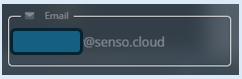
This shows you your email address. This can not be edited.
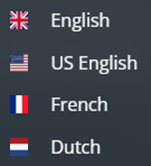
Language

If you click on this a drop-down menu will open and you can change the language setting for the console.
Time zone
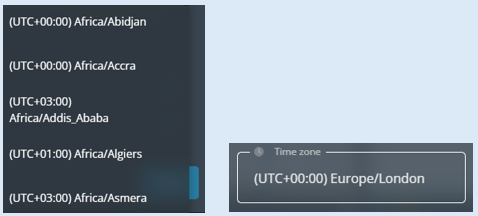
Click on this and a drop-down menu will open to select your time zone from.
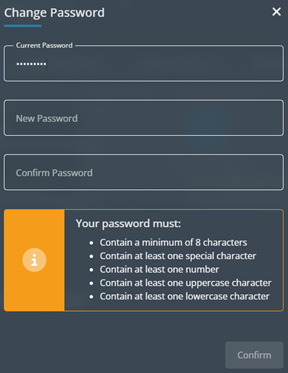
Security – Password

If you wish to change your password for your login to the console, click the blue edit icon.
Follow the instructions to create your new password.
Google Authenticator

If you wish to enable this option, click the blue edit icon. This will add a second step of verification when you sign in.
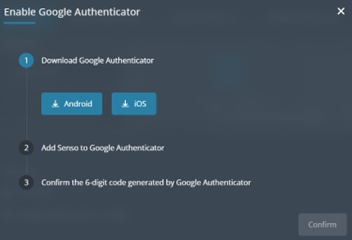
Follow the instructions to use this functionality.
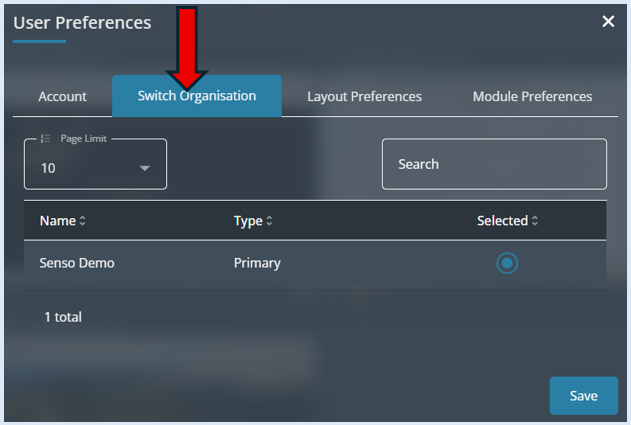
Switch Organisation
Page Limit
Search
You can search for sites that you have access to.
Organisation List
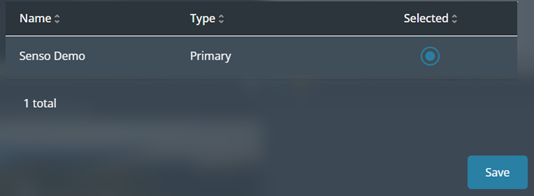
If you have access to more than one organisation, you can change to the one you wish to view.
After any changes that you have made, select ‘Save’.
Layout Preferences
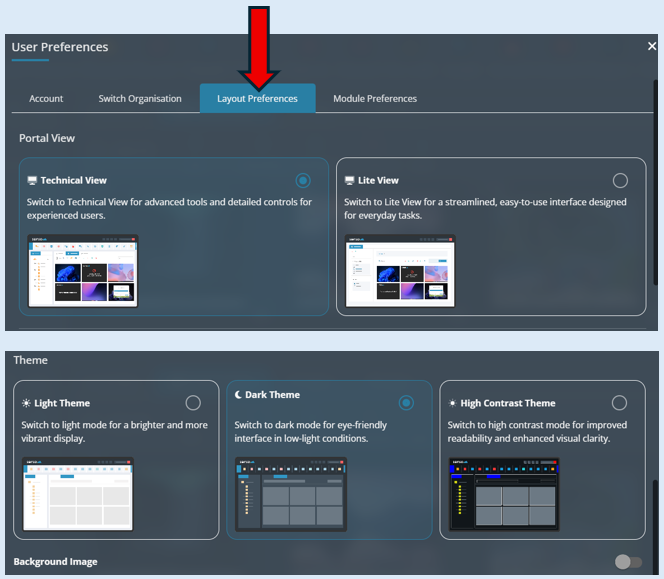
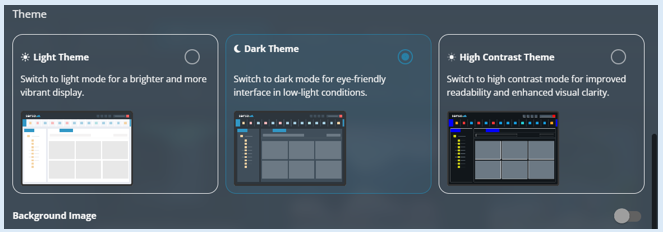
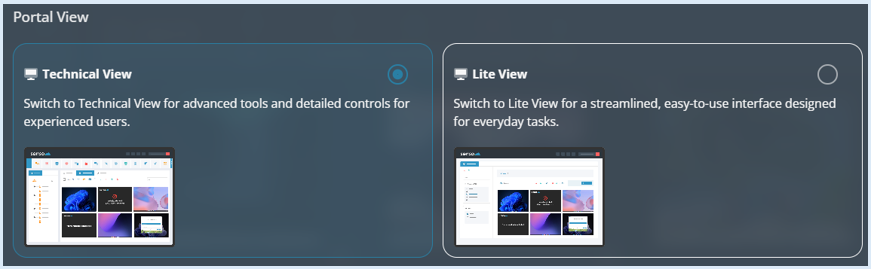
Portal View
This will allow you to choose from technical or standard view consoles
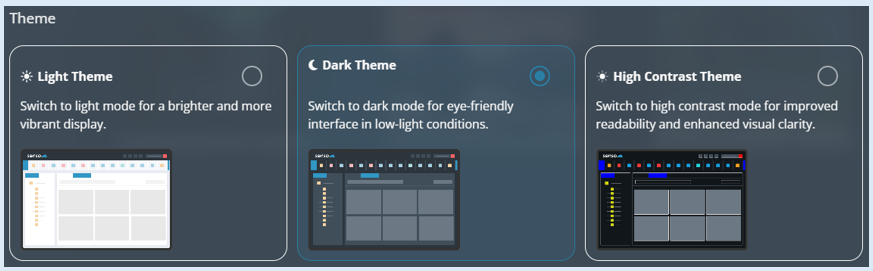
Theme
This will allow to to select how you view your console.
Background Image
This will allow you to remove the background picture which is set as the default.

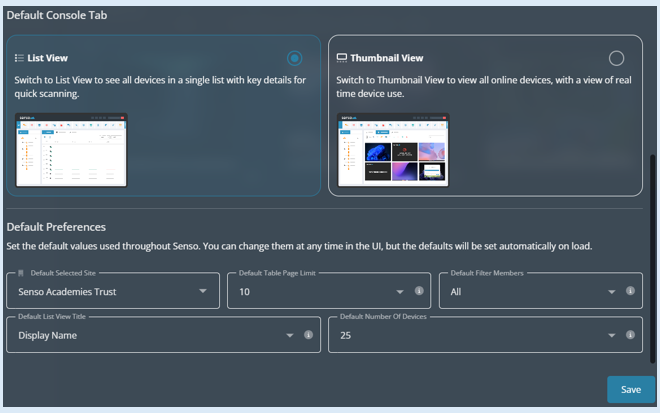
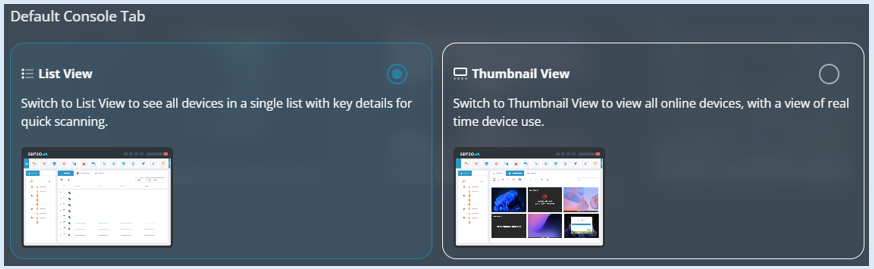
Default Console Tab
This allows you to select how you view the users/devices within your selected group.
Default Preferences
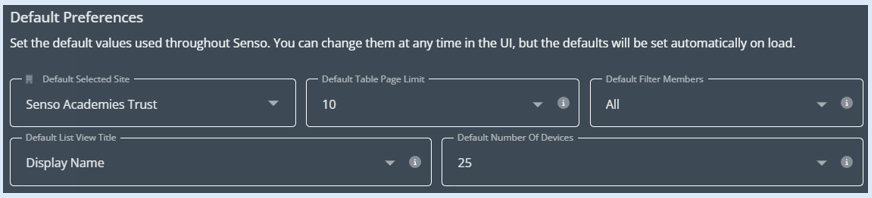
Default Selected Site – If you have access to more than one site, this will allow you to set the default site that you will see.
Default Table Page Limit – This setting will default the number of items shown on each page in table views.
Default Filter Members – This setting will default the filter applied to List View.
Default List View Title – This setting will default the data shown in the user column when viewing devices in List View.
Default Number of Devices – This setting will default the number of devices displayed in List View.
Select ‘Save’ after any changes you have made.
Module Preferences
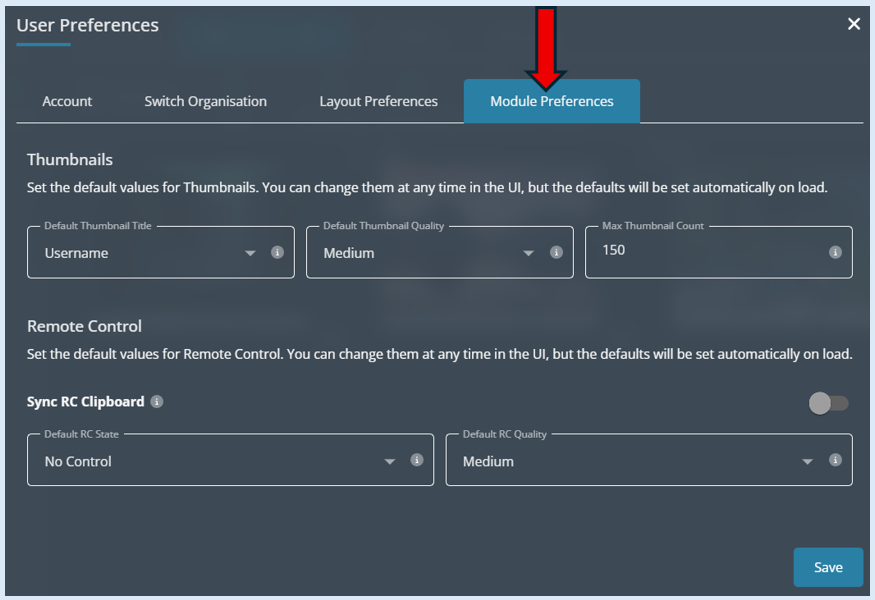
Thumbnails
Default Thumbnail Title – This setting will default the data shown in the device thumbnail title
Default Thumbnail Quality – This setting will default the quality of thumbnails.
Max Thumbnail Count – This setting will set the maximum number of Thumbnails to be shown in Thumbnail view
Remote Control
Sync RC Clipboard – This setting will determine whether Remote Control clipboard syncing is enabled by default.
Default RC Quality – This setting will default the quality of the Remote Control view.
Select ‘Save’ after any changes you have made.