
This module will allow you to instantly disable access to the internet on any selected devices and then enable it when required.
Click on the ‘Disable Internet’ Module icon which is located on the task bar.
This will open the module options.
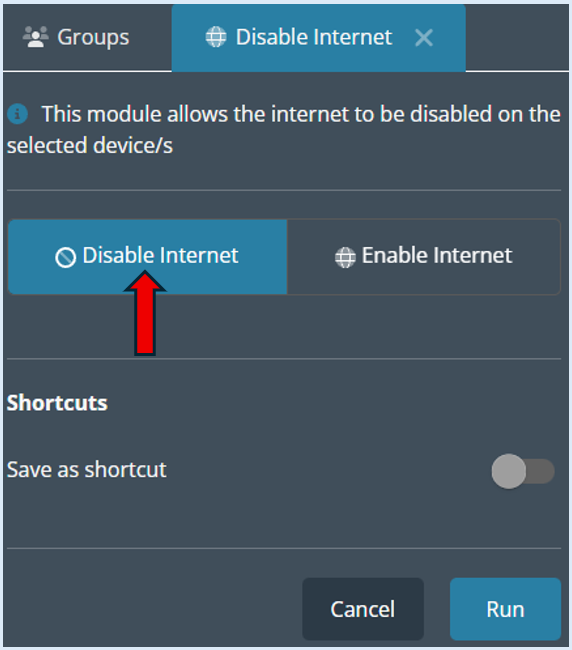
The default setting is for the internet to be disabled.
Disable the Internet
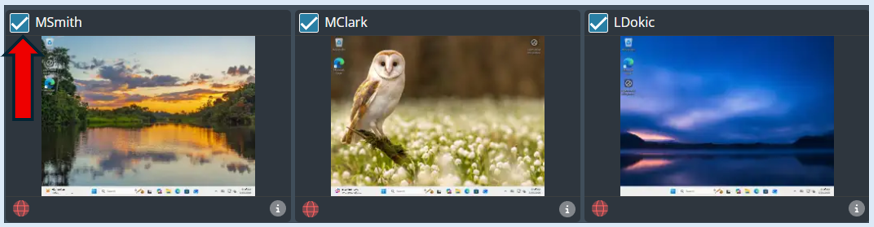
Select the users/devices that you want to disable the internet on by ticking the thumbnails individually.

If you need to block the internet for the entire group, select the ‘Select All’ option.
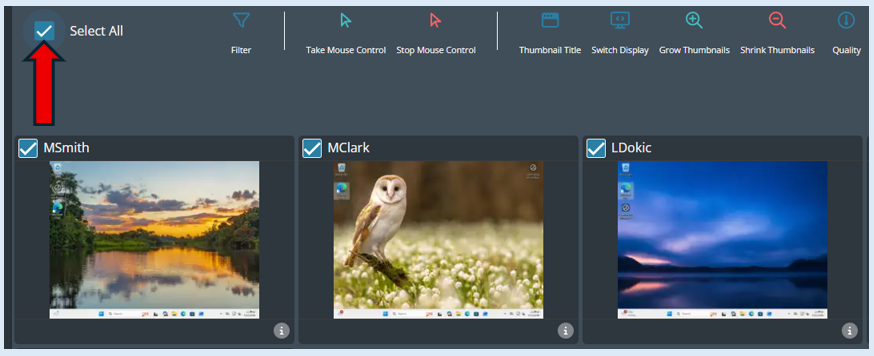
This will select all of the devices; this is indicated with a tick on each thumbnail.
Next all you need to do is click the ‘Run’ button.

A log will show that this action has been completed.
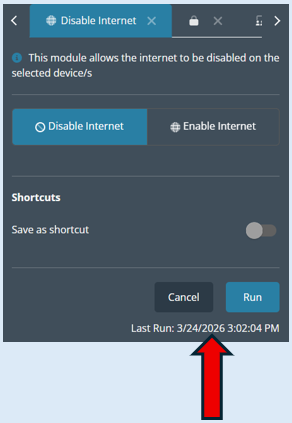
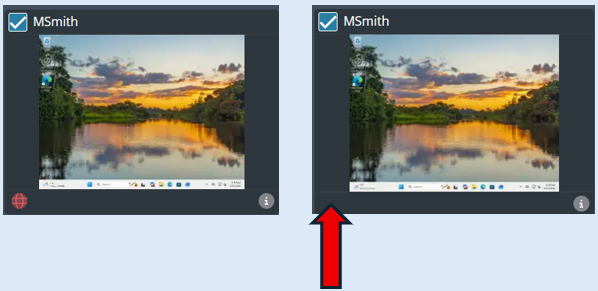
All of the selected devices will have an Internet disabled icon appear on the thumbnail.
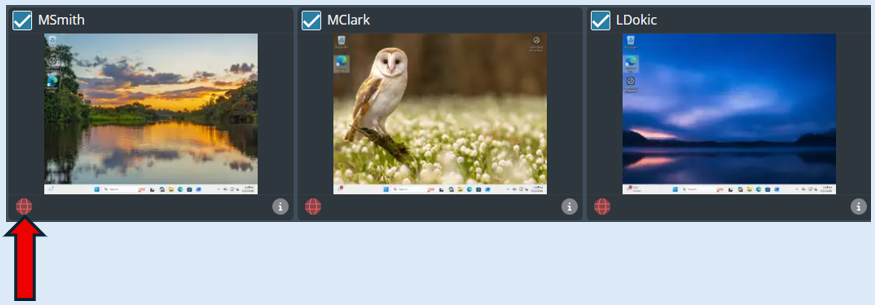
If a user tries to access the internet, they will receive a notification on their screen informing them that the internet is disabled.

Please note – A user will still be able to access browsers but not access a website.
Enable the Internet
To allow access to the internet if you have blocked it, first select the devices.
Select the ‘Enable Internet’ option. 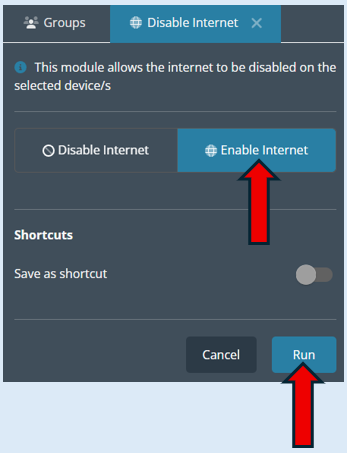
Select ‘Run’
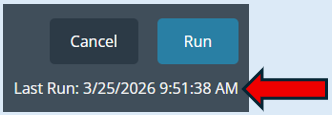
A log will show to confirm your action.
You will also see that the ‘Internet Disable’ icon will be removed indicating the device can now access the internet.
Top Tip – You can create a shortcut or a shortcut with an Icon for the actions available in this module. Please see the guide titled ‘Creating Shortcuts’.