
This module will allow you to communicate directly with any user in your group. You can do this on a one-to-one basis, or you can send a message to multiple devices at the same time. If you select multiple devices the chat is still on a one-to-one basis with each user. Only the console user can initiate the chat, users within the group can not chat to each other or start a chat.
Select ‘Live Chat’ from the task bar.

This will open the options box.
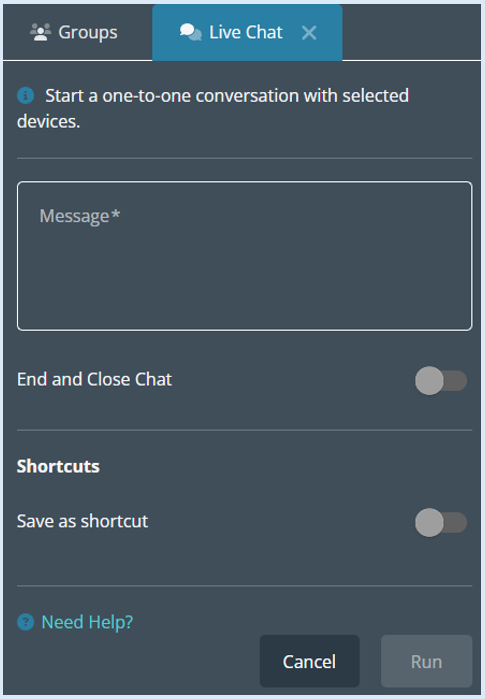
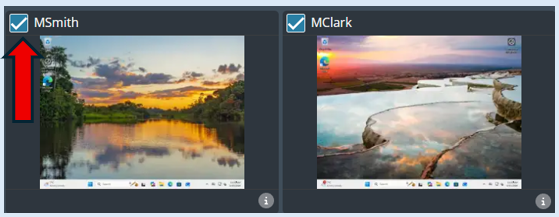
Top Tip - Remember to select the device/users that you would like to chat to.
To select a user/device, tick the ‘Select Box’ at the top of the thumbnail.
Add in the message that you would like to start the chat with.
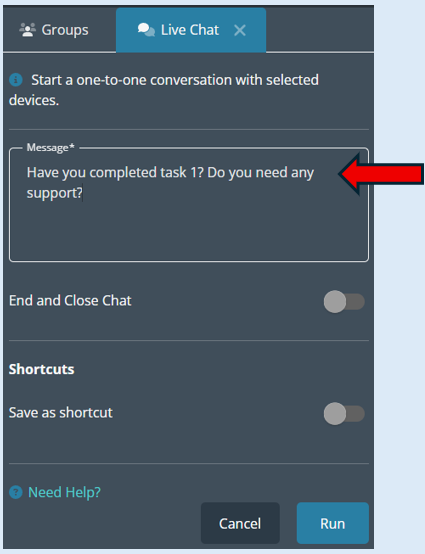
Select ‘Run’ to send the message out to the selected devices. The chat window will open on the user’s screen.
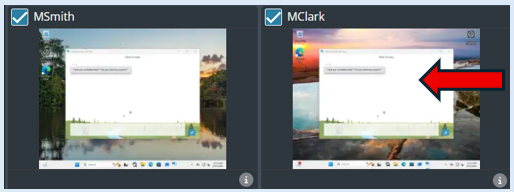
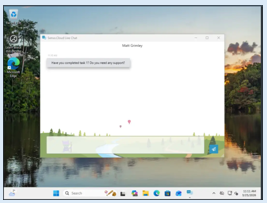
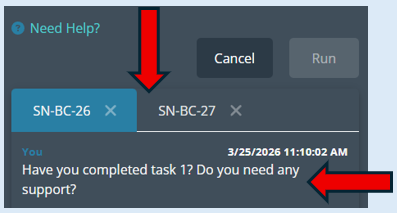
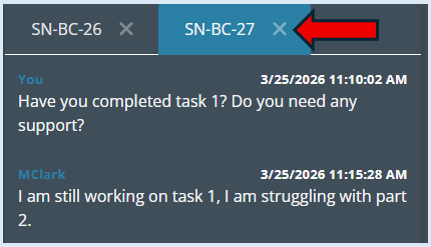
A log will be created showing that the message has been sent and a tab will open for each device that it has been sent to.
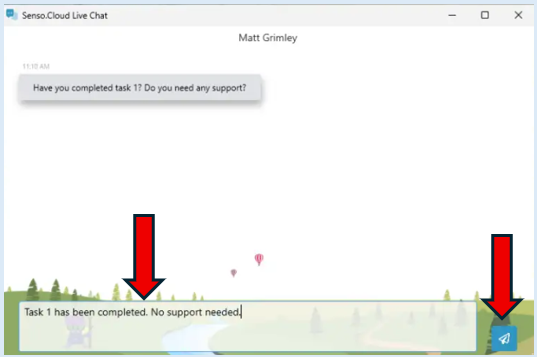
The user can now reply to the message by typing in the box and then clicking on the send icon.
The message that is sent from the user will then show within the ’Live Chat’ module at the bottom of the options box.
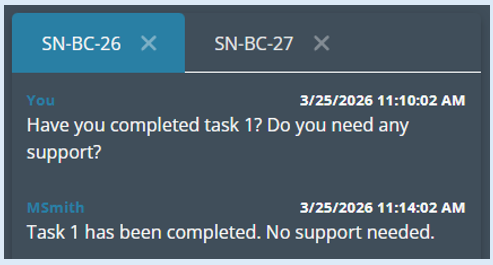
The logs will show who has replied to the message and at what time.
The tab will turn blue indicating which user/device live chat dialogue is being shown. You can select any of the tabs to move between your different chat dialogues.
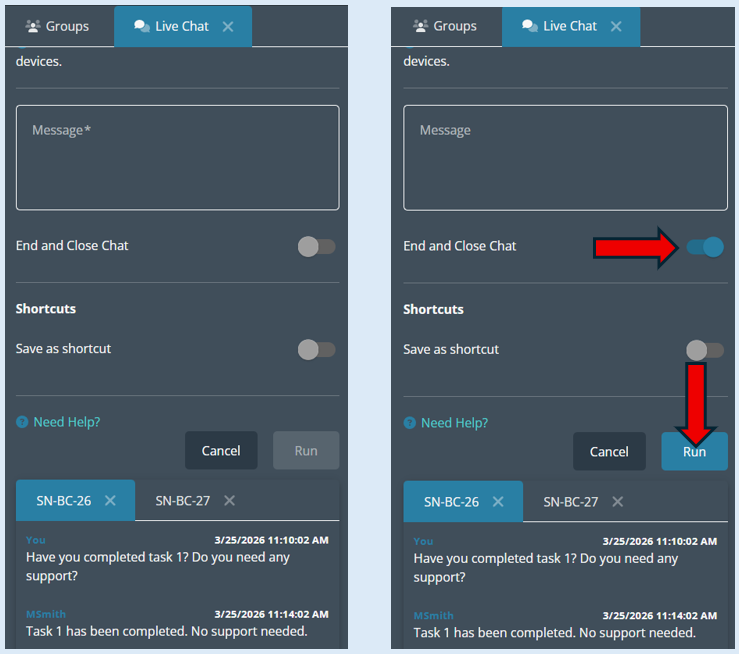
To end the chat, toggle the ‘End and Close’ toggle to the ‘On’ position and then select ‘Run’. This will end the chat. The user can then close the chat window.
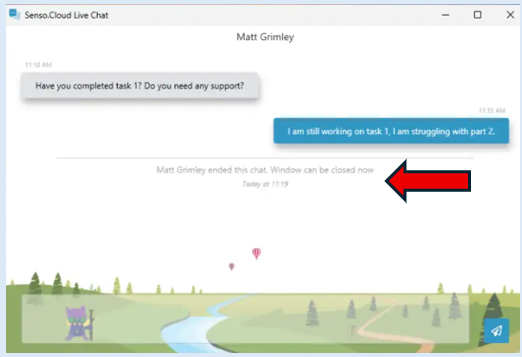
The user will not be able to close the Live Chat window until the ‘End and Close’ action has been run. A notification will appear in the chat window to let the user know that the chat has ended.
Top tip – You can create shortcuts within this module. Please see the guide called ‘Creating Shortcuts’.