
This guide will provide you essential information about the ‘Thumbnail View’ that you can use within your console.
When using the console, you have two options as to how you view the group you are working with. These are the ‘List view’ and the ‘Thumbnail View’. The default view can be set to your preference. This can be done via user preferences. Please see guide title ‘User Preferences’.
Initially select your group.
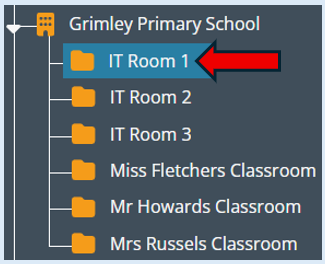
The users/devices in this group will appear on the main section of the console. Your console may have the default setting of showing the thumbnail view however if it doesn’t just select the thumbnails option.
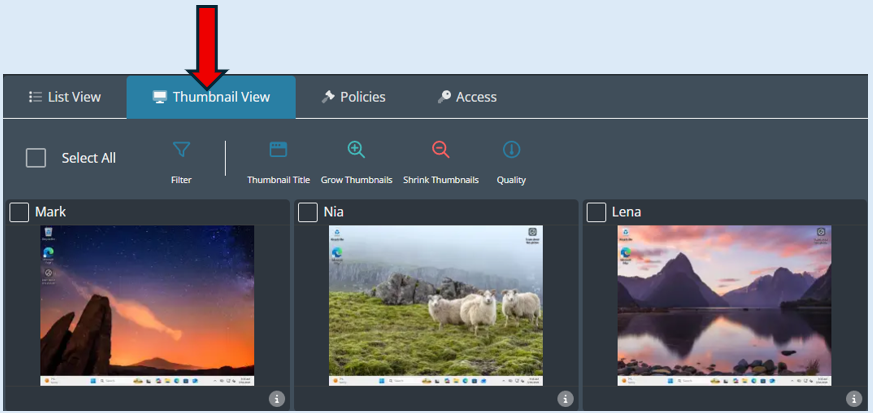
The thumbnail view will show you all the devices/users in your group and you can view their screens in real time.
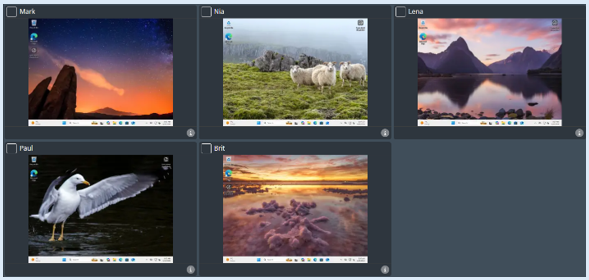
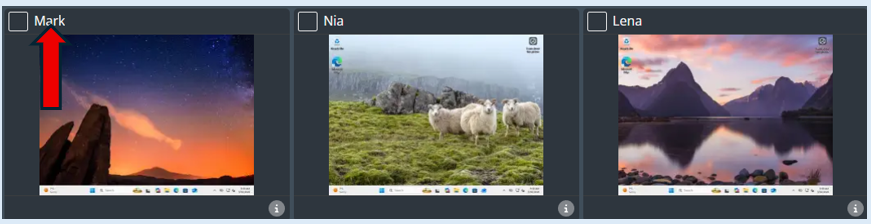
Each thumbnail has a title to identify the user/device.
To look at a single device, click on the thumbnail. This chosen thumbnail will increase its size and will be the only thumbnail on your screen. The user/device name will appear on the task bar.
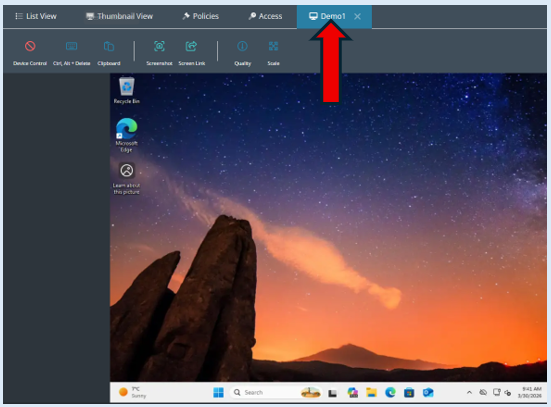
To go back to the initial view of all thumbnails showing on your screen, click on the cross next to the user/device name.

Additional Functionality
Above the thumbnails there are several icons (Thumbnail Options) that you can use whilst in the thumbnail view. These are easy to access and action.

Control
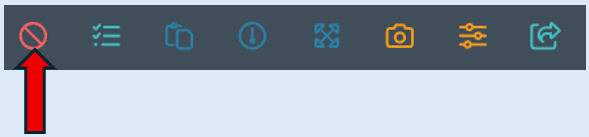
Click this icon to take control of the device you have selected.
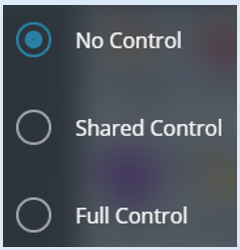
You have three options to choose from.
Ctrl+Alt+Del
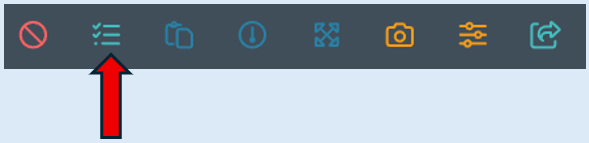
After clicking the icon an additional option box will open.
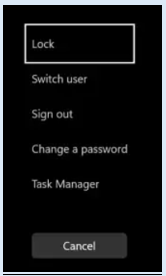
Clipboard
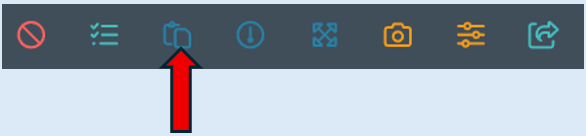
After clicking the icon an additional option box will open.
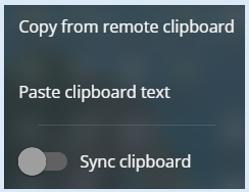
Quality icon
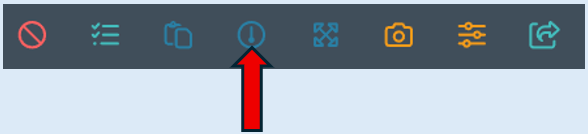
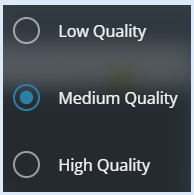
This option will allow you to select the quality of the thumbnails that you are viewing.
The default is set at ‘Medium Quality’.
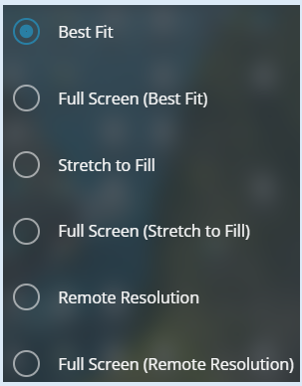
Screen Scale
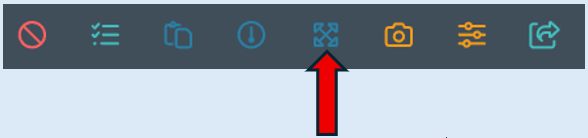
This option will allow you to select how you view your console screen.
Save Screen
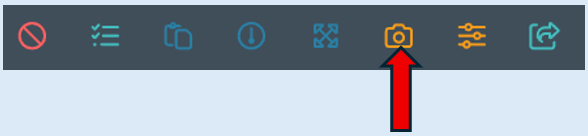
This option will allow you to instantly take a screenshot of the device you have selected.
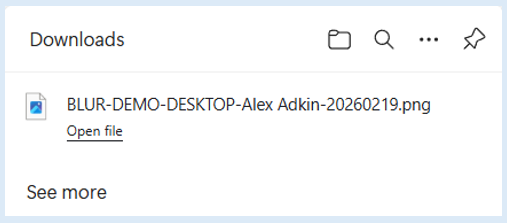
It will be saved into your ‘Downloads’ folder.

Share Remote Screen link
This will allow you to share the link for the screen selected.