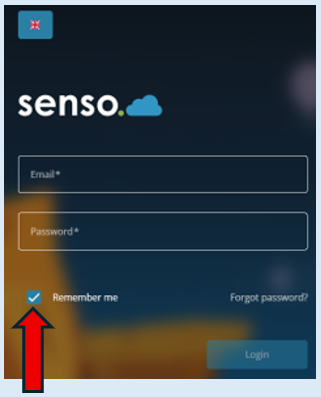
This guide will show you how to access Senso.cloud and then access your console via your login details or via the Single Sign On option. It will also show you how to reset your password if required.
The website address that you need to type in is - https://app.senso.cloud
This will take you to the login page.
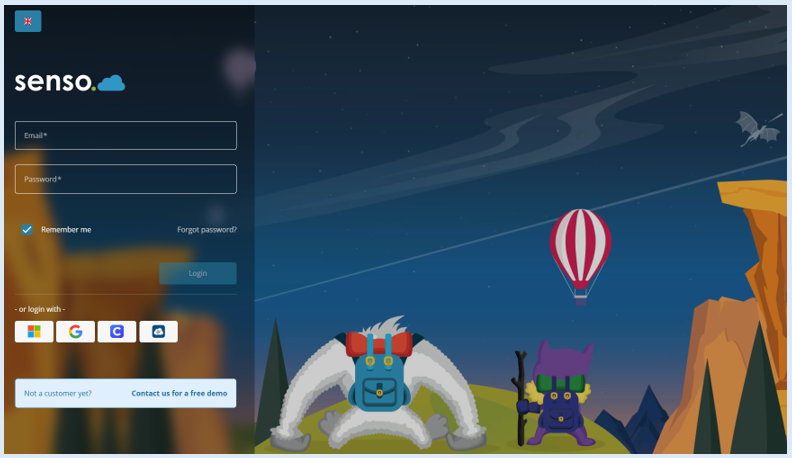
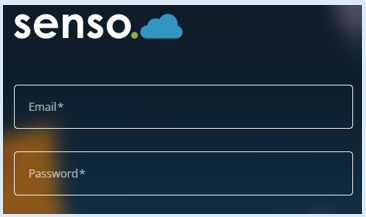
Your IT team will provide you with the email address and initial password that you will need to use, to access the Senso Console.
Enter these details in, on your initial login.
Select the ‘Login’ button.
This will open your console and the access you have been given within it.
Top Tip – Save the website address as a favourite.

Single Sign On
You can also use SSO (Single Sign On) to access your console. This will only work if SSO has been integrated with the Senso.cloud platform.
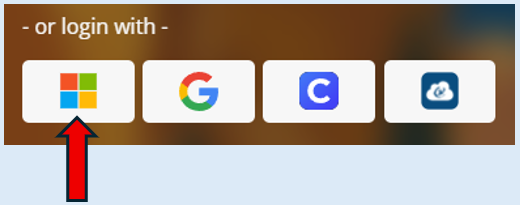 Just select the option that has been integrated with Senso.cloud.
Reset Password
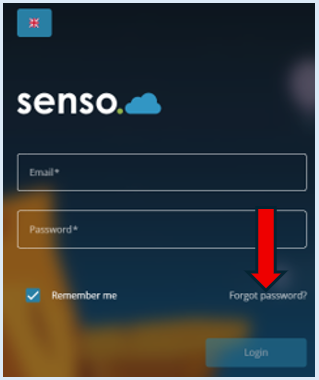
If you are ever in the position where you can’t remember your password, select the ‘Forgot Password’ option.
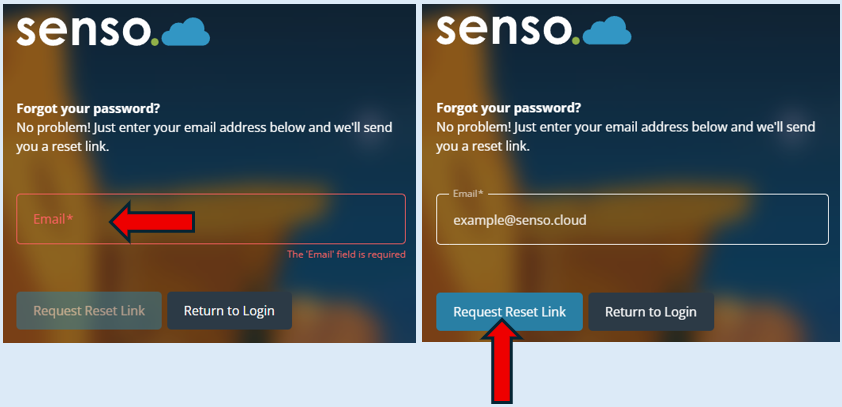
Enter in your email address and select ‘Request Reset’ link.
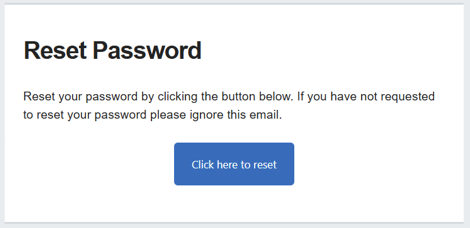
You will receive an email. Click on the ‘Click here to reset’ button.
Follow the instructions to reset your password.
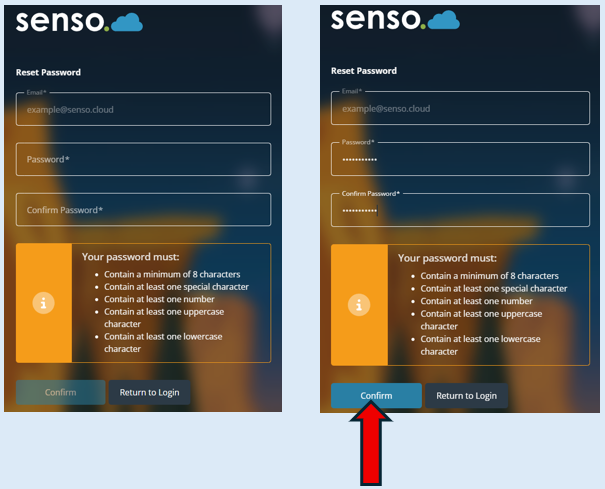
Once you have entered in the required details, select ‘Confirm’.
Other Functionality
You can tick the ‘Remember me’ box if you would like your details to be remembered for the next time you log in.