
As well as having access to the modules there is additional functionality that you can use within the console. This guide will focus on the functionality when using the thumbnail view.
Once you have logged in to the console and selected the group you wish to work with you will have access to the features that have been assigned to your console.
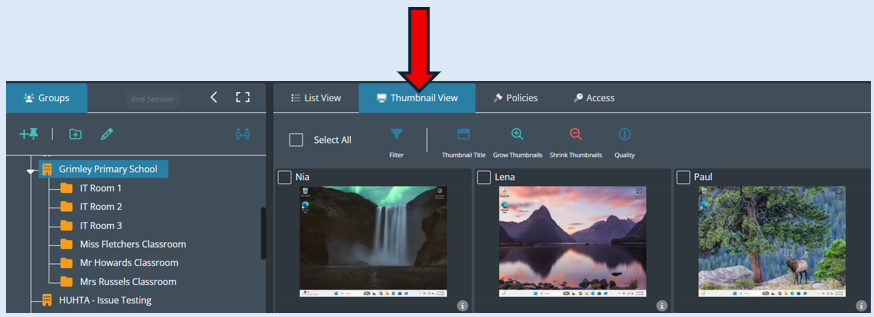
This guide will focus on the Mini Dashboard which appears under the ‘Thumbnail View’ option.
Select All
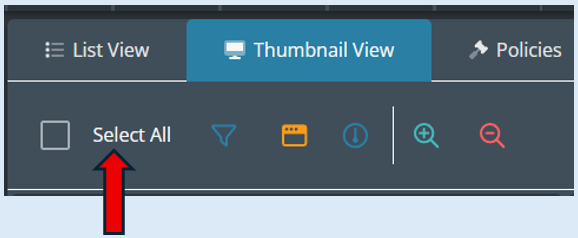
If you tick this box, all the active devices within the group will be selected to perform an action against.
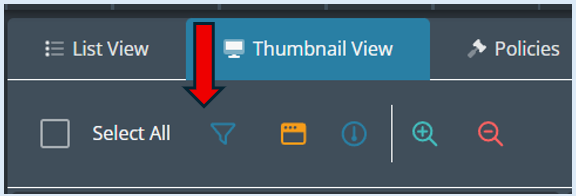
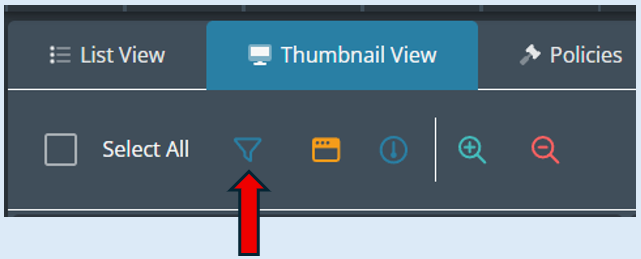
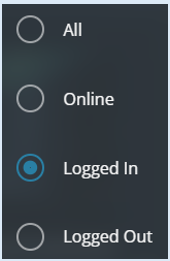
Filter icon
The next icon will provide you with a filter to decide which devices you would like to show on your screen.
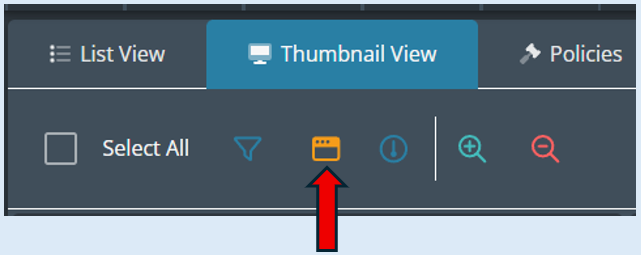
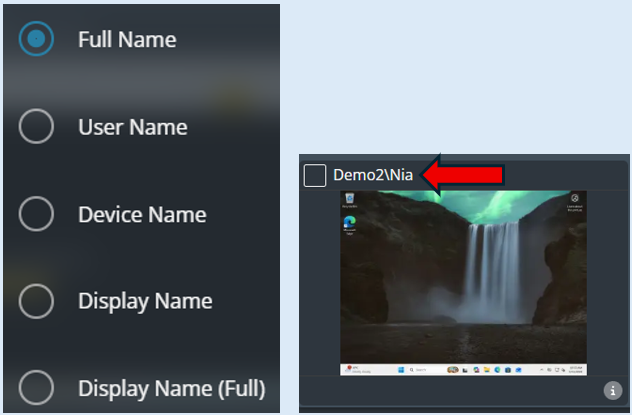
Thumbnail title
This option will allow you to choose how the title of the thumbnail is shown.
Quality icon
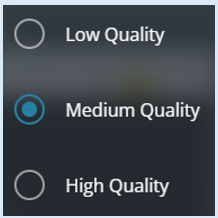
This option will allow you to select the quality of the thumbnails that you are viewing.
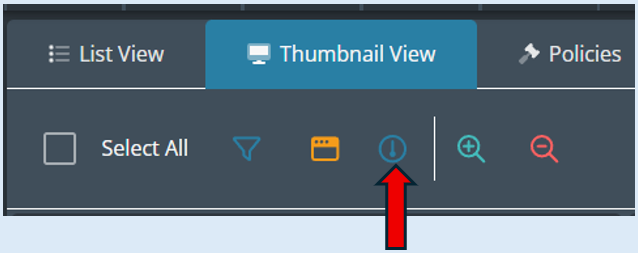
The default is set at ‘Medium Quality’.
Thumbnail size icons
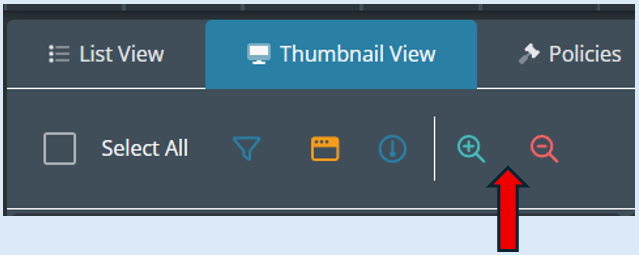
This option allows you to select the size of the thumbnails that you are viewing within the console.
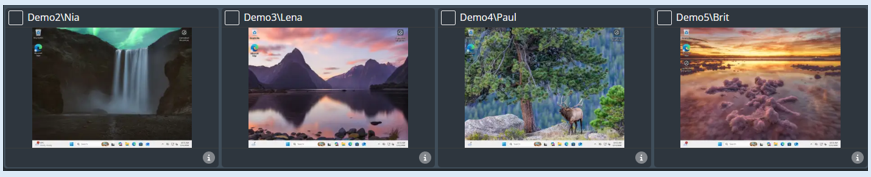
If you select ‘Grow Thumbnails’ each thumbnail will increase in size.
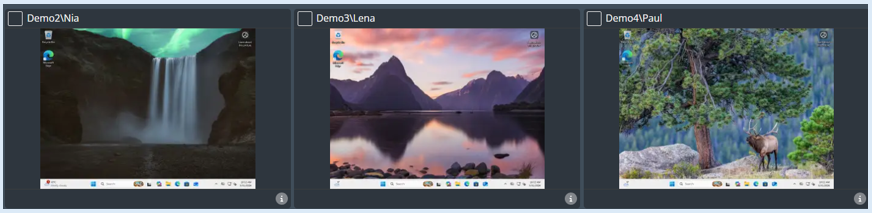
If you select ‘Shrink Thumbnails’ each thumbnail will decrease in size.
