
This guide will show you how to lock and unlock screens on the devices within a group whether that is the entire group or specific devices.
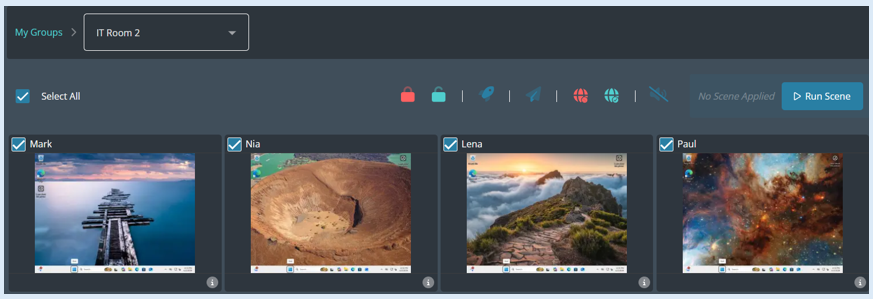
Once you have logged in to your console and accessed the group, the Lite console view will be ready to use.
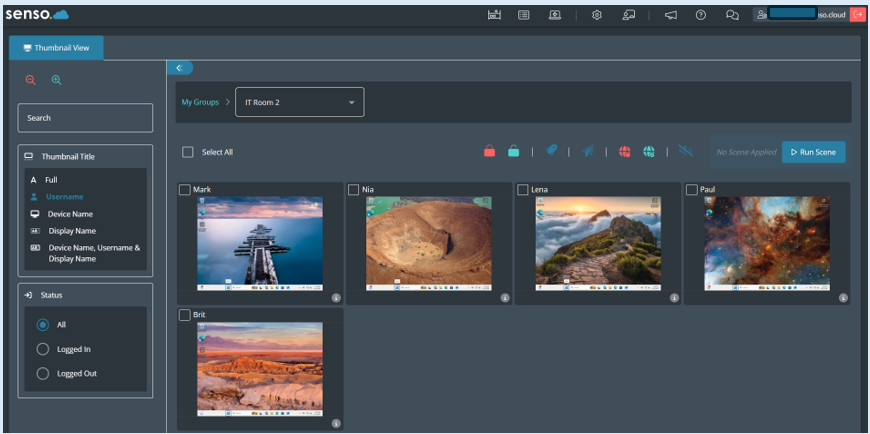
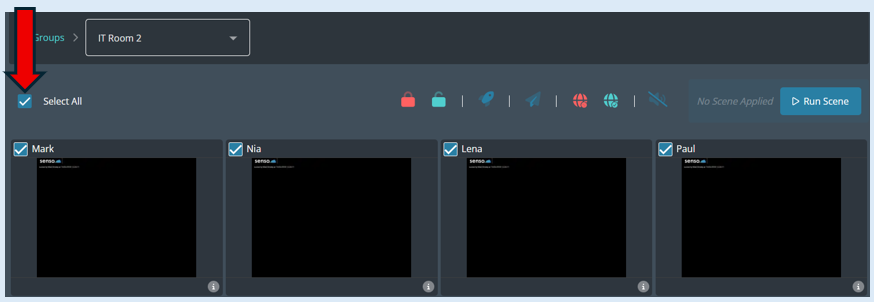
To lock the screens for the entire group, first you will need to click on the ‘Select All’ icon.
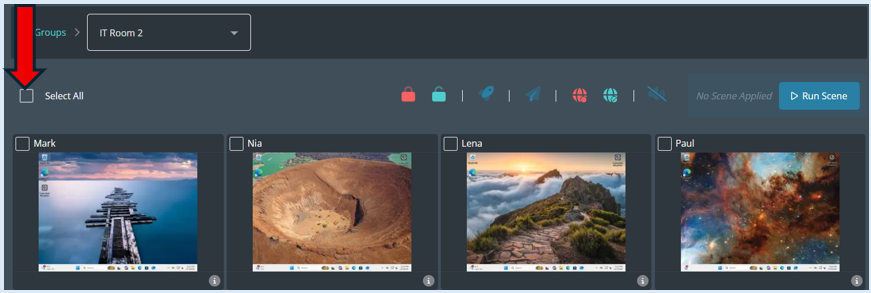
All of the thumbnails will have a tick on them indicating that they have been selected.
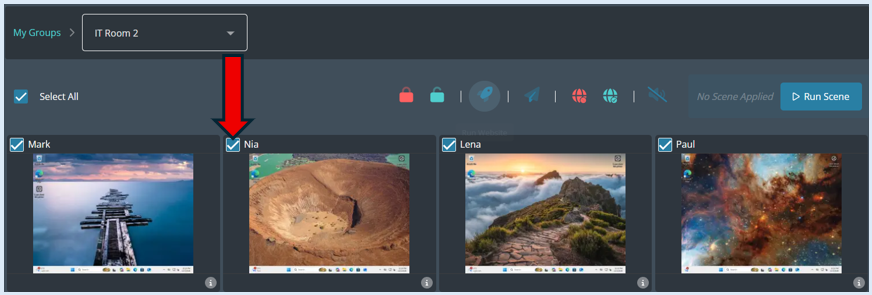
Next you will need to select the ‘Lock Screen’ icon which is located on the dashboard.
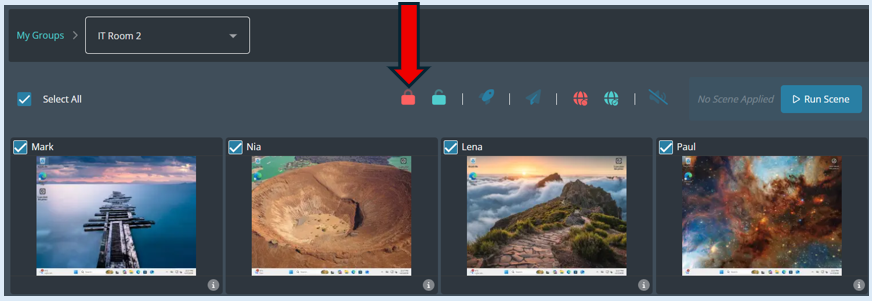
Once you click the ‘Lock Screen’ icon all of the screens will automatically lock, the users will now be unable to use them.
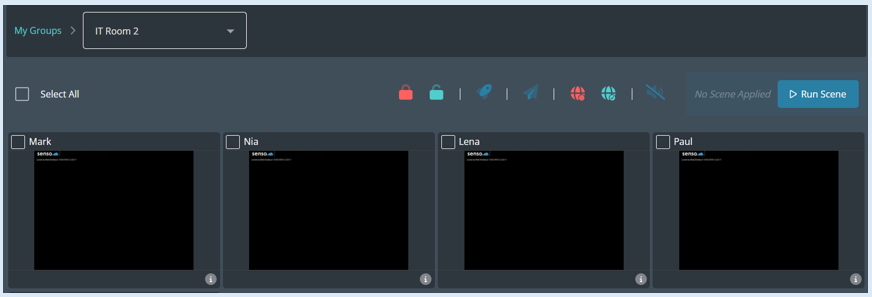
There will be a message on each of the device screens so the user is aware of what has happened to their device.

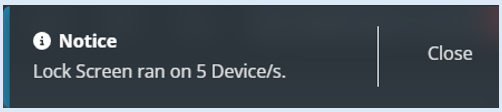
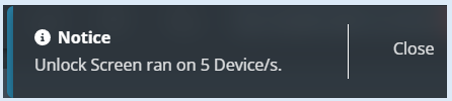
When you select the ‘Lock Screen’ icon a pop-up notification will show confirming your action.
To unlock the screens, click the ‘Select All’ icon.
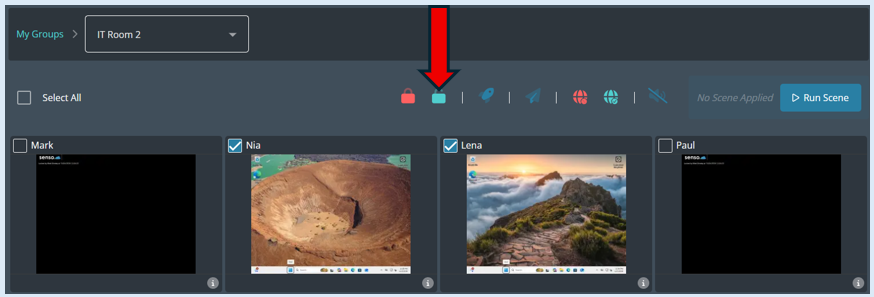
Next select the ‘Unlock Screen’ icon.
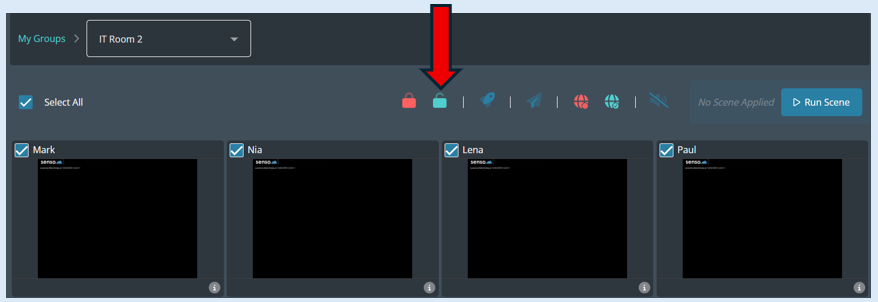
Once selected, the lock screen action will be removed, the users will now have access to their devices again.
You will also get a pop-up notification confirming the action.
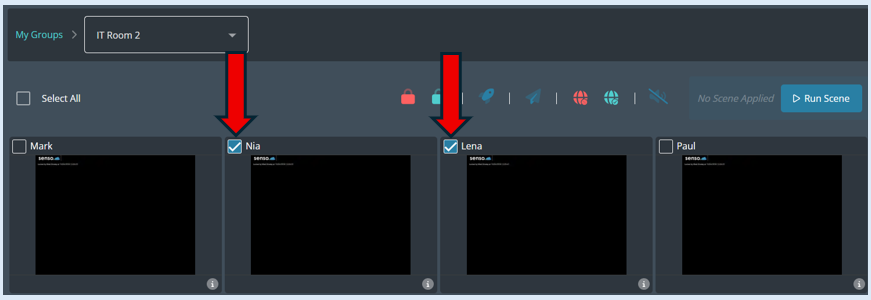
Please note that you can unlock any screen at any point, just select the devices by ticking their thumbnail.
Then select the ‘Unlock Screen’ Icon. The selected devices will now be unlocked for the users to use.
If you need to lock an induvial screen or several devices, select the required devices by ticking the thumbnails.
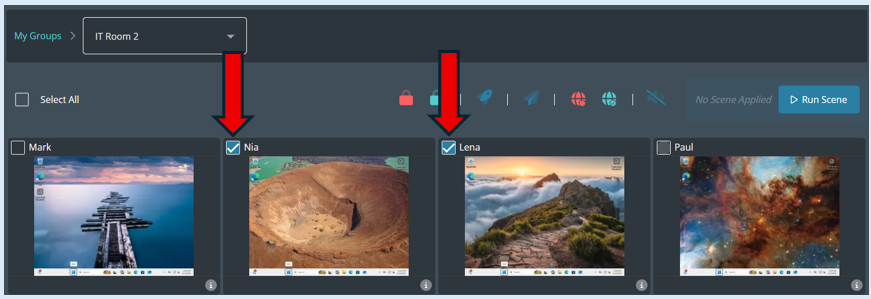
Select the ‘Lock Screen’ icon and the selected devices will be locked.
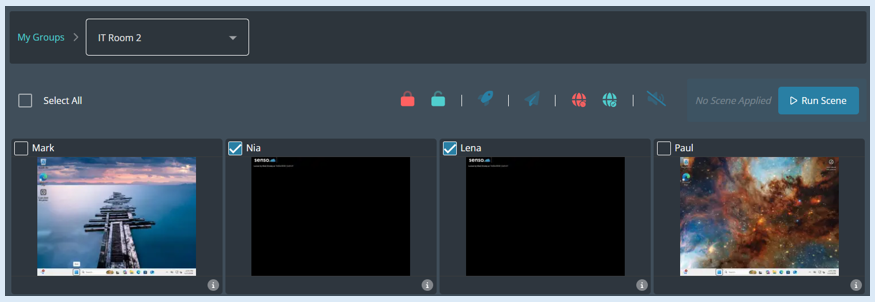
To unlock the devices, it is the same process as explained above. Select the relevant devices and then select the ‘Unlock Screen’ icon.