
This guide will show you how to run a website on the devices within your group. This could be the entire group or on specific devices.
Once you have logged in to your console and accessed the group you will be working with the Lite Console view will be ready to use.
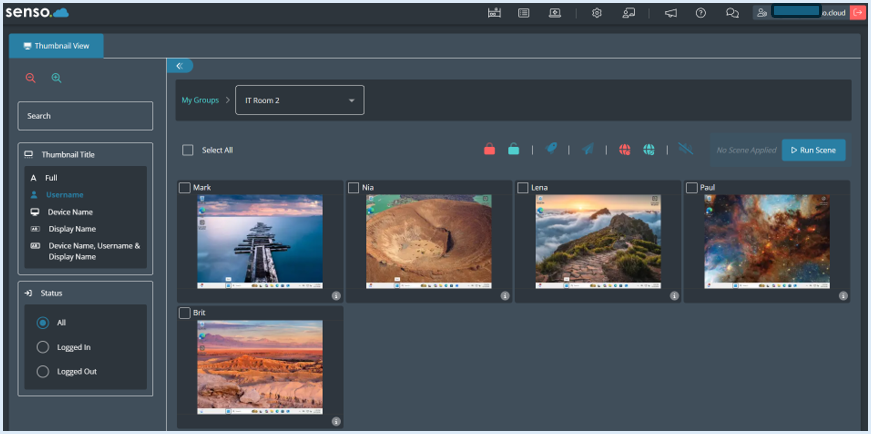
To run a website on all devices across your entire group, first you will need to click on the ‘Select All’ icon.
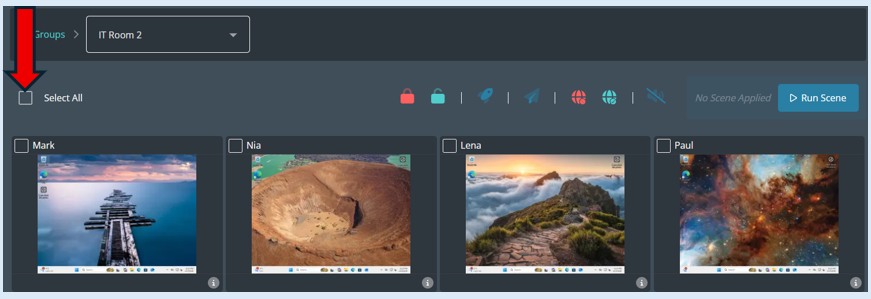
All of the thumbnails will have a tick on them indicating that they have been selected.
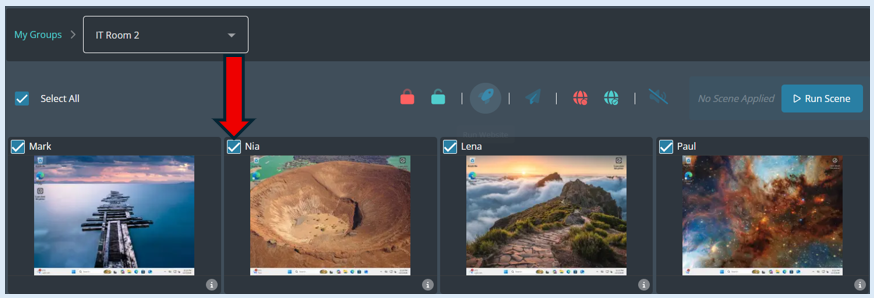
Next you will need to select the ‘Run Website’ icon which is located on the dashboard.
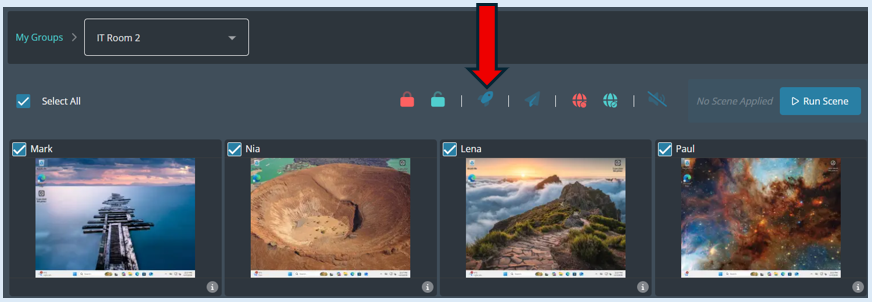
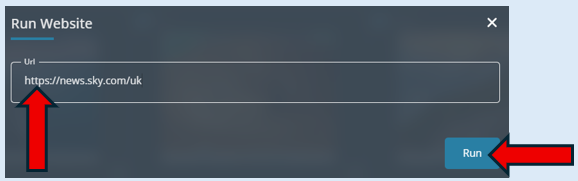
Once selected a pop-up box will open. Enter in the URL (Website Address). The address will need to contain https:// at the beginning. Then select ‘Run’.
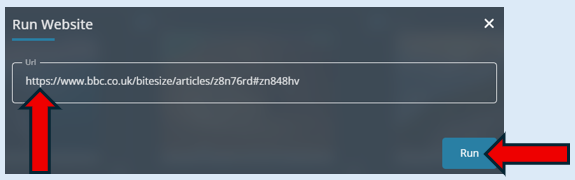
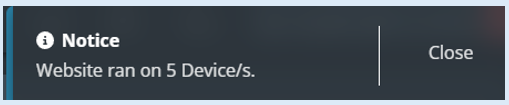
You will receive a pop-up notification confirming your action.
The selected website will automatically open on all devices within your group.
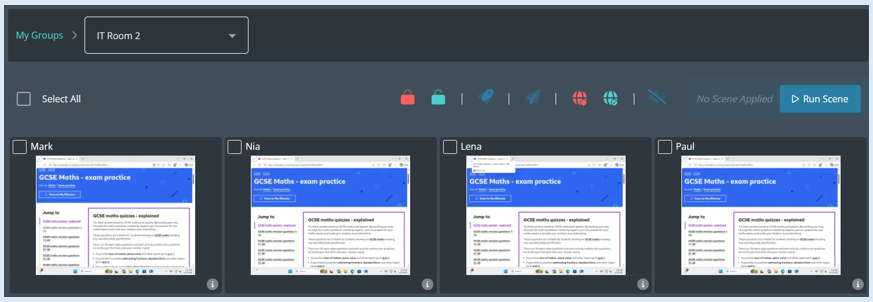
The users will now be able to access the website. Please note the user does have control of their device and is able to close the website themselves.
If you would like to open a website on just several selected devices within the group. Select which devices this needs to be by ticking the box on each of the thumbnails.
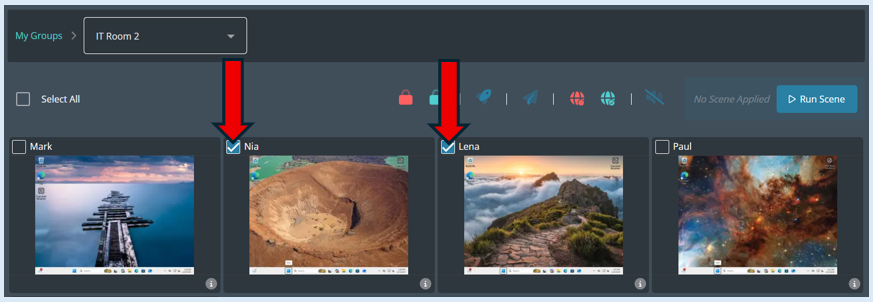
Next you will need to select the ‘Run Website’ icon which is located on the dashboard.
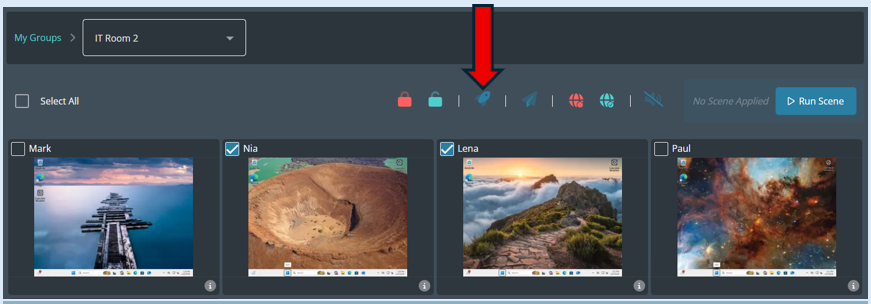
Once selected a pop-up box will open. Enter in the URL (Website Address). The address will need to contain https:// at the beginning. Then select ‘Run’.
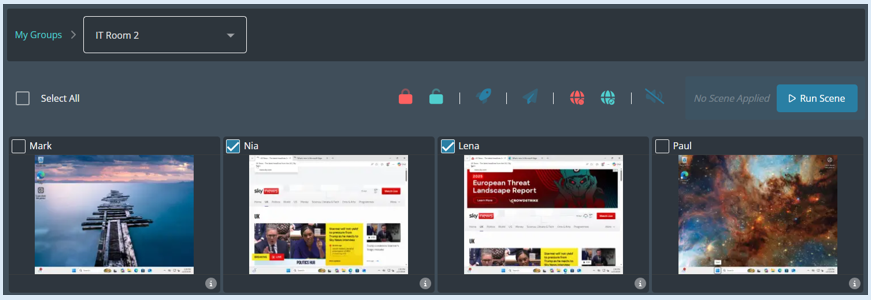
This website will automatically open on the selected devices.
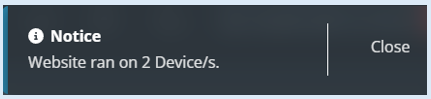
You will also see a pop-up notification confirming your action.
You can run different websites on different devices if you would like to.