
This guide will show you how to send a message to all of the devices within a group whether that is the entire group or specific devices.
Once you have logged in to your console and accessed the group, the Lite console view will be ready to use.
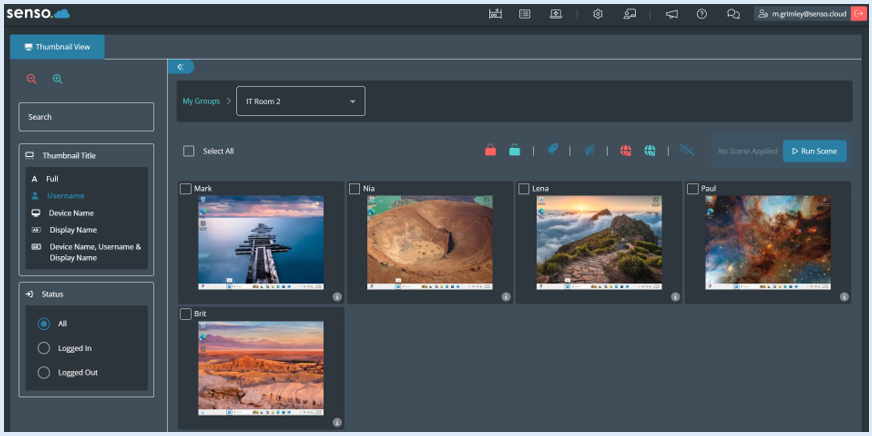
To send a message to the entire group, first you will need to click on the ‘Select All’ icon.
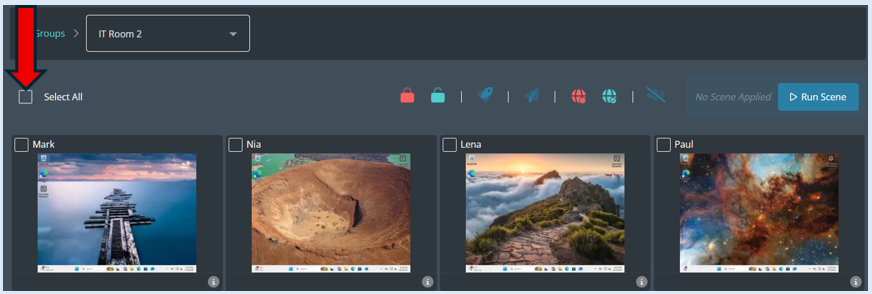
All of the thumbnails will have a tick on them indicating that they have been selected.
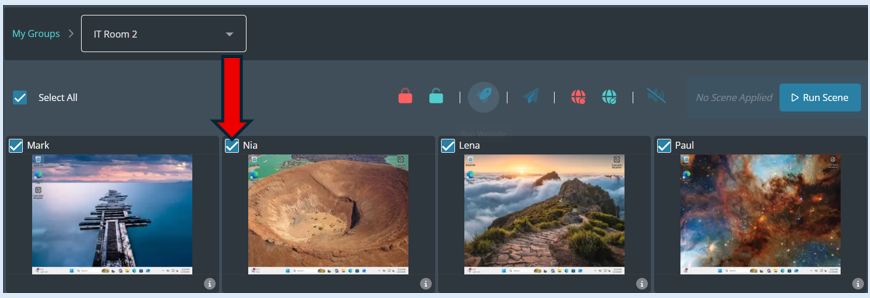
Next you will need to select the ‘Send Message’ icon which is located on the dashboard.
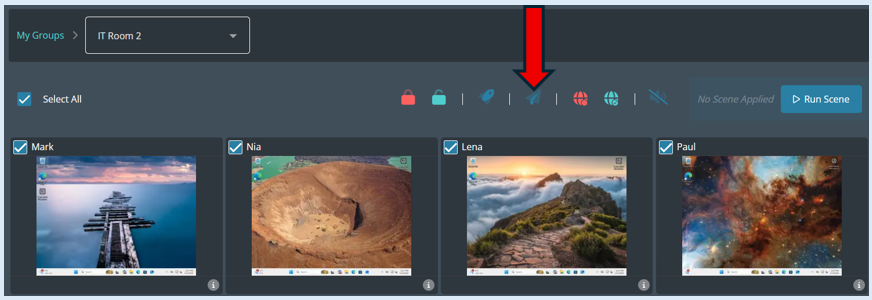
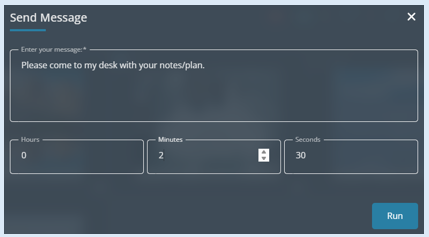
Once you click the ‘Send Message’ icon an additional box will open.
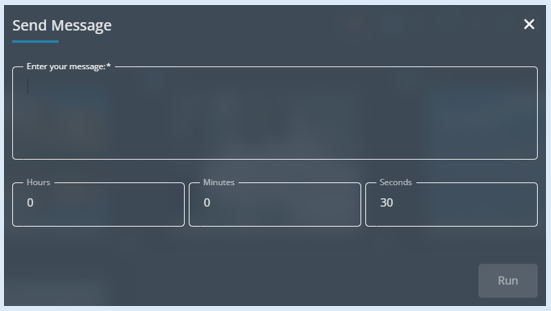
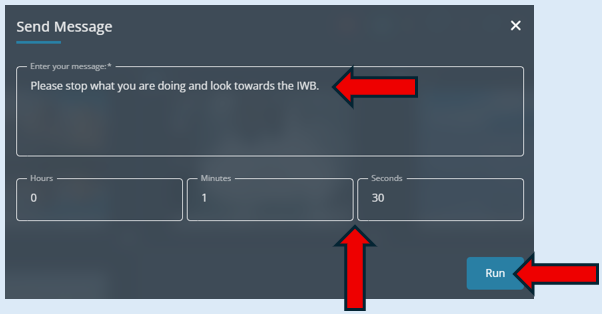
Enter in the message that you would like to send to the users and then decide how long the message will stay on the user’s screens for. Select ‘Run’.
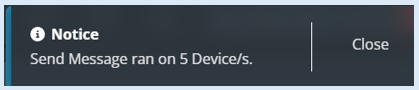
A pop-up notification will show confirming your action.
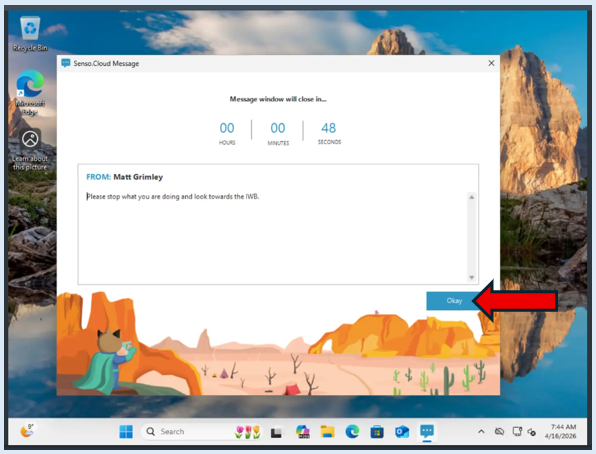
The message will open in a new window on all of the devices.
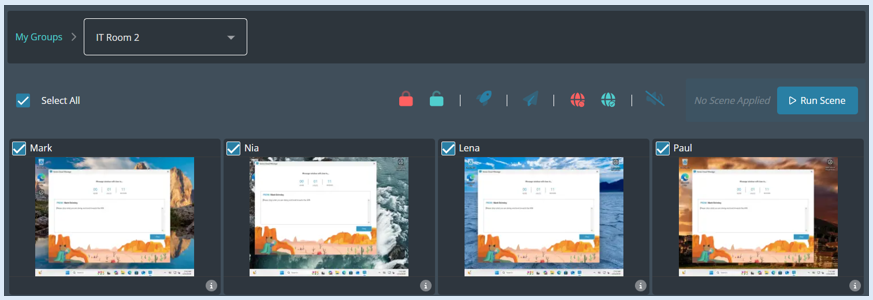
The message will stay visible on the user’s screen until the timer has counted down however the user can close the window by selecting the ‘Okay’ button.
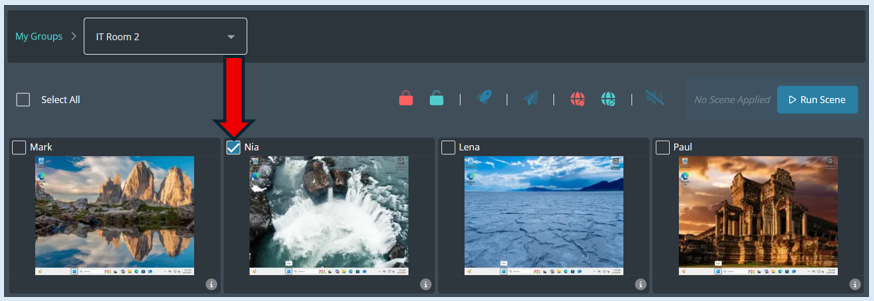
As well as sending a message to the entire group you can select specific devices and send a message. Select the device or devices.
Select the ‘Send Message’ icon and add in your message, set the timer and click ‘Run’.
The message will only appear on the selected device.
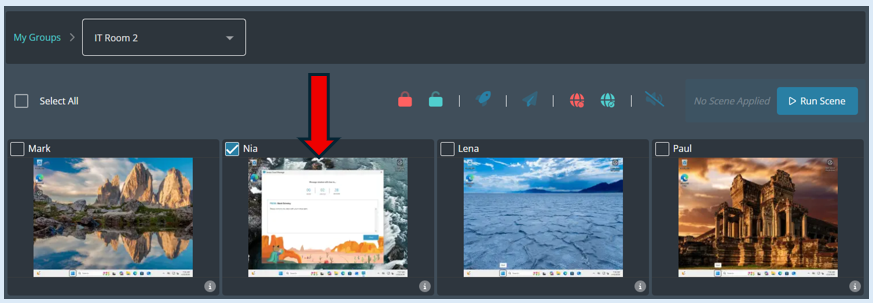
You can send multiple messages to a user. Each message will open a new message box and will sit on top of the previous one.