This guide will show you how to disable and enable the internet on the devices within a group whether that is the entire group or specific devices.
Once you have logged in to your console and accessed the group, the Lite console view will be ready to use.

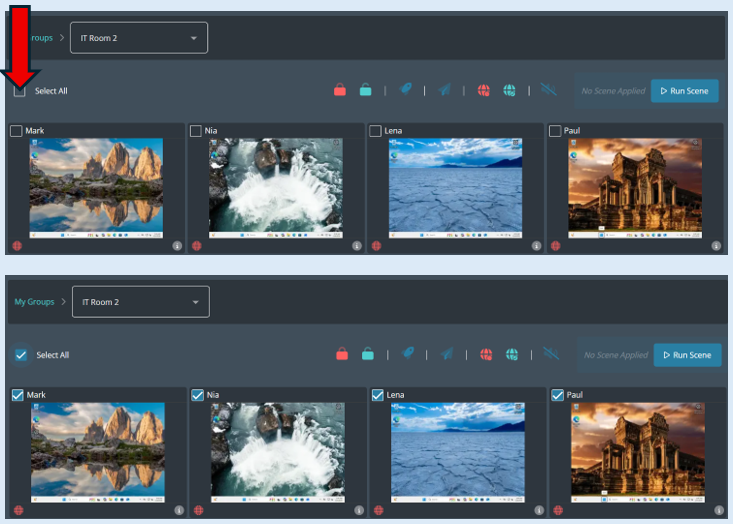
To disable the internet for the entire group, first you will need to click on the ‘Select All’ icon.
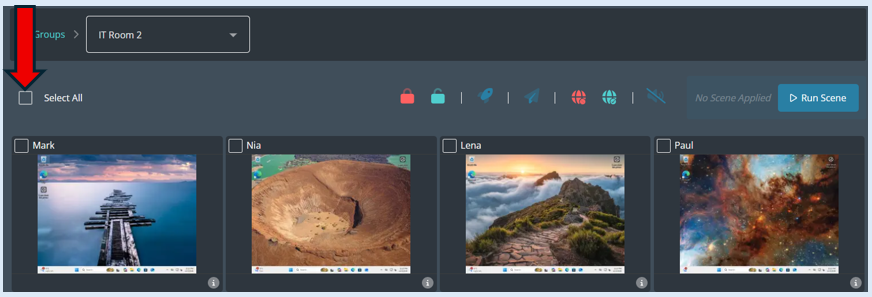
All of the thumbnails will have a tick on them indicating that they have been selected.
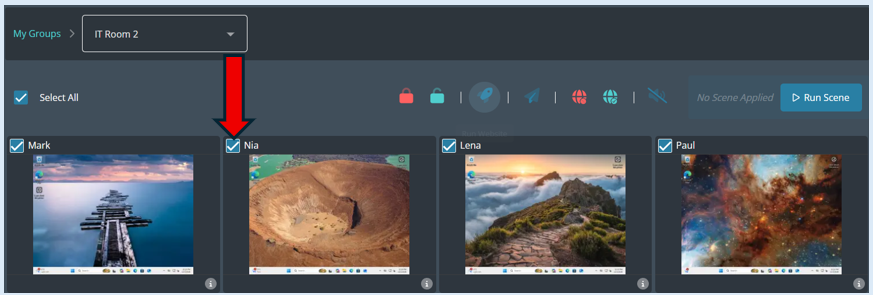
Next you will need to select the ‘Disable Internet’ icon which is located on the dashboard.
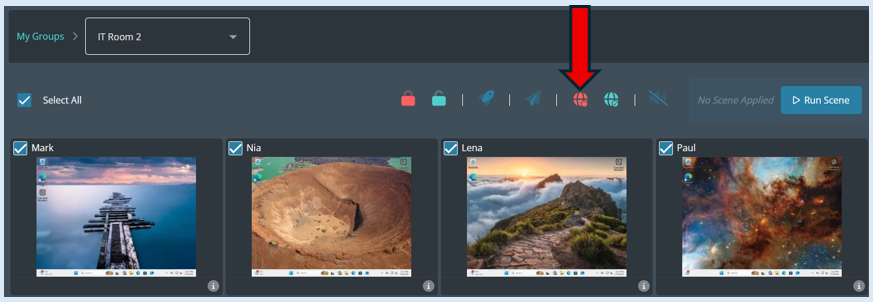
Once you click the ‘Disable Internet’ icon all of the devices will automatically have the internet disabled and a pop-up notification will show confirming your action.

Once you have selected the ‘Disable Internet’ icon, an icon will also show on each thumbnail indication the internet has been disabled.
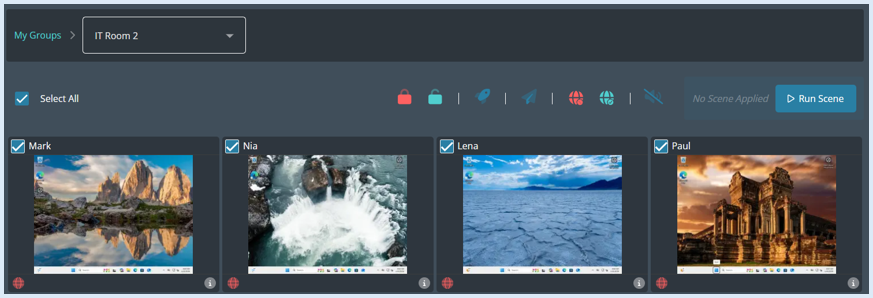
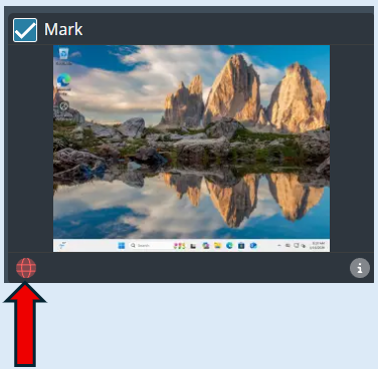
To enable the internet on the devices, ensure the thumbnails are ticked. You can click on ‘Select all’.
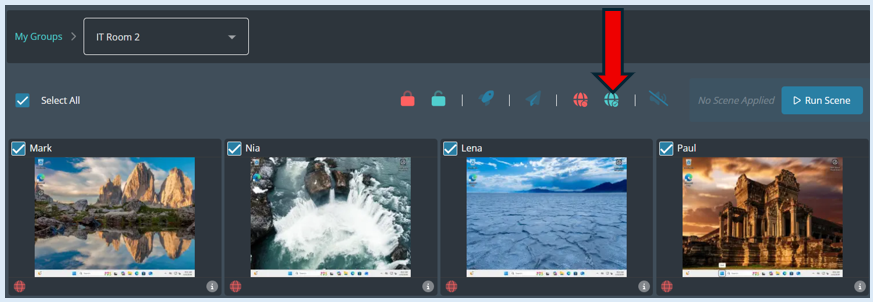
Now select the ‘Enable Internet’ icon.
A pop-up notification will show confirming the action.

The icon indicating that a device has its internet disabled will disappear meaning that the internet is now enabled.
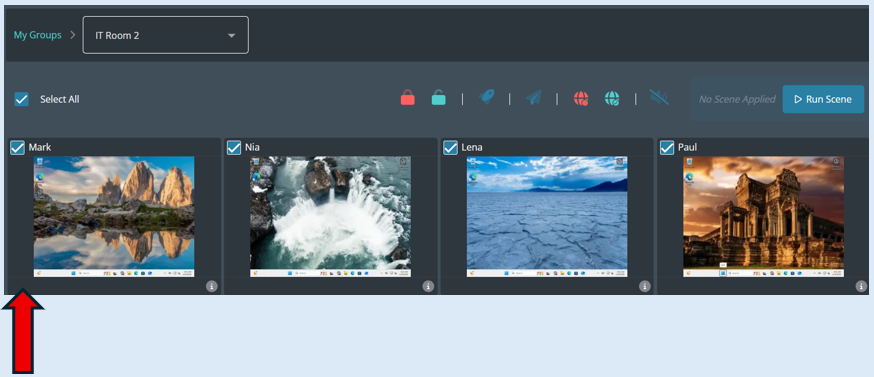
You can disable/enable the internet on any selected device by following the process explained above, the only difference being only select the devices that you wish to action against by ticking the thumbnail for that device.