
This guide will show you how to access the analytics section and how to navigate the functionality within it.
The guide will cover how to use analytics for:
Keystroke Logs
Website Logs
DNS Filter Logs
To access the analytics section, navigate to the menu on the left-hand side of the console.
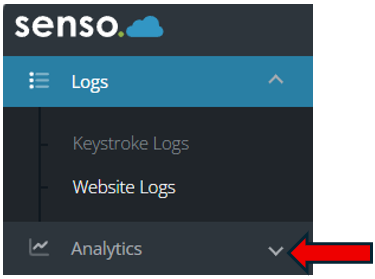
Once you have clicked on the ‘Analytics’ option an additional drop-down box will open.
Analytics - Keystroke Logs
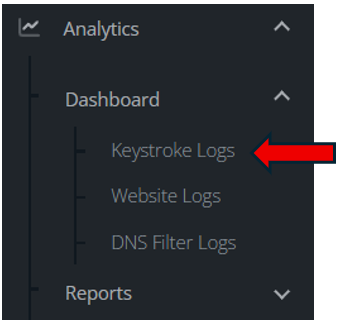
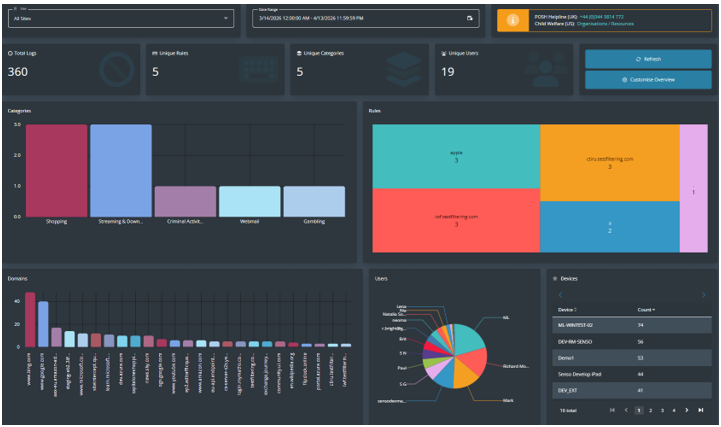
Once selected several graphs/charts will be displayed.
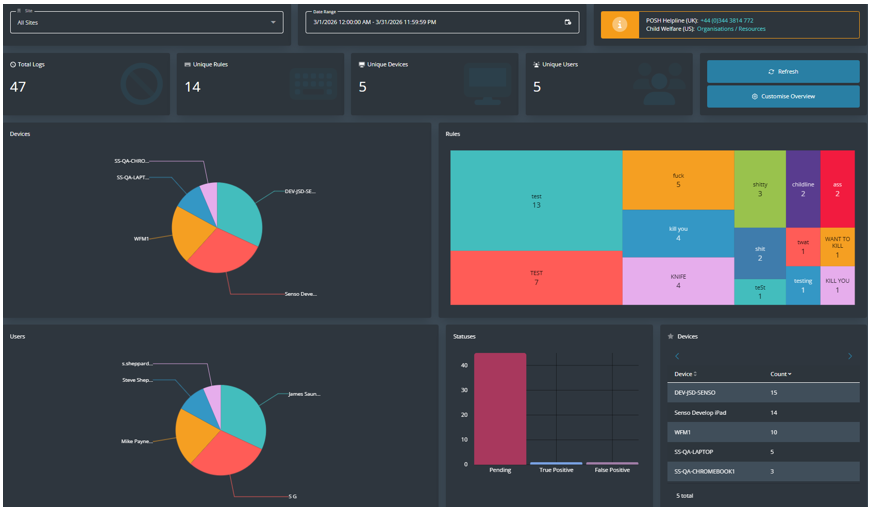
You have the ability to change the sites and date range of the data that is being shown.

You can customise the overview if required by selecting ‘Customise Overview’.

Once selected you can add in your specific criteria from the drop-down options for what you would like to view and where it appears on the screen. Click on the drop-down arrow.
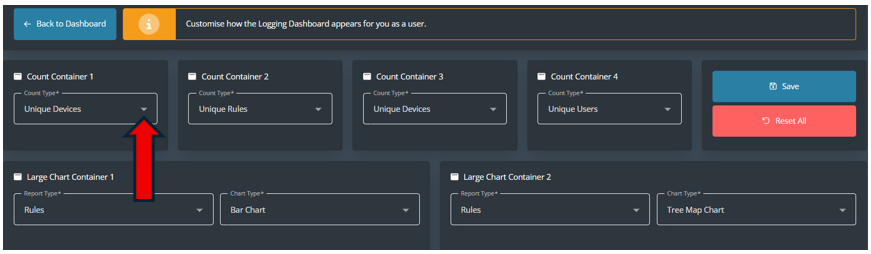
Select your options.
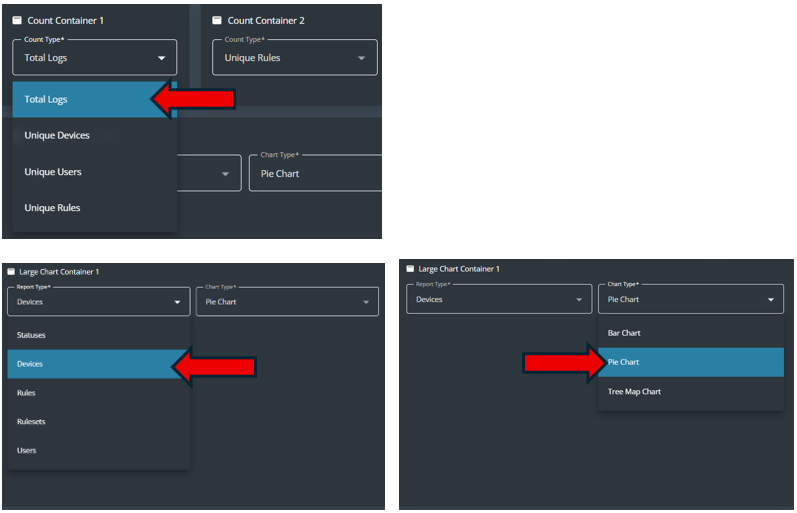
Once you have made your selections, click ‘Save’.

There is also the option to ‘Reset All’ back to the default set-up.

Analytics - Website Logs
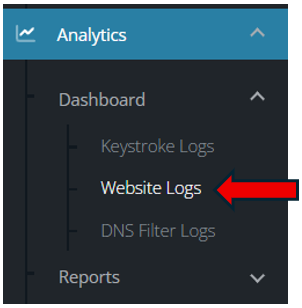
Once selected the graphs/charts will open on the console. The functionality works exactly the same as when in ‘Keystroke logs'.
Analytics - DNS Filter
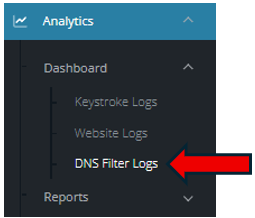
This will show you data in relation to users who use the WIFI (They would not need to have the Senso.cloud client on their device).