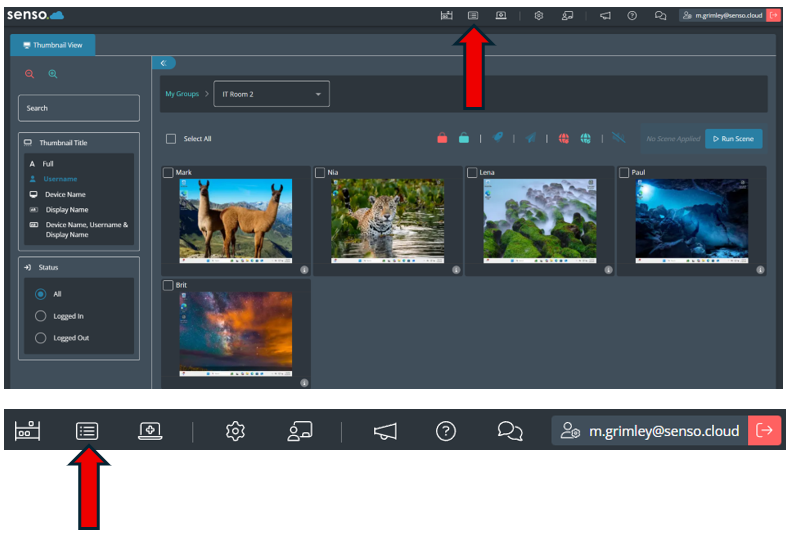
Once you have accessed senso.cloud and are logged in to your console, to access the Safeguarding module you will need to click on the ‘Logging’ icon on the top dashboard.
This will open up the Safeguarding module landing page.
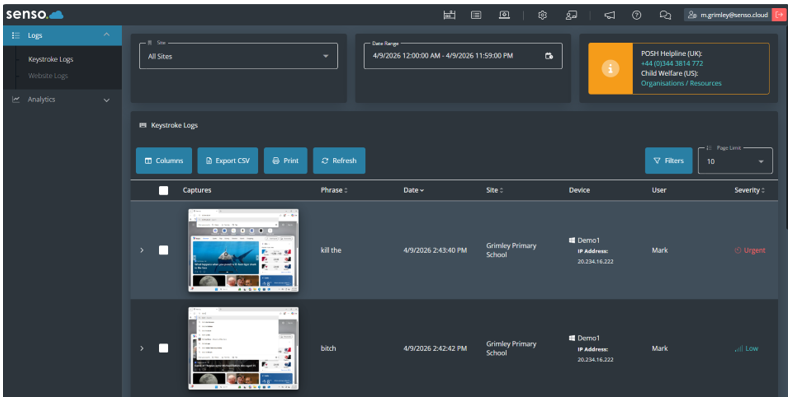
The captures will appear with data accompanying them. The columns can be added/removed as explained in the ‘Safeguarding – Navigating the Dashboard Functionality’ guide.

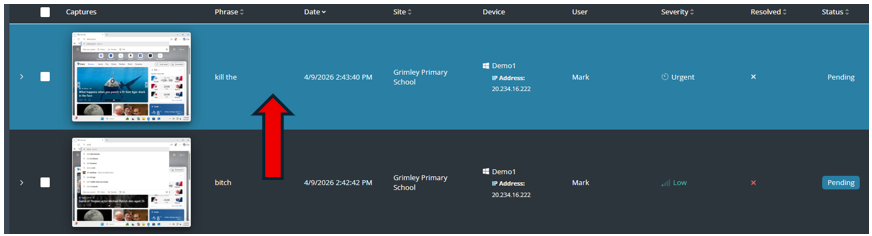
To look at a capture in more detail just click over it (It will be highlighted blue). Click on it to open.
The capture image will be enlarged and you can see where the keyword violation was detected from the image captured.
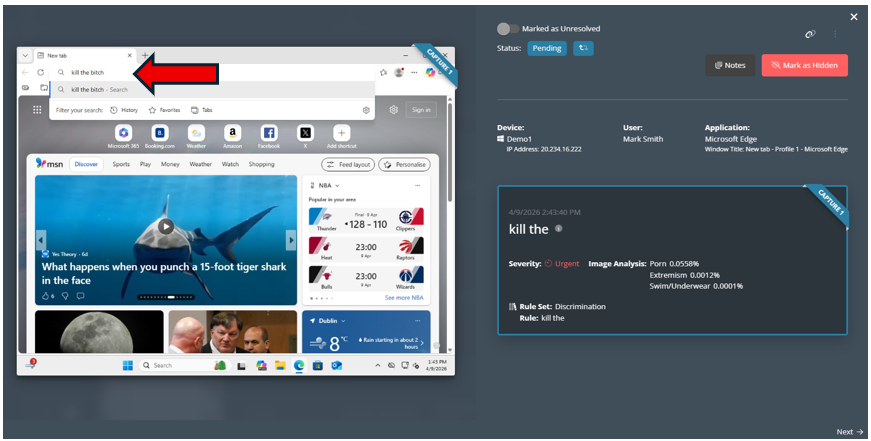
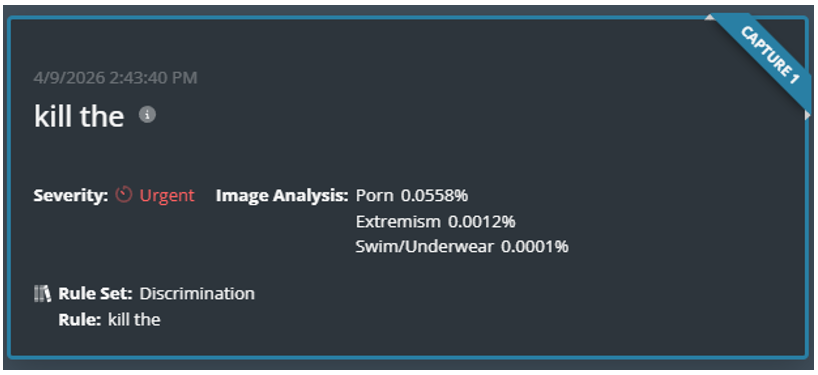
You will be provided with several pieces of information relating to the capture, these are:
The date the capture was taken.
The words that triggered the capture.
Severity the capture has been classed as.
Image analysis.
Rule set that was used and the rule word that detected the violation.
You will also have information on:
Device that the violation was captured on including the IP Address.
Who the logged in user was.
The application that was being used.

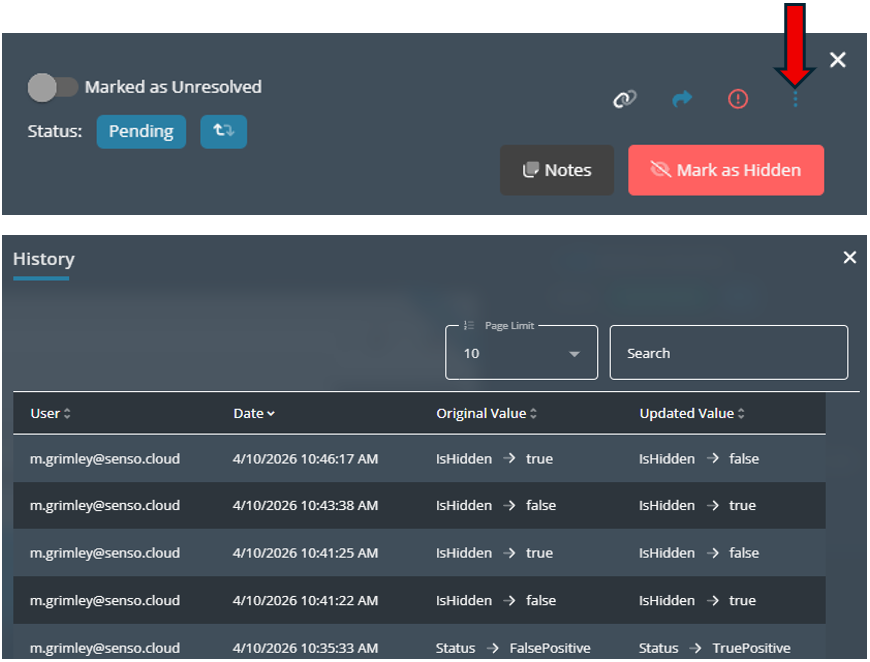
There are several actions that you can perform whilst looking at the capture. You will be able to change ‘Marked as Unresolved’.
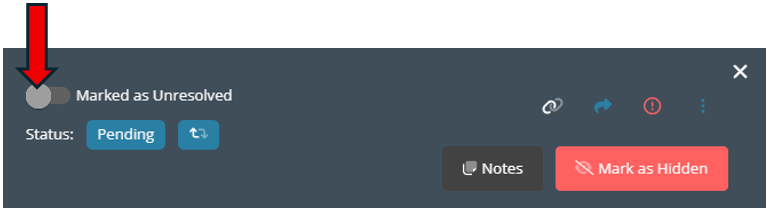
Once you change the toggle to ‘Marked as Resolved’ you can classify the capture as ‘False Positive’ or ‘True Positive’. 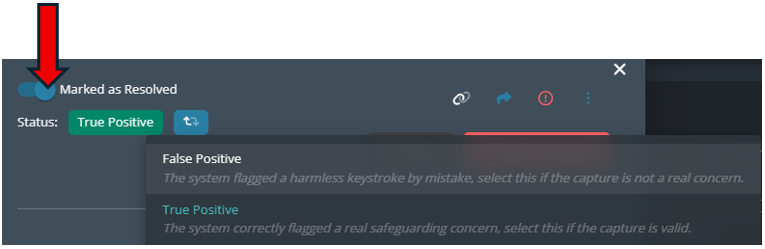
You can change the status of the capture.
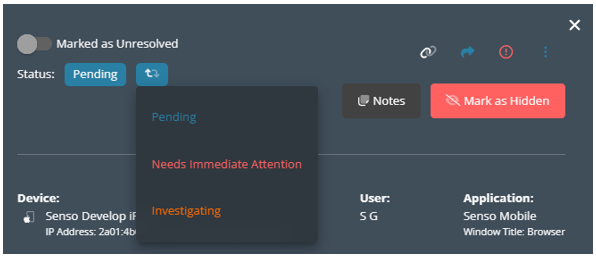
You also have the ability to add a note against the capture.
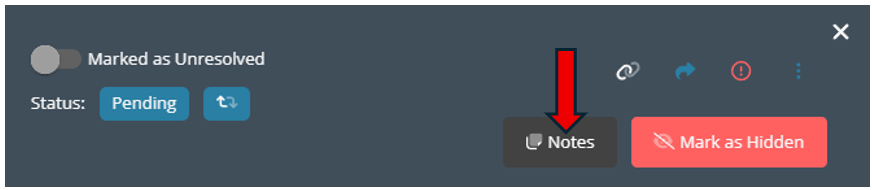
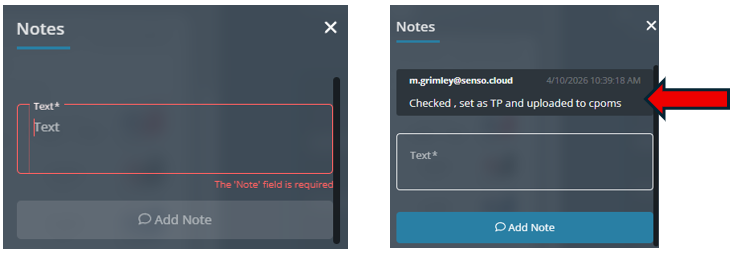
Type in your note, then select ‘Add Note’.
You can hide the image if you deem its content contains any form of graphic images that do not need to be visible.
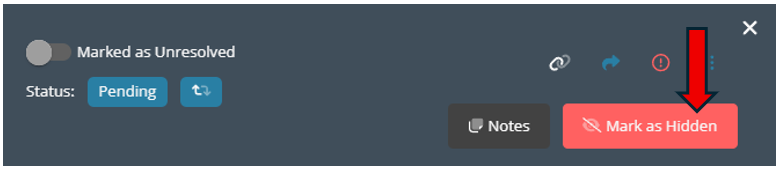
The image can be seen, by selecting ‘Mark as Visible’.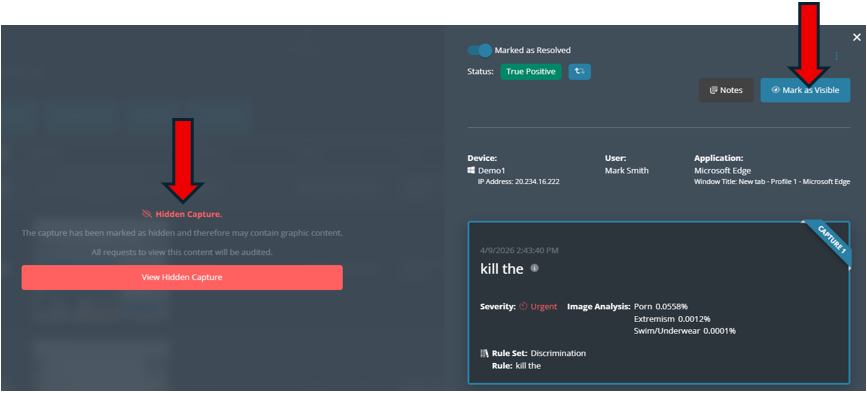
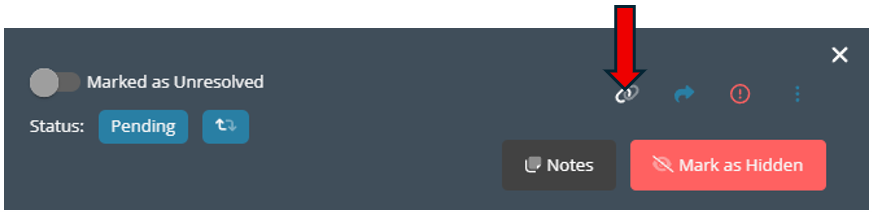
You can copy the URL for the capture and provide this to other relevant people.
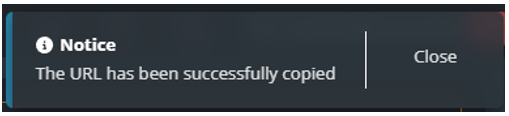
Once selected a pop-up notification will confirm your action.
You can view the history on the capture, any changes/actions that have been made will be visible.