
On the left hand-side of the screen you have the main sections of the module to select from.
The first two options allow you to look at logs that have been triggered. ‘Keystroke Logs’ (Words that have been typed by a user) and ‘Website Logs’, websites that have been visited by users.
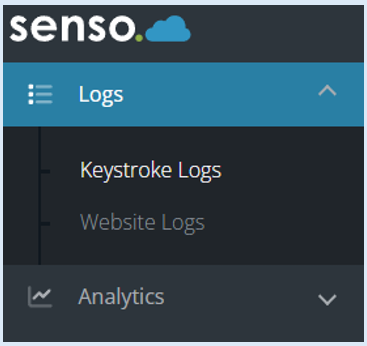
The third option ‘Analytics’ will allow you to analyse the data that has been recorded and this option when selected will open up additional options which again can be selected and more options will become available.
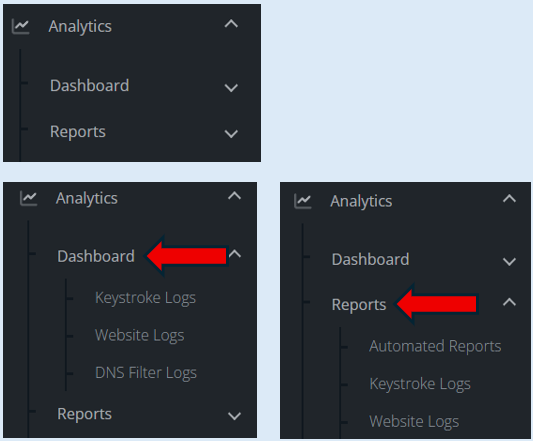
Keystroke Logs - Dashboard Functionality
Site

This option defaults to all sites that you have access to. If you would like to look at data from just one site, you can select the dropdown arrow and then choice from the sites that are in your list.
Date Range

This option allows you to select the date range of the data you would like to view.
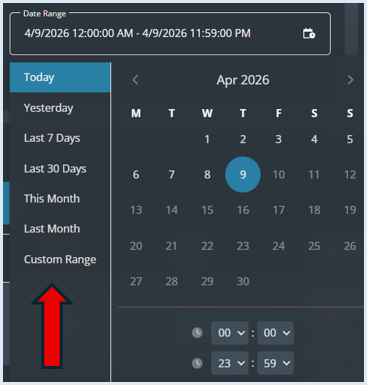
There are pre-selected options available and the ability for you to create a custom range.
Columns

This option allows you to remove data columns from your view. All columns will initially show as the default.

Once you have clicked on ‘Columns’ a drop-down box will open.

You can de-select any of the options and that particular column will be removed from your screen. This allows you to focus on the specific information that you need to see.
Export CSV

This option will allow you to export the data as a CSV file.

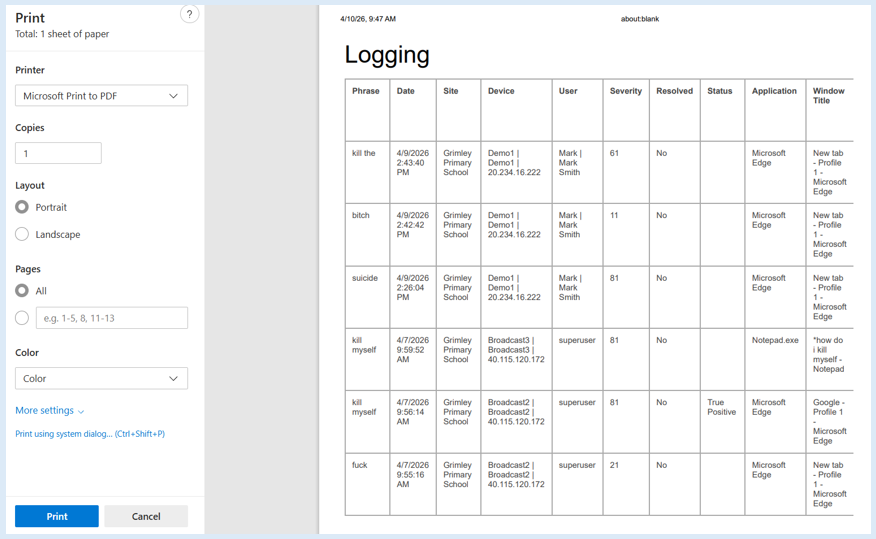
This option will allow you to print out your data. Once selected, your print page options will appear.
Refresh

Selecting this option will refresh the information on your page.
Filters

This option will provide you with a comprehensive set of filters that can be applied against your data. Once selected an additional options box will open. There are four categories that you can select from, each has its own set of filters to use.
Filters - General
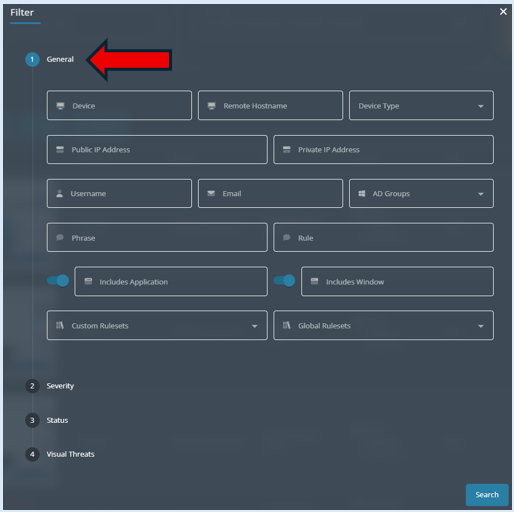
This page provides you with a variety of options to filter with.
Filters - Severity
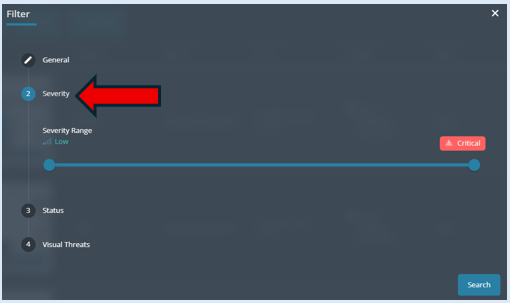
You can use the sliding scale to set the severity level.
Filters - Status
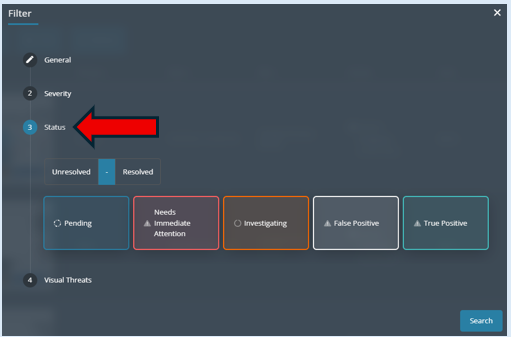
Here you can filter by the status of the captures.
Filters - Visual Threats
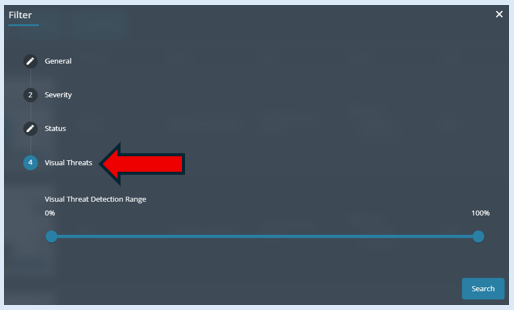
You can filter using the sliding scale.
After any change you make on a filter, for it to be actioned, you must select ‘Search’.
Page Limit

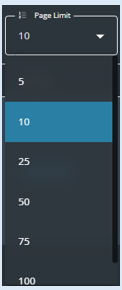
This option will allow you to select how many logs you would like to see per page.