This guide explains how to configure Microsoft Teams Chat Monitoring, allowing you to monitor and capture messages sent through Microsoft Teams for safeguarding purposes.
Before you begin, ensure you have the required Microsoft 365 permissions , you must have Global Administrator permissions within your Office 365 tenant and that you are licensed for Microsoft Teams Monitoring on your Senso portal, which you can confirm here
In addition, we recommend disabling the ability for users to edit or delete messages. This is due to limitations imposed by Microsoft that prevent us from viewing the original message sent in Teams once it has been edited or deleted.
This can be configured as a policy for all users or applied specifically to selected groups of users.
If you have previously configured this integration in our V1 product, please ensure that you delete the existing integration from V1 before setting it up in V2.
Setup Configuration
1. Navigate to Admin Centre → Integrations → Microsoft Teams (Monitoring).
If Microsoft Teams (Monitoring) is not visible, please contact our Success team at success@senso.cloud so they can check that the correct licence is applied to your account.
2. Select 'Authorise Senso' from the options presented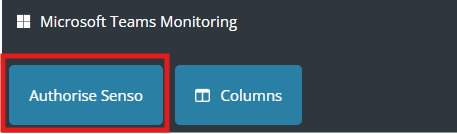
3. Sign in with your Global Administrator account and review the permissions, selecting Accept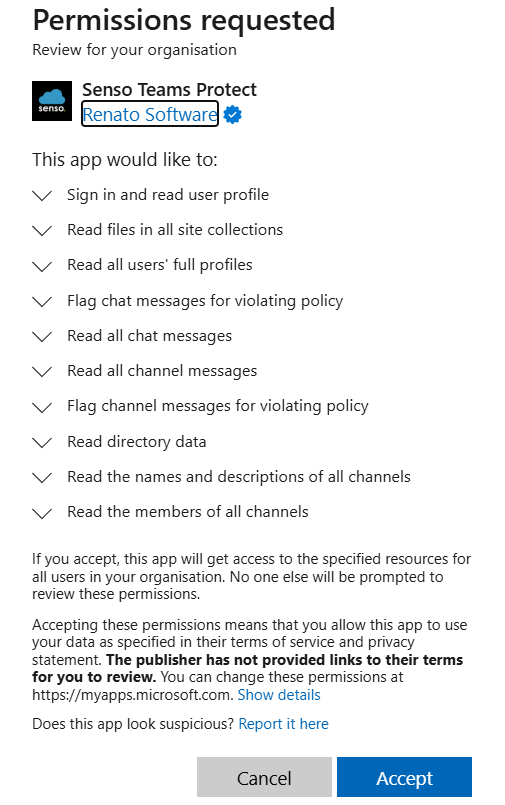
4. You are then presented your tenant ID , name and options - Add a Friendly Name if its not already populated. We recommend using the O365 Tenancy Holders Organisation Name. Tick Monitor All Teams Chats and Monitor All Teams Channels and click save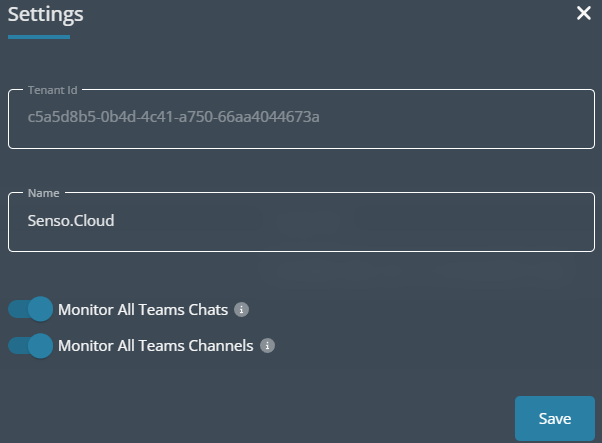
Monitor All Teams Chats – Monitors all private Teams chats, including one-to-one conversations and group chats between individuals within the tenancy.
Monitor All Teams Channels – Monitors all channels across all Teams within the tenancy.
5. Now select "mappings" from the options menu presented - Important: Do not configure Domain Mapping for any sites that you intend to map using Security Groups, as Domain Mapping will take precedence and override the Security Group mappings.
Note: If you have a multi-site tenancy using a single domain, please skip directly to the Group Mapping section.

5.1 Domain Mapping -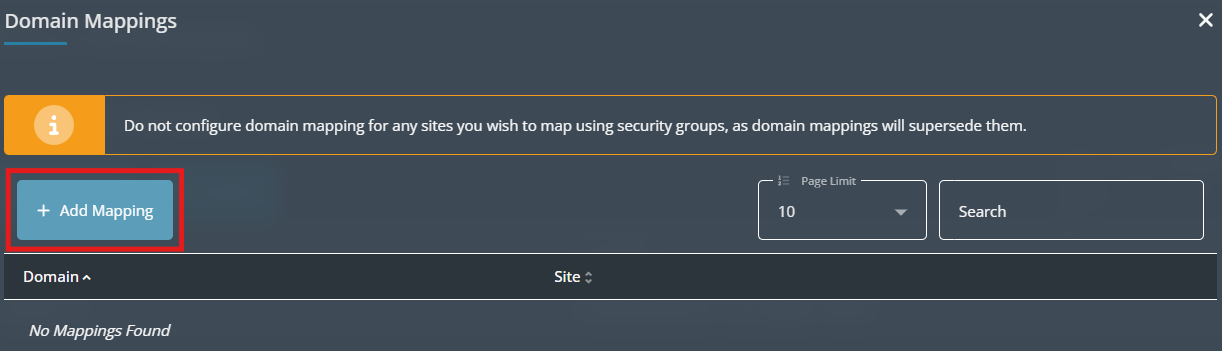
Here you will see a list of Domains that are registered to your Microsoft 365 Tenancy. Match the Domains to the relevant school Site in Senso and click Save - Monitoring is now configured for this domain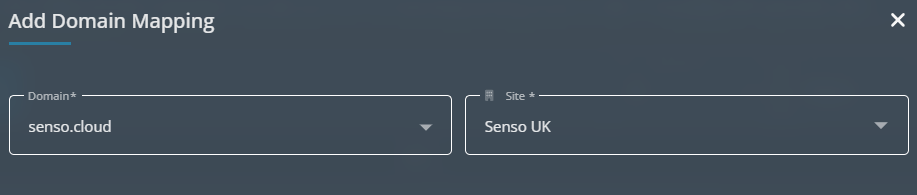
5.2 Group Mappings -
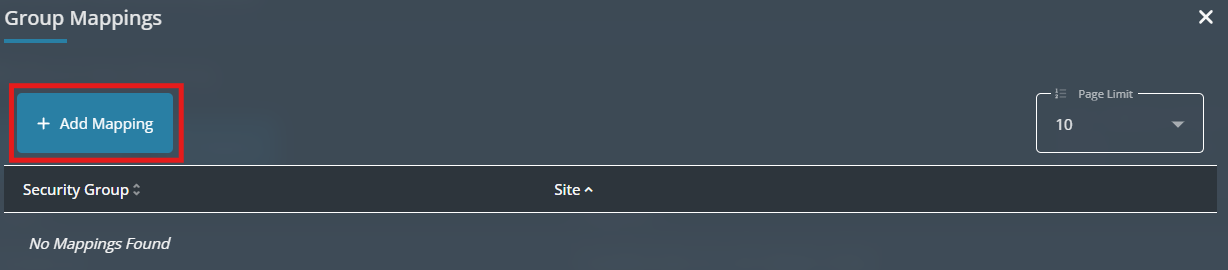
Using your Azure Active Directory Security Groups, you can match them to the relevant school site in Senso. In the below example users within the 'PG - Support Team' group will be monitored and data stored within the 'Senso UK' site
6. Now select 'Rulesets' to enable the catagories you wish to monitor
6.1. Navigate to 'Global Rulesets' and enable the rulesets you wish to monitor
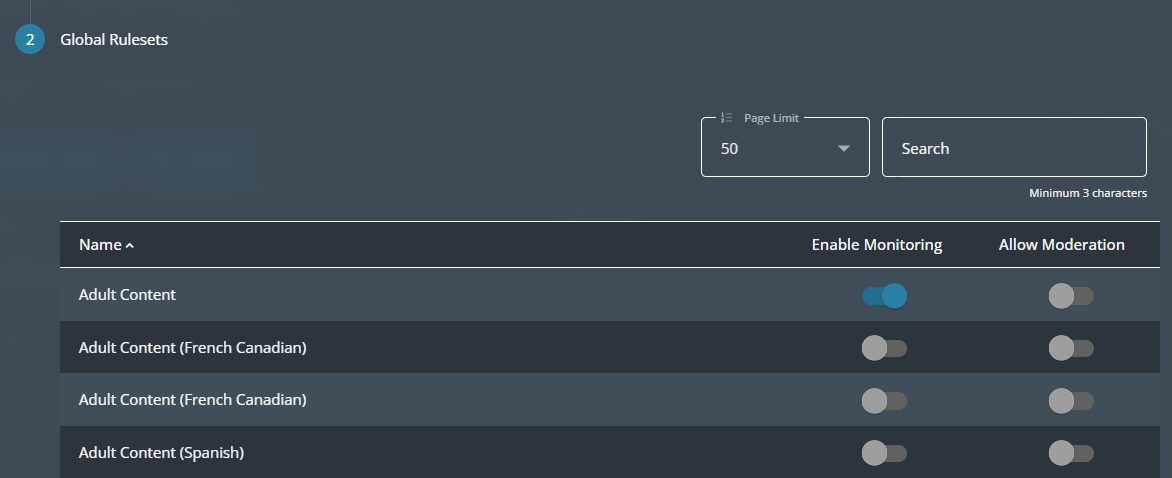
Note: Settings could take up to 30 minutes to take effect before Chat violations start occurring.
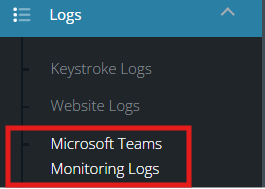
Violations can be viewed within the Logging section of the portal - Click here selecting 'Microsoft Teams Monitoring Logs'