
The End Session module allows you to shutdown, restart and logout your windows devices that are connected to your portal/console. When you run the module you are able to select whether the end user can deny the command you run or have it forced down. You are able to have it populate a custom message to the end user when an action is performed.
Once you have logged in to your console, you will need to select the ‘End Session’ icon which will be located on your functionality dashboard.
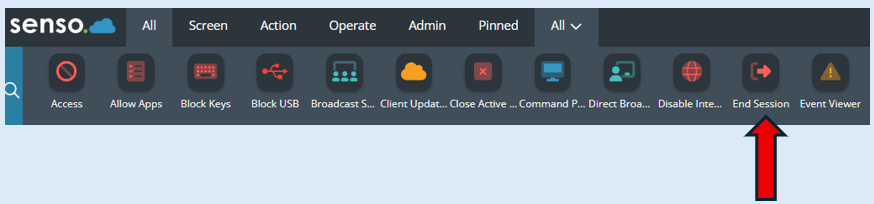
Please note – Your icon may be in a different position on your dashboard.
Once you select the icon, the module will open on the left-hand side of your console.
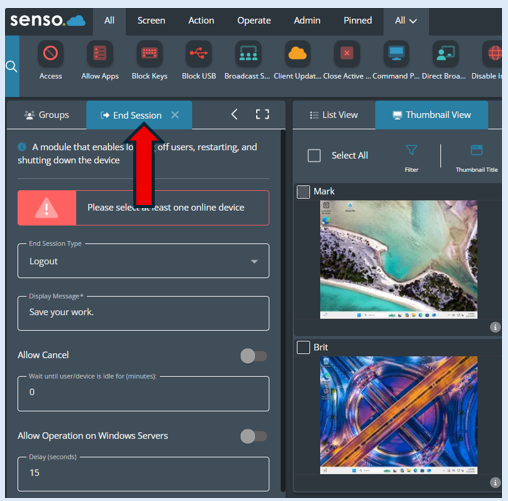
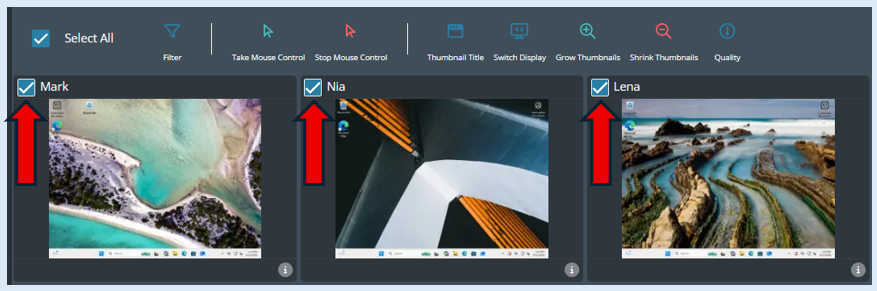
Next, select the devices you wish to run the action against. If you wish to select all of the devices in the group, tick the ‘Select All’ icon.
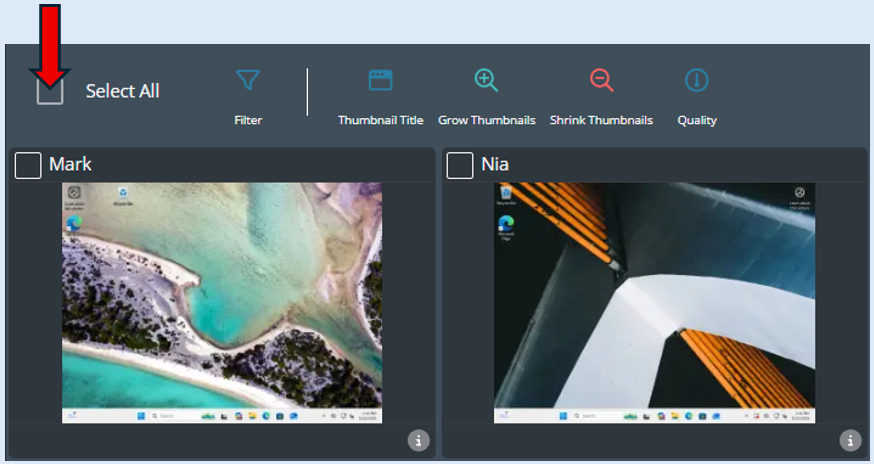
Once this is selected all of the devices will have a tick against them.
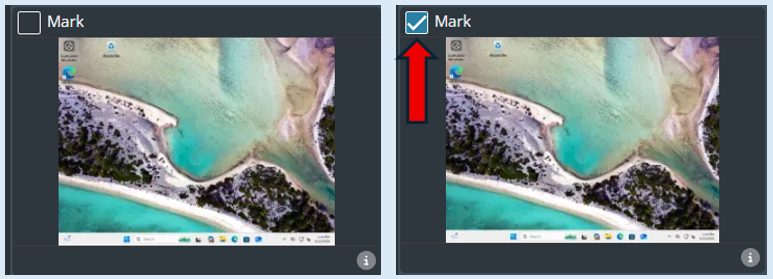
Please note – You can select individual thumbnails by selecting the tick box.
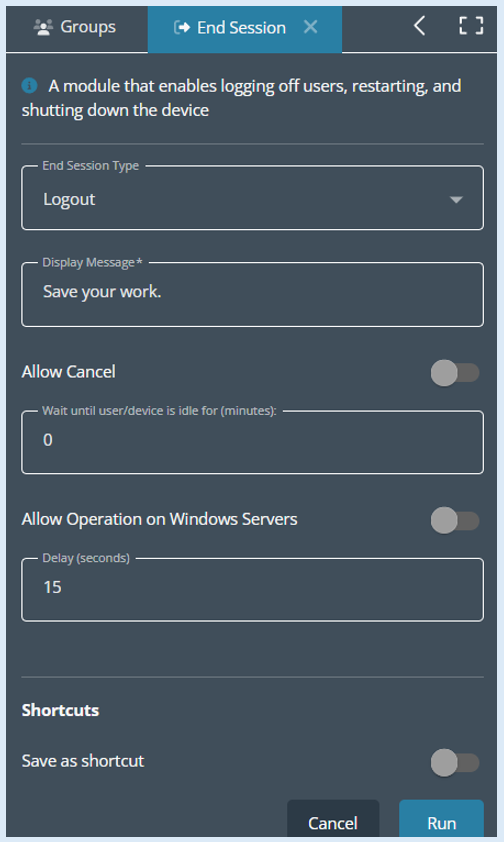
Now the devices are selected you will need to add in your criteria on the module options page.
Select the drop down in the ‘End Session Type’ field.
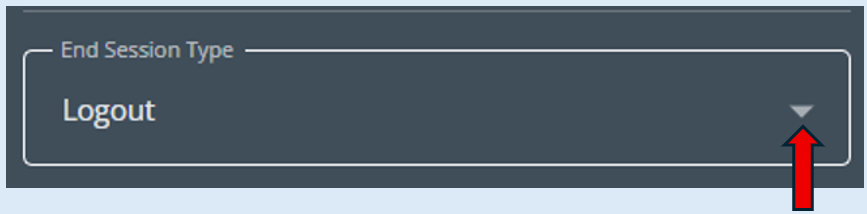
Select from one of the three options available.
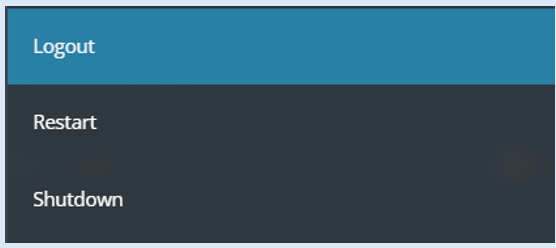
For this example, ‘Logout’ has been selected.
Next you can add in a message that will appear on the user’s screen.

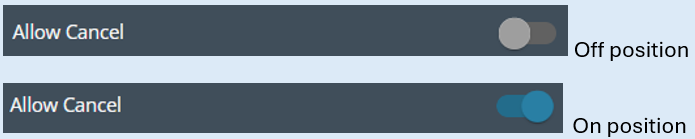
The next option if selected will allow the end user to cancel the action that you wish to perform if you switch the toggle to the ‘On’ position.
Next you have the choice to perform the chosen action once a device has been in an idle state for a set amount of time.

This example has been set to 5 minutes. Any device that becomes idle for 5 continuous minutes (No keyboard or mouse activity) will be classed as idle.
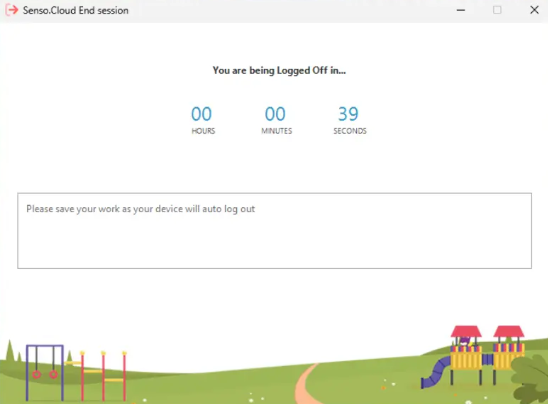
Once the device has reached this idle state, the ‘Display message’ that was set up will appear on the device. There is a ‘Delay (seconds)’ field that allows you to set a timer that counts down and upon reaching ‘0’ the action against the device will take place.
Set the timer. For example, 60 seconds. This is how long the message will appear for with a countdown pop up appearing on the device/s screen.

The final step is to select the ‘Run’ button.
This process works exactly the same for the ‘Restart’ and ‘Shutdown’ actions available within this module.
Within the set-up page you will see an option called ‘Allow Operation on Windows Servers’.

Only select this if you want to interact with a windows server. This is a safety feature stopping servers from being accidently restarted.
There is also the option to create a ‘Shortcut’ within the module. This is where you can set up an action, save it and then use it when required without needing to go through the set up process each time. If you would like to do this, please see the ‘How to create a shortcut’ guide that is available in the knowledge base.