This module will lock/unlock selected screens (windows devices) the same way as you can manually lock it using Ctrl+Alt+Del and selecting ‘Lock’ on the physical machine.
Once you have logged in to your console and have selected the group you wish to work with to access this module you need to locate the Lock/Unlock Windows icon on the functionality bar.
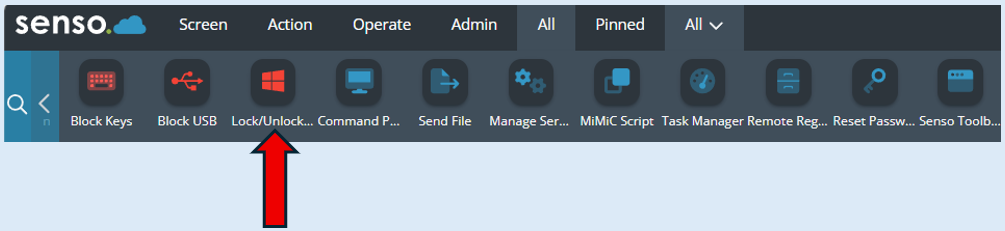
Please note – Your Lock/Unlock Windows icon could be positioned differently on your console view.
Once the icon has been selected the module will open on the left-hand side of your console.
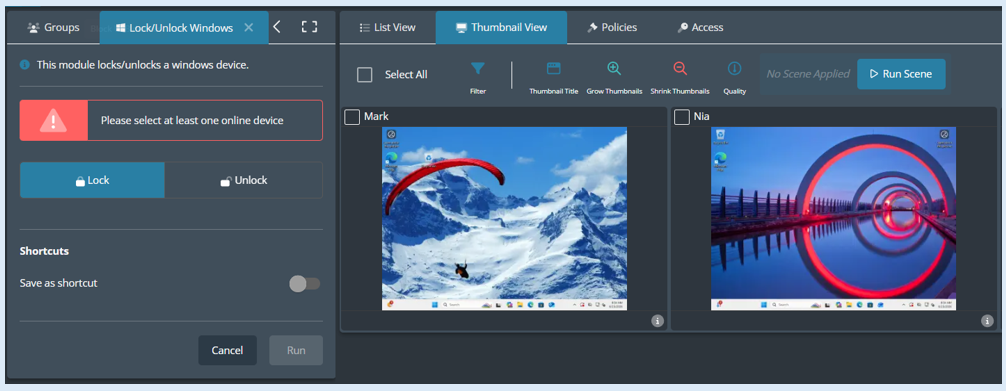
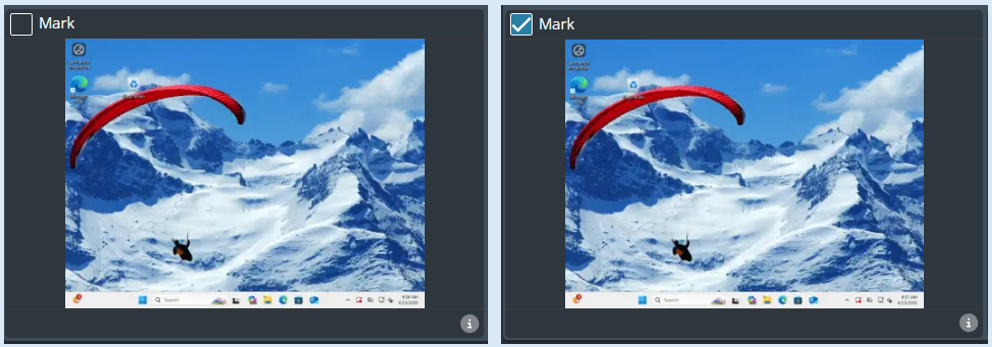
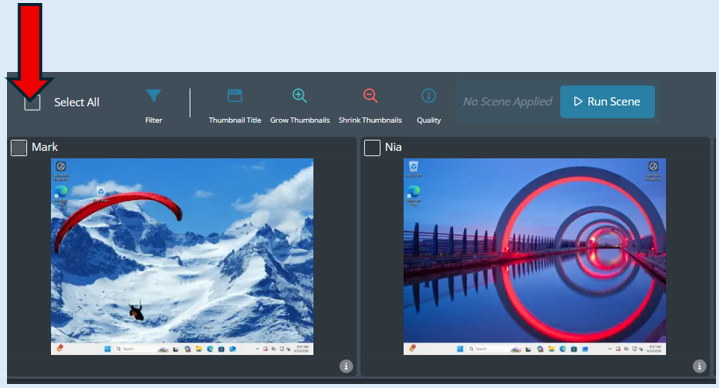
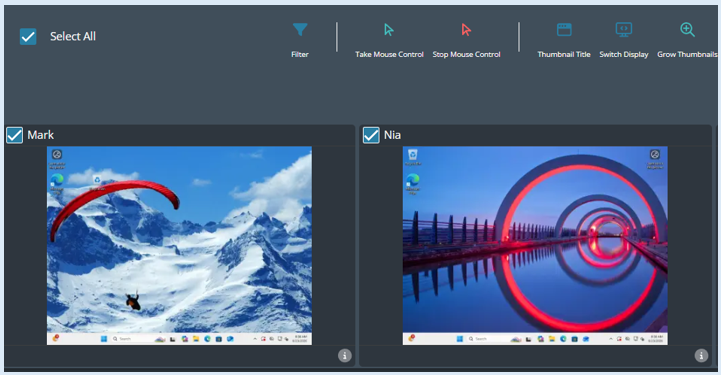
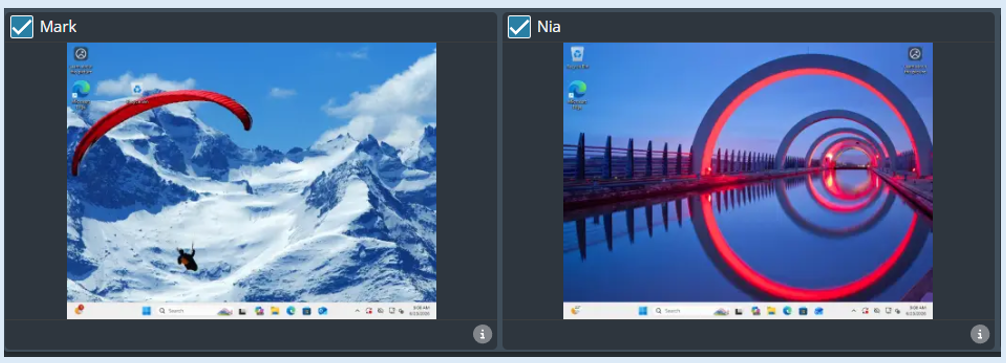
Select the devices that you wish to apply an action against by ticking the thumbnails individually or if it is all of the devices, tick the ‘Select All’ option. A blue tick in a thumbnail indicates that it has been selected.
Select the ‘Lock’ button.
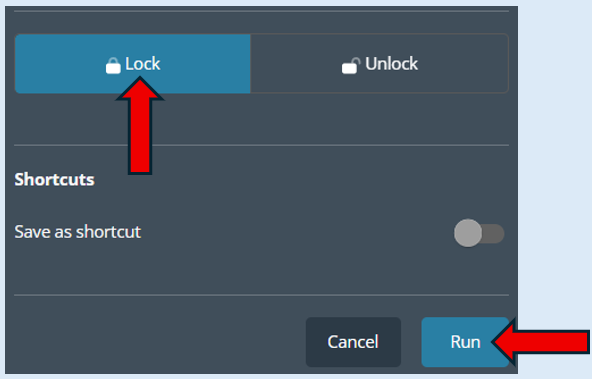
Then select ‘Run’.
The selected devices screens will automatically lock.
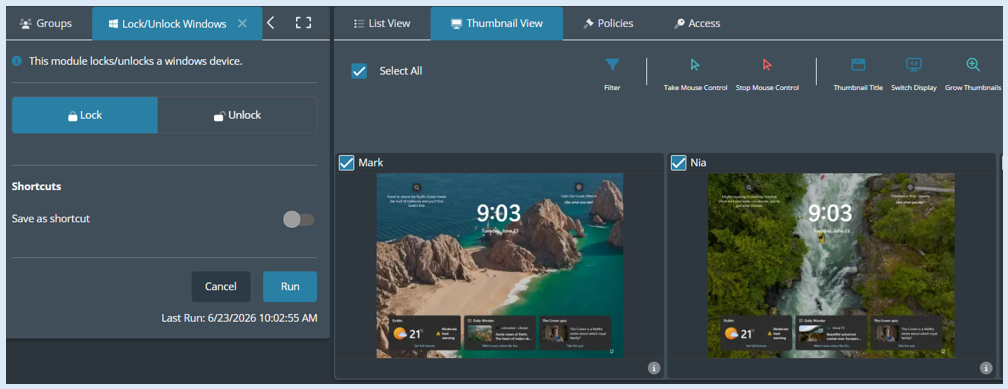
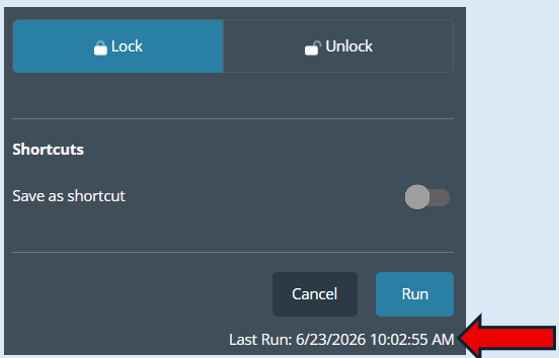
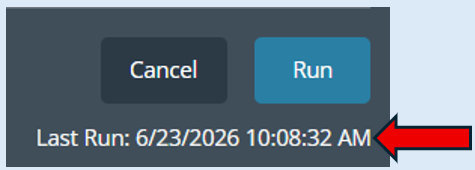
The action will have a log recorded at the bottom of the module options box.
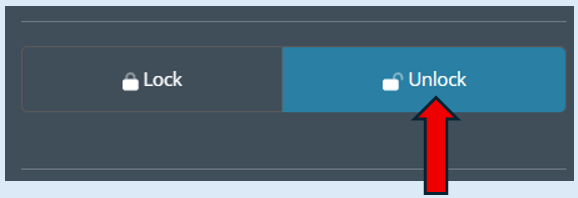
To unlock the device screens, select ‘Unlock’.
Select the devices that you want to apply the action against.
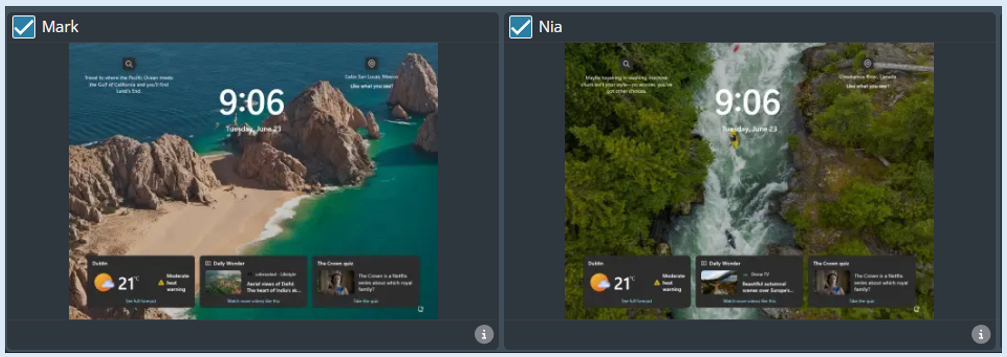
Select ‘Run’.
The selected devices will have their screen s automatically unlocked.
This action will be logged at the bottom of the module’s options box.
Please note – This module will only work with windows based devices. The end user is able to unlock their screens manually. If you wish to lock a screen and stop the end user from overriding the action you can use the Lock Screen module.