
Connecting Google OU with Senso allows Senso to retrieve Google OU group information from users signed into registered or joined Chromebooks. Once configured, administrators can filter devices within Senso based on their associated Google OU group names, making it easier to manage and target specific groups of devices.
Navigate to the 'integration page' and click 'connect' which will take you to the relevant page to configure Google Admin settings:
Click Add New
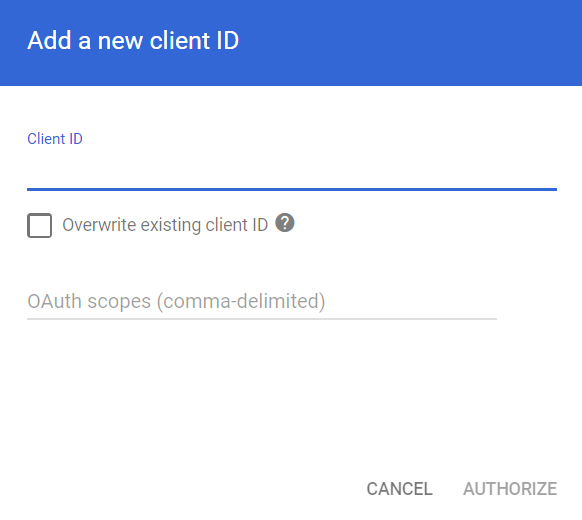
Client Name:
118137311847056834974
OAuth Scopes required:
https://www.googleapis.com/auth/admin.directory.user.readonly,https://www.googleapis.com/auth/admin.directory.device.chromeos.readonly,https://www.googleapis.com/auth/admin.directory.group.readonly
Then select Authorize
Next, configure a Google Workspace administrator account with permission to read user information. This is typically a Super Admin account. Navigate back to the integration page and select '+ Add Domain Admin'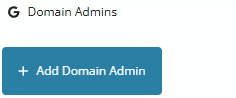
This will open a new window populate the email address of the account and select the sites you wish to apply this to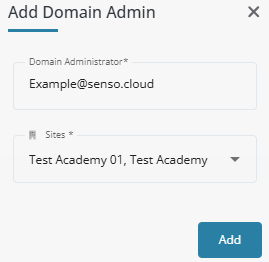
Select Add - You can now enable enableGroupDiscovery within your JSON to collect Google OU groups for device \ user based filtering
You can check the OUs using the device details on a singular device and look for them to be listed as Active Directory Group Membership. When building group filters, use AD as the filter and the Ou name as the term to create those custom groups