
This guide will show you the steps to create a shortcut for the ‘Mute Sound’ module. This is a very common way of using the shortcut to aid daily teaching and will save you valuable time. Once created this shortcut can be used over and over!
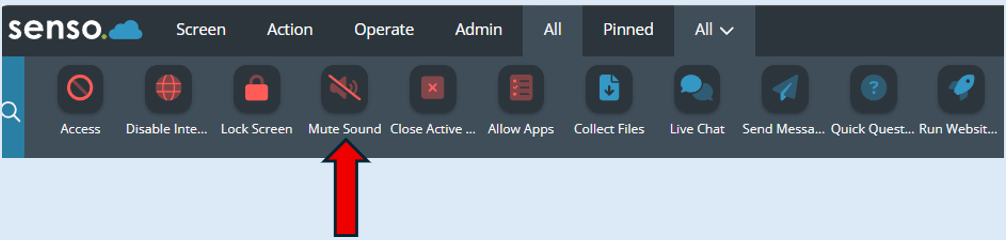
Select the ‘Mute Sound’ Icon on the functionality bar.
Once selected the module will open on the left-hand side of the console.
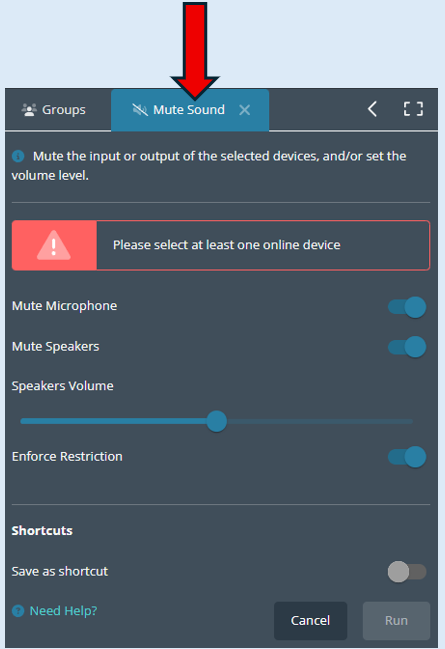
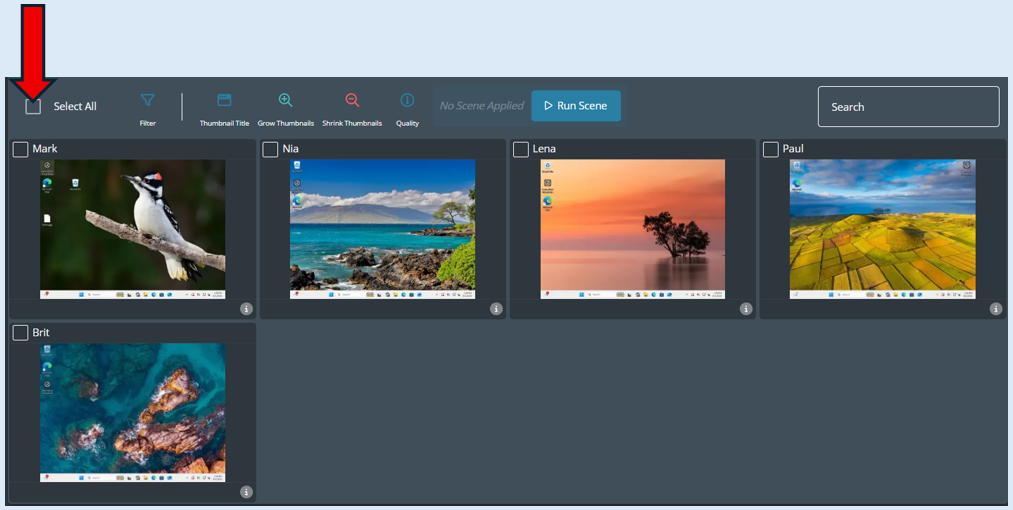
To create the shortcut, you first will need to select at least one device. Tick the ‘Select All’ option.
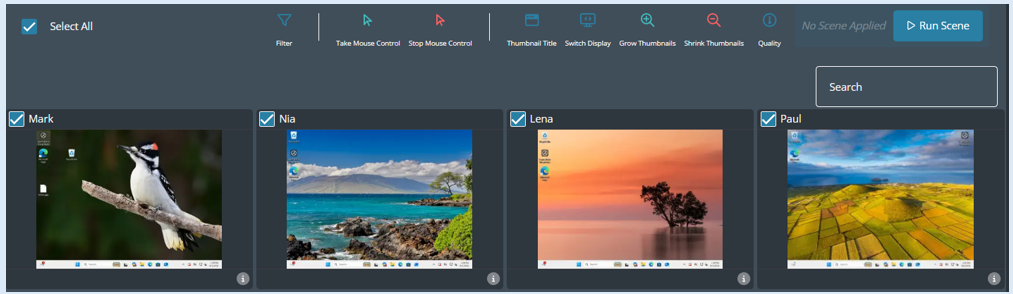
All of the devices will be selected; this is indicated with a blue tick in the corner of each thumbnail.
This is where you can now make your settings. To mute all functionality and just allow headphones, please copy the settings below.
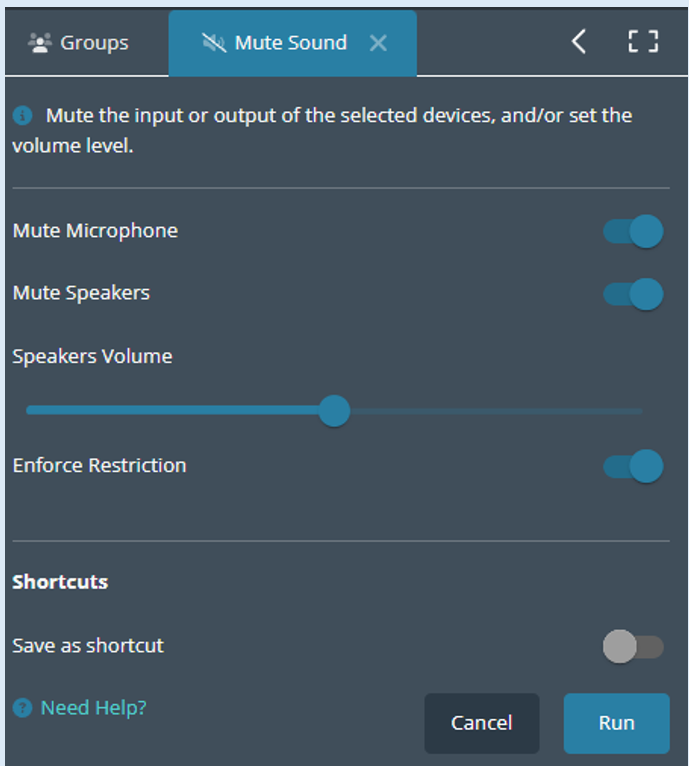
To save these settings as a shortcut, switch the ‘Save as shortcut’ option into the ‘On’ position.
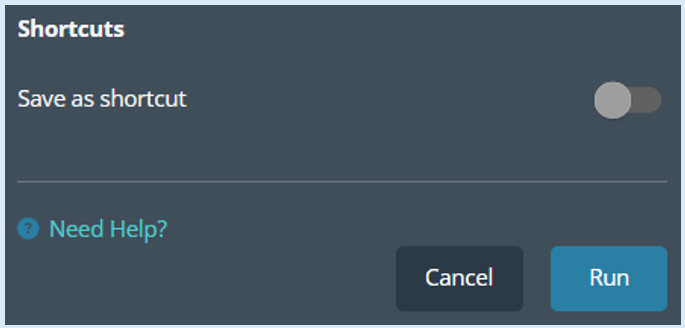

Additional options will open. Add in the title for the shortcut.
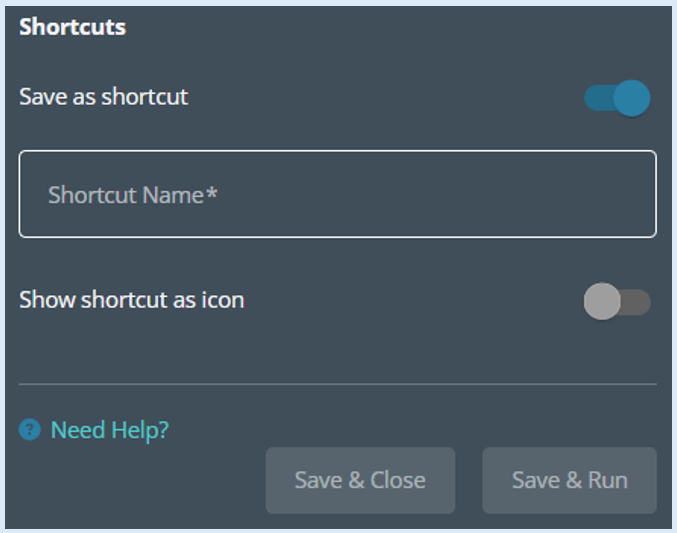

Select ‘Save and Close’. Your shortcut for the ‘Mute Sound’ Module has now been created.

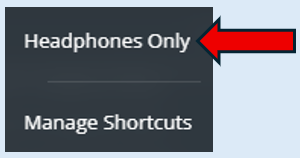
You will be able to access this shortcut by selecting the down-arrow that now appears below the ‘Mute Sound’ icon on the functionality bar.
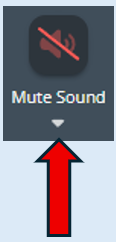
This will open up a list of all shortcuts that you have created within this module. Select the one you wish to action.
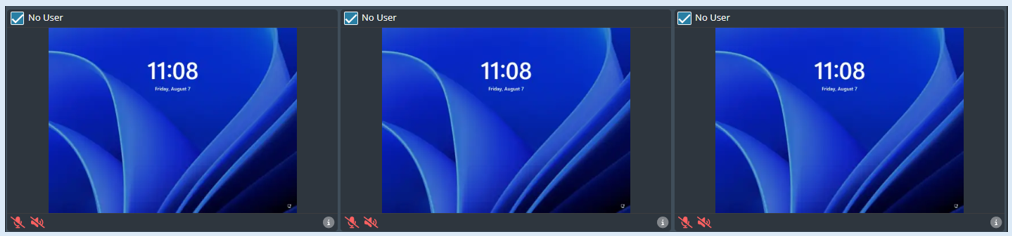
Any device that has been selected will now be locked. There will be two icons that appear on each thumbnail that the shortcut has been actioned against. One each for Audio output and Audio input.
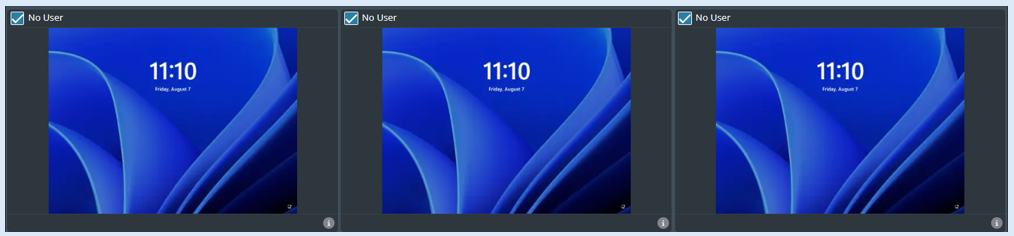

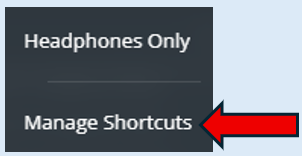
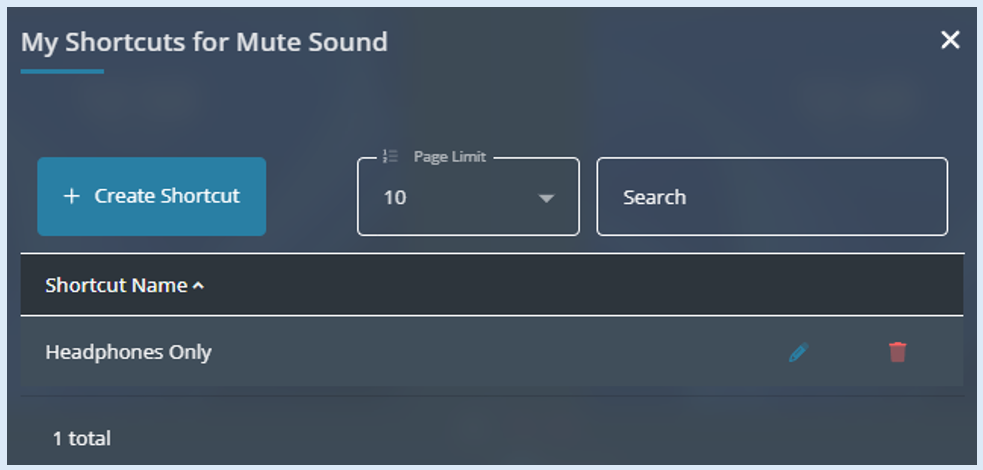
Also, on the drop-down underneath the module Icon there is the option to edit/delete any shortcut that you have created.
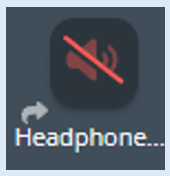
When creating the shortcut there is also an option to save as a shortcut. If selected an additional icon will appear on the functionality bar.
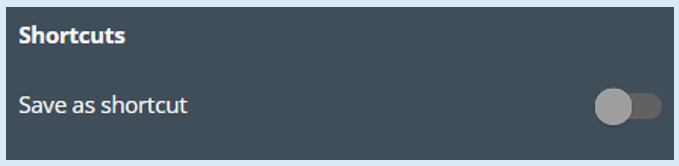
If this is needed, switch to the ‘On’ position.

The icon will be created which can then be selected when this shortcut is required.
Please note – If this is not selected when the shortcut was created, it can be done by editing the shortcut by selecting ‘Manage Shortcuts’.
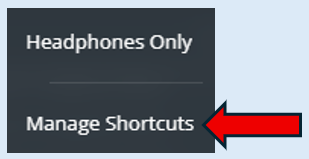
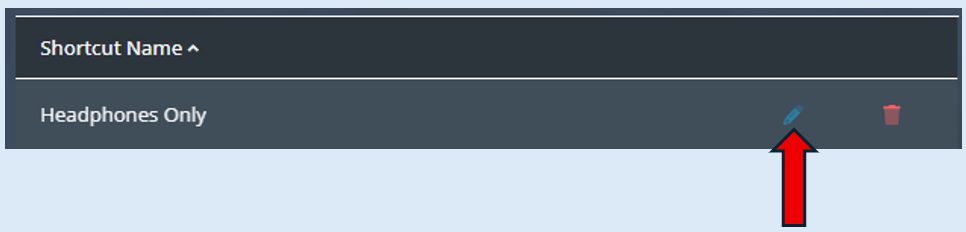
Select the ‘Edit’ icon.
Change the ‘Shortcut Icon is hidden in the Module Bar’ to the ‘On’ position.
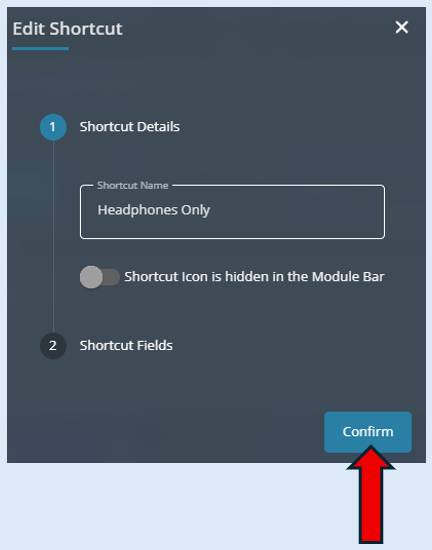

Then select ‘Confirm’.