
This guide will explain how internal cover staff/substitute teachers can access class groups that are synced through Microsoft Teams, Google Classroom or ClassLink. This access ensures continuity in classroom management and provides visibility into student groups during staff absences.
To access the ‘Switch Integration User’ option, once you have logged in to your console. You will locate it above the groups section.
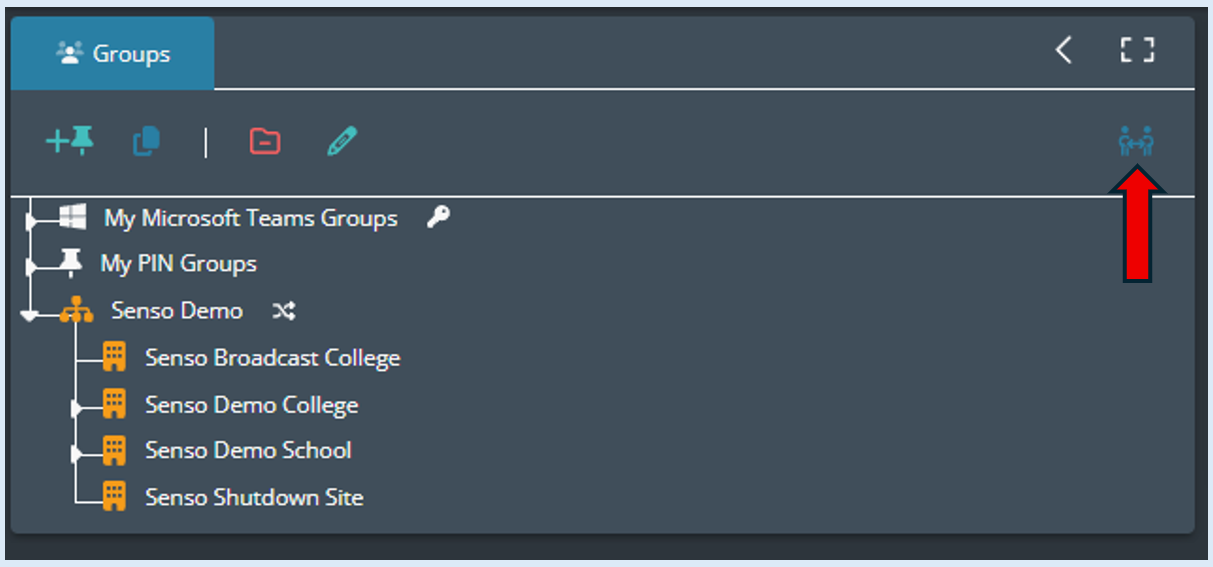
Once selected a drop-down menu will be available to select the user whose groups you need to access.
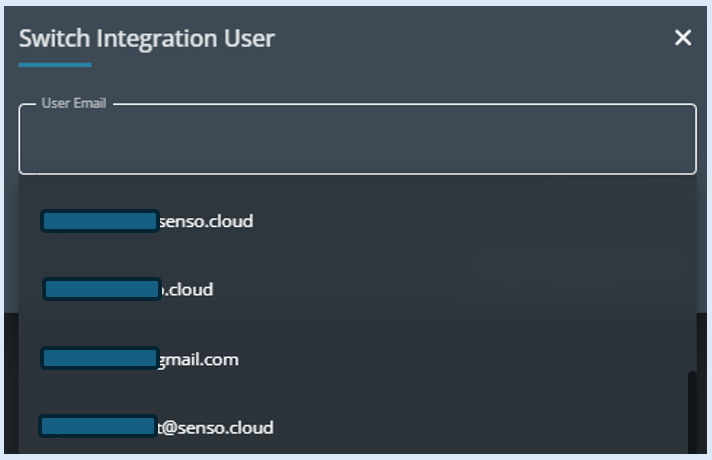
You can use the ‘User Email’ field to search for a specific user. Just start typing in their email address and it will filter the list below, select the required users email address and it will appear in the field.
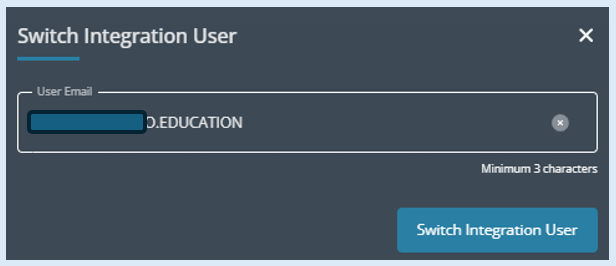
This will now allow you to select the ‘Switch Integration User’ button.
Once selected you will now have access to the groups associated with (Microsoft Teams, Google Classroom or ClassLink).
Before using the ‘Switch Integration User’ option the user below had access to one Microsoft Teams group.
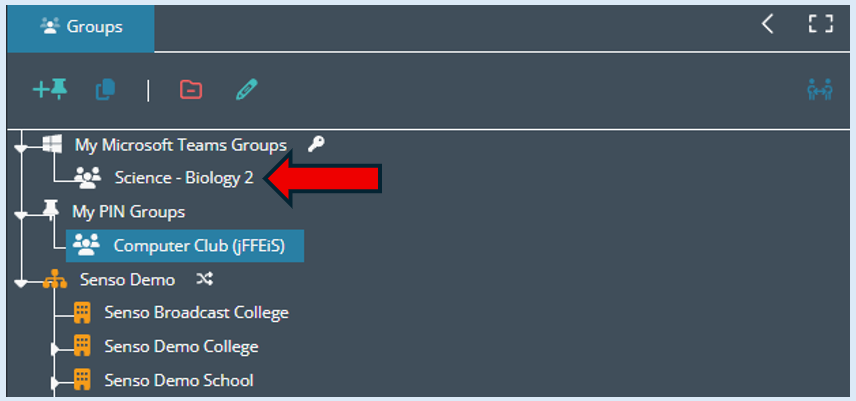
Once the ‘Switch Integration User’ was selected the groups showing in the Option ‘My Microsoft Teams Groups’ has changed to that user’s groups.
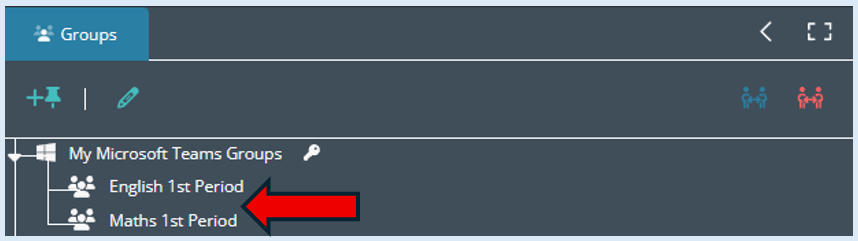
If the ‘Switch Integration User’ option has been selected another Icon will appear that is titled ‘Reset Integration User’.
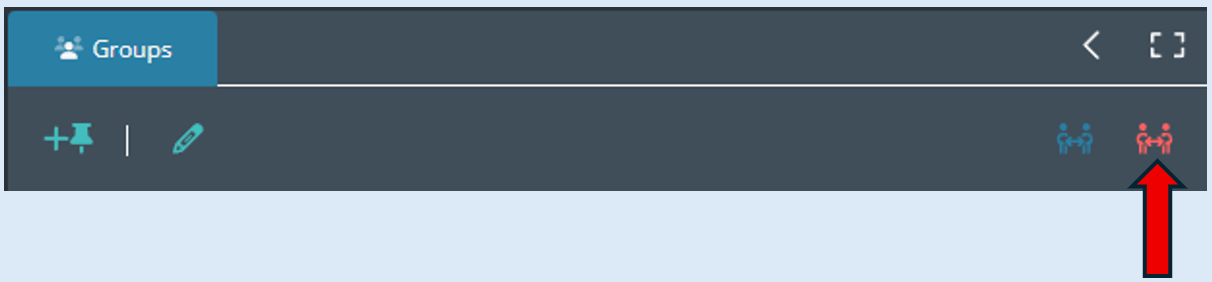
If this is selected it will return to the settings of the initial user.