
This guide will explain how to add the permission of 'Switch Integration User' to an existing role which could be used/assigned to supply/substitute teachers or teachers within your organisation that cover classes. The permission will allow the user to use the Switch Integration User option which will allow them to access another user’s groups that are synced through either Microsoft Teams, Google Classroom or ClassLink.
Once you have logged in to senso.cloud you will need to select the ‘Admin Centre’ icon. This is located at the top of your console.

Once selected the ‘Admin Centre’ homepage will open.
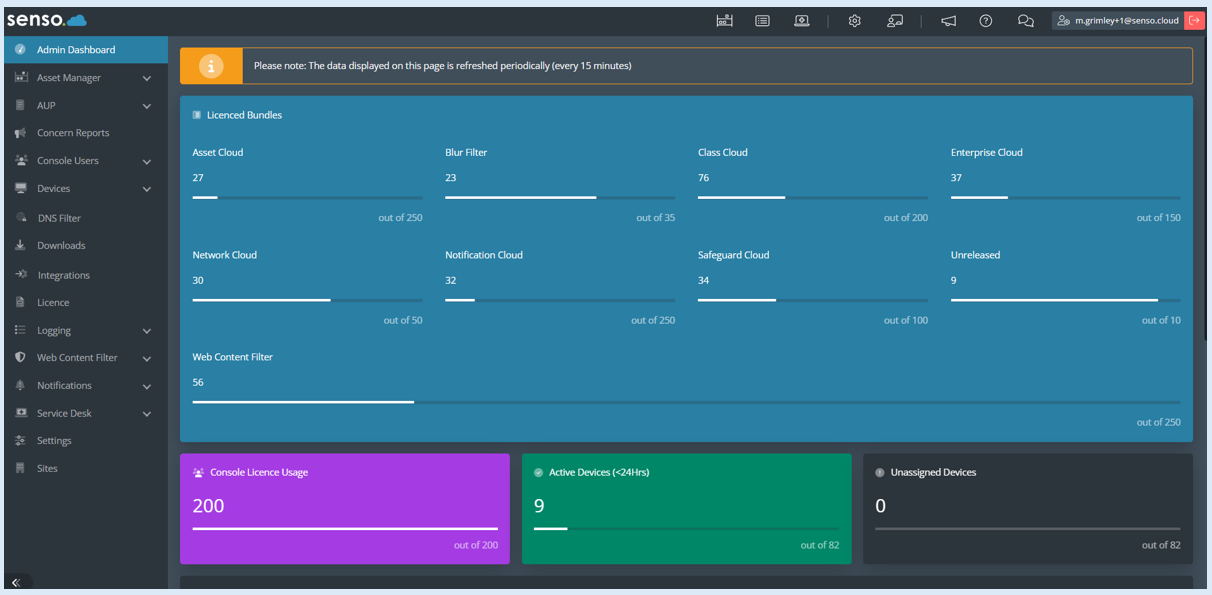
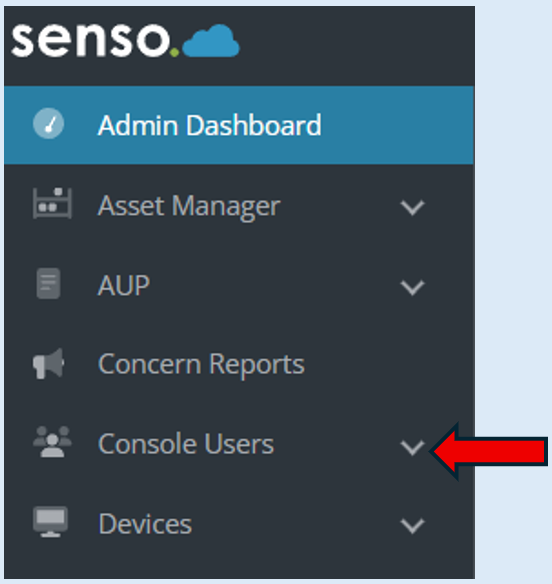
Select ‘Console Users’.
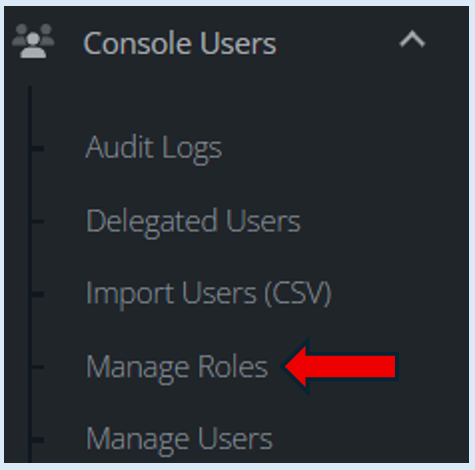
Then select ‘Manage Roles’.
Select a role from the list that you would like to add the ‘Switch Integration User’ permission to by clicking the edit icon.
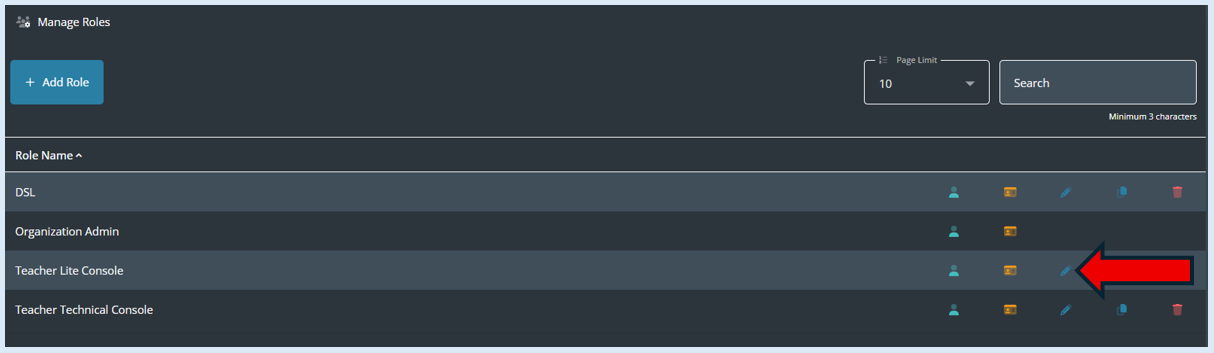
The role set up process will open for the selected role.
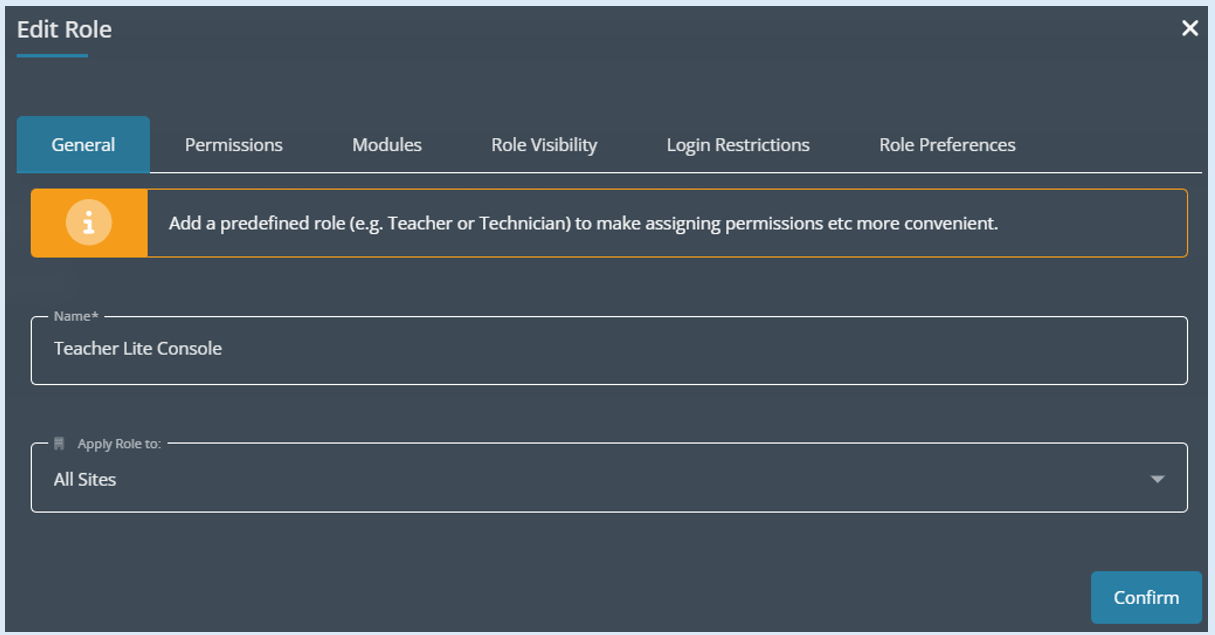
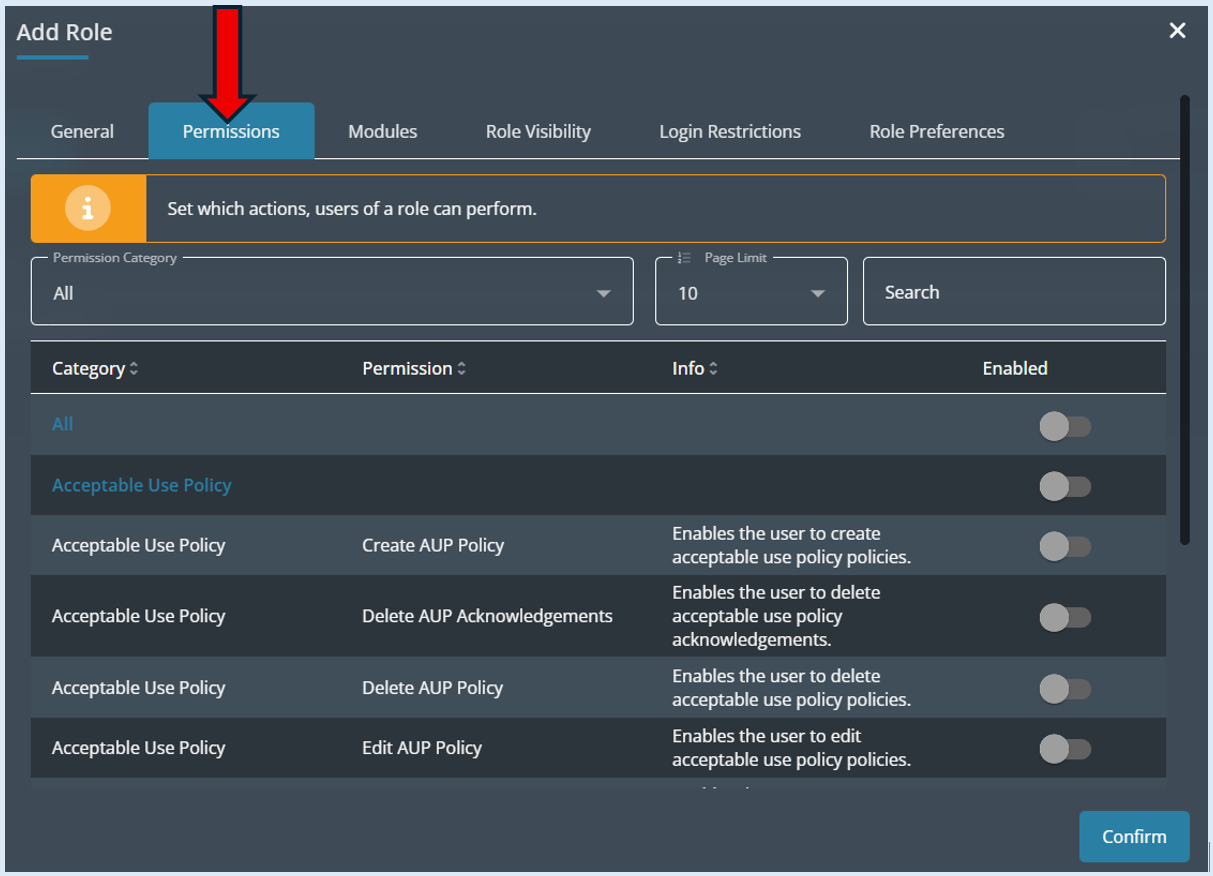
Select the tab titled ‘Permissions’.
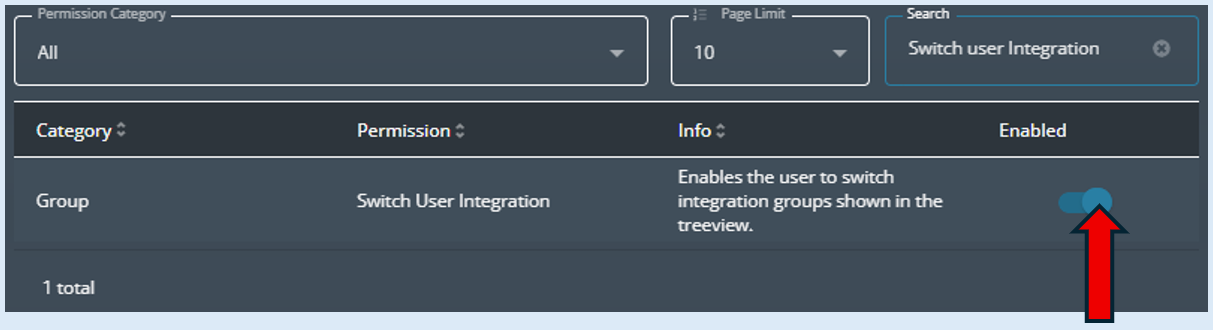
To enable access to ‘Switch Integration User’ start to type this into the search field and the option will appear below. Switch the toggle button to the ‘Enabled’ position.
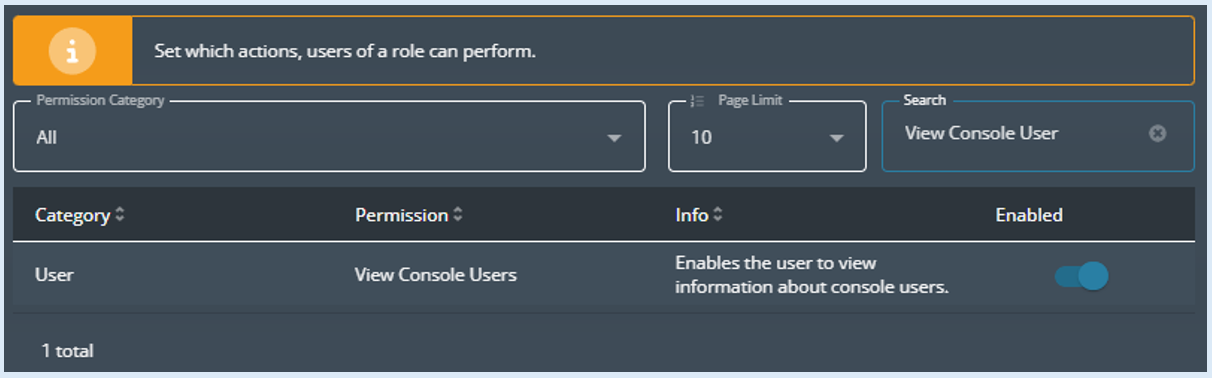
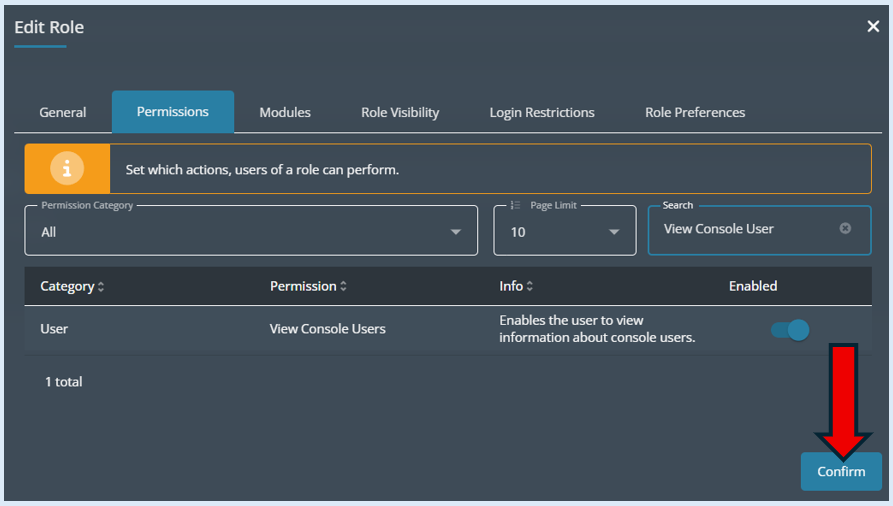
Next, type in ‘View Console User’ into the search field, once the option appears, select 'Enabled'.
Finally select ‘Confirm’.
The role has now been updated, and the added permissions will allow the user to select the ‘Switch Integration User’ option when logged in.