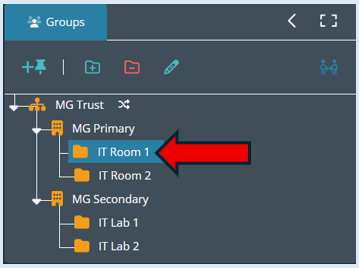
This guide will explain the steps needed to create a policy. A policy will allow you to permanently apply a set of specific settings against a specific group, all groups within a site or at the Organisation level which will cover all groups across all the sites.
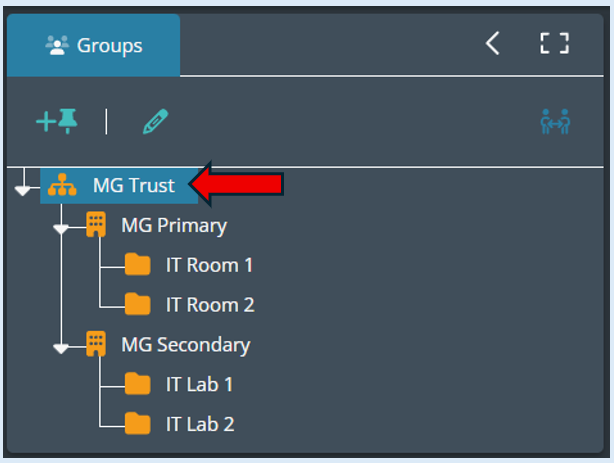
If you wish a create a policy and assign it against every group within an organisation in the groups section of your console, select the Organisation name. In this example you would select MG Trust.
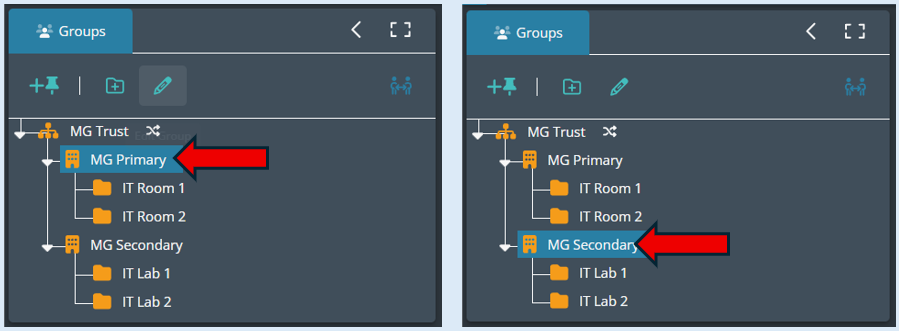
If you wish to create a policy and assign it against every group in a specific site, select any of the available sites that are within the organisation. In this example you could select either MG Primary or MG Secondary.
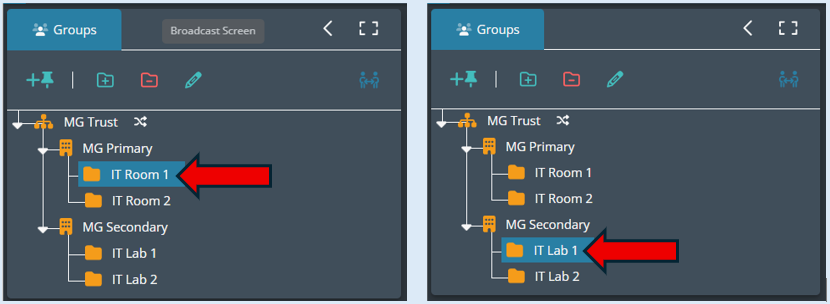
If you wish to create a policy and assign it against a specific group within a site, select any of the available groups that are associated within any of the sites available. In this example you could select either IT Room 1 or IT Room 2 within MG Primary Site or IT Lab 1 or IT Lab 2 within MG Secondary Site.
When you have made your selection of organisation level, site level or specific group an option will appear, titled ‘Policies’. Select this. For this example, we will be using the group called ‘IT Room 1’. This is where the policy will be actioned.
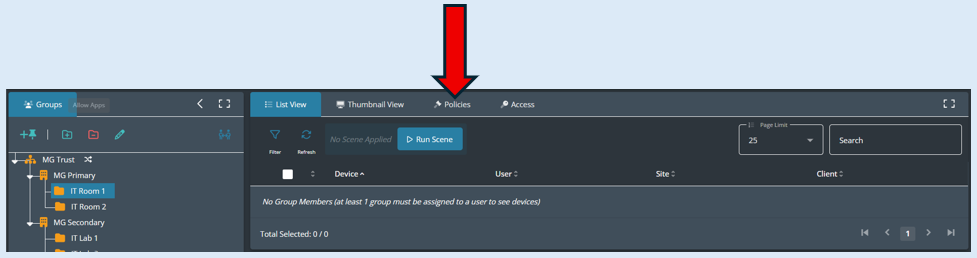
Next, select the ‘+ Add Policy’ button.
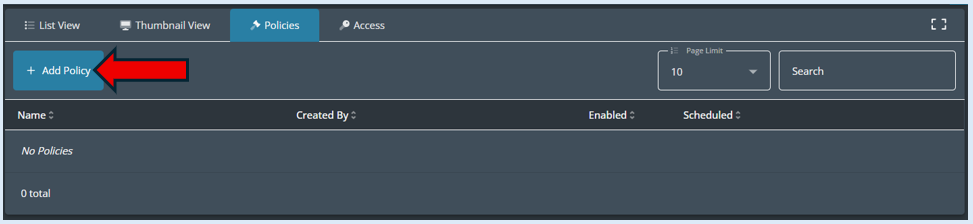
The ‘Add Policy’ set-up page will open. For this policy set up we will be using the example of creating a scheduled shutdown of devices.
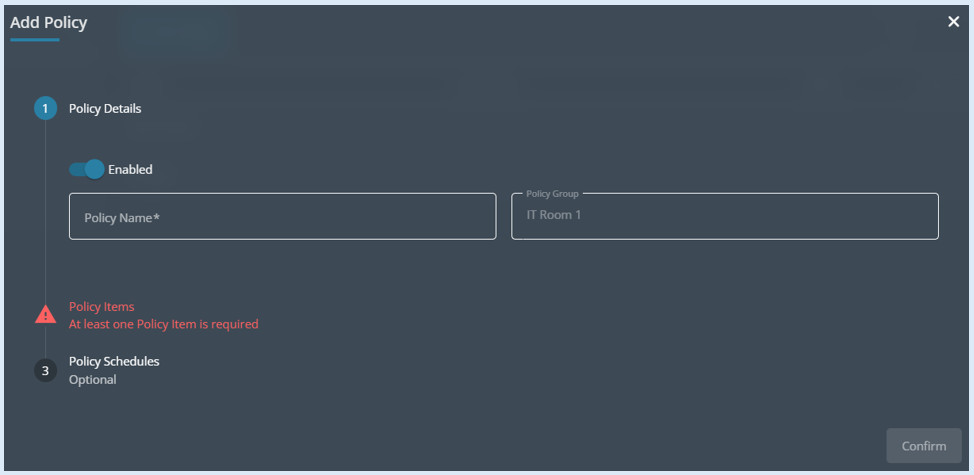
Step 1 – Policy Details
The policy is automatically Enabled, if in the future you wish to disable the policy you can change the toggle button to the Disabled position.
The policy Group field is automatically populated with the group, site or organisation that you previously selected. This is where the policy will be applied.
You will need to add in the policy name. For this example, we are using ‘Scheduled Switch Off’.

Step 2 - Policy Items
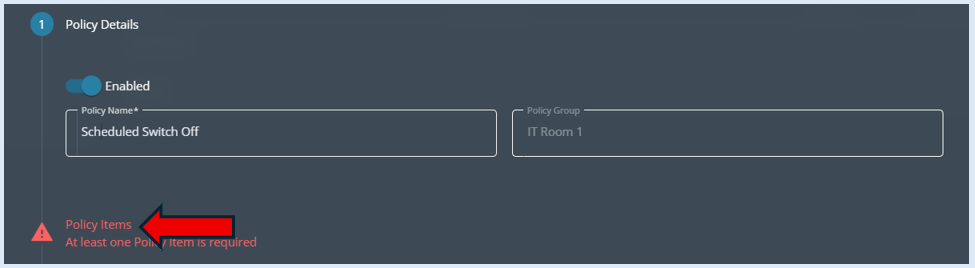
Select the ‘+ Add Policy Item’.
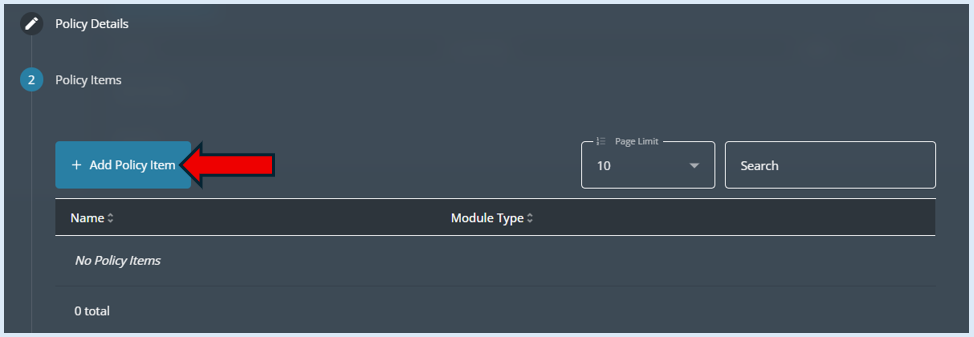
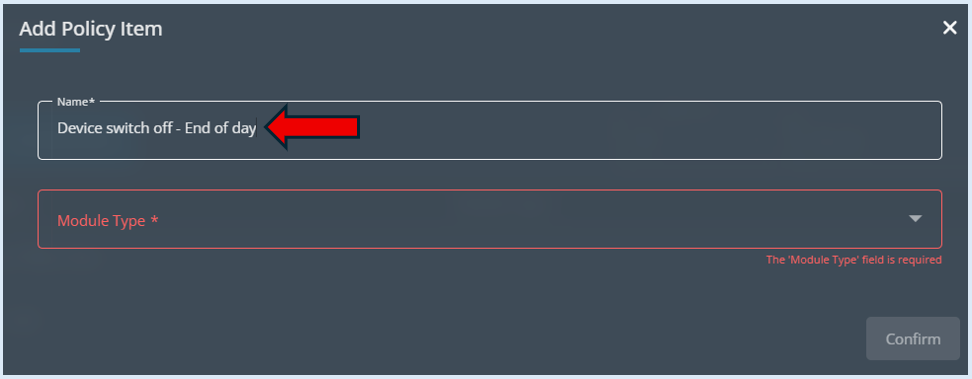
Add a name in for policy item then select the module type the action relates too. This item has been titled ‘Device switch off - End of day’.
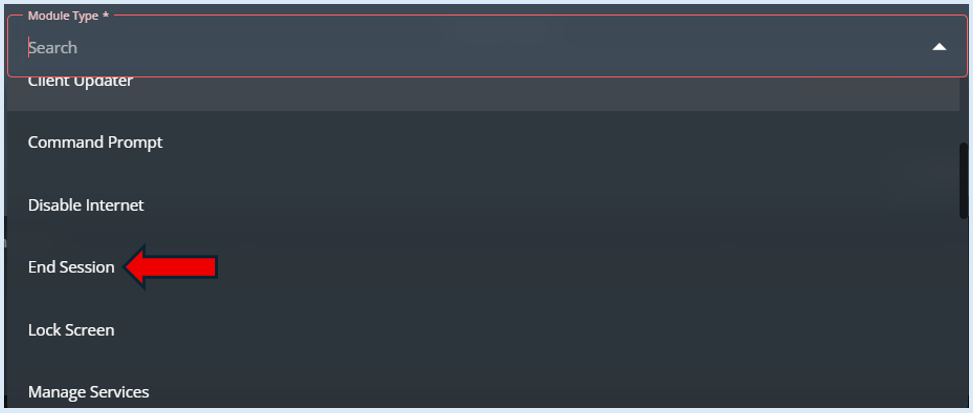
Next the module, where this action can be selected needs to be chosen. To turn off devices, the module needs to be ‘End Session’.
When this module is selected it will open up an options box for you to complete.
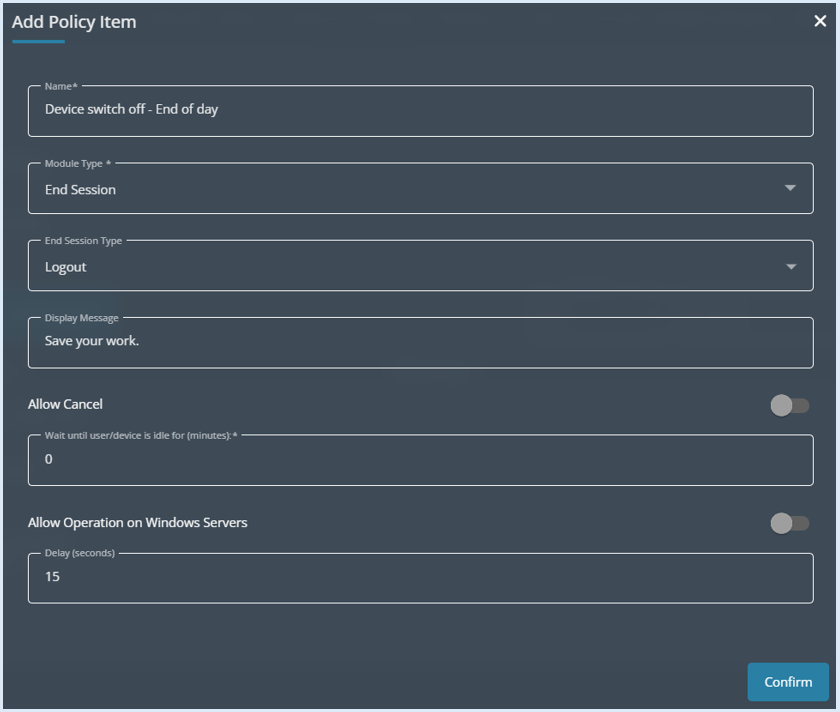
The ‘Name’ field pre-populates with the title that has been added in ‘Device switch off - End of day’.
The ‘Module Type’ field pre-populates with the module that was previously selected ‘End Session’.
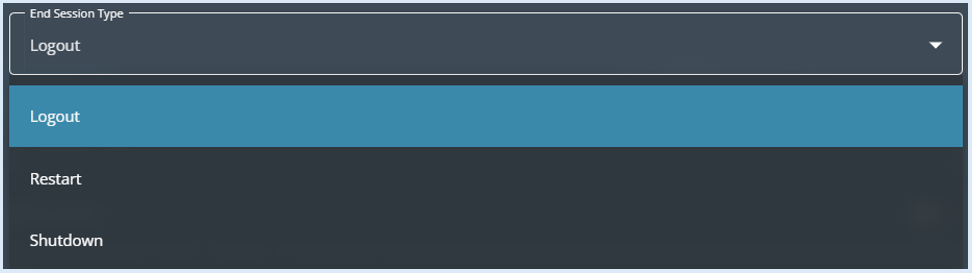
The ‘End Session Type’ field initially shows as ‘Log Out’ however if you select the drop-down arrow there are other options available to select from.
For this policy example, the devices need to be shut down so the option selected needs to be ‘Shutdown’.
The next field ‘Display Message’ will allow you to show a message on the devices before the ‘Logout’ action is applied. The logout will be scheduled for after the end of the school day so a courtesy message can be set up in case a member of staff is using any of the devices. For this example, the message will say, ‘A scheduled shutdown will take place at 4.00pm’.
Next there is an ‘Allow Cancel’ button. If this is switched to the ‘On’ position anyone using a device where the policy will be actioned has the ability to cancel the action. For this example, the ‘Allow Cancel’ button will not be switched on.
The next field ‘Wait until user/device is idle for (minutes)’ allows you to add in a time the device needs to be idle after the scheduled time before the action is applied. For this example, it will not be used so the time will be left at ‘0’.
The final field ‘Delay (Seconds)’ will allow you to have a timer counting down from when the policy is set to run, this will show the custom message that you have set up. In effect it is giving the user an advanced warning that the action will be taking place.
Select ’Confirm’.
The policy item that has just been created will now show in the list of items.
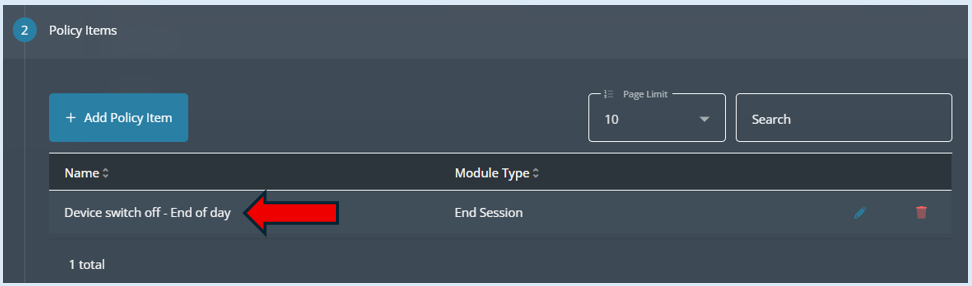
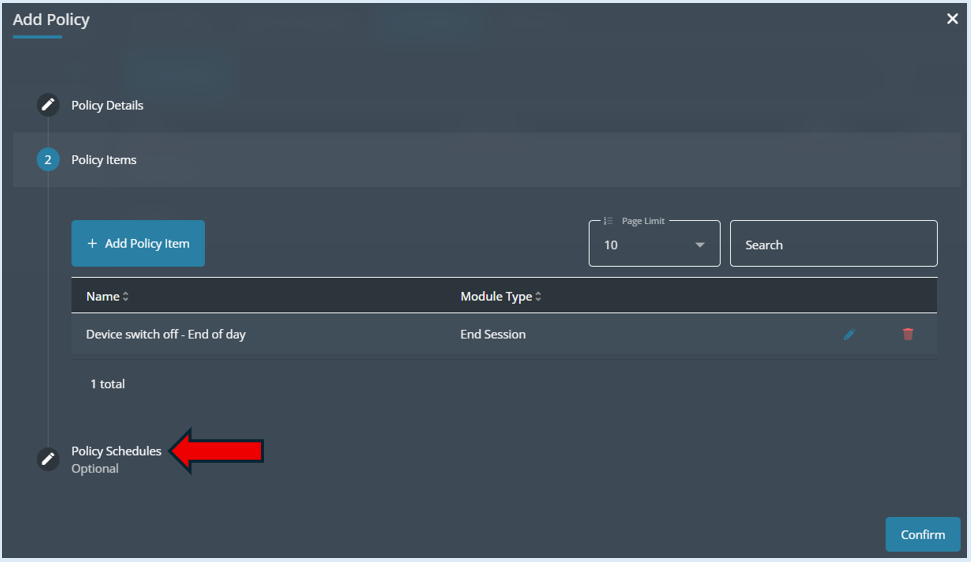
Step 3 – Policy Schedules. Now select the ‘Policy Schedules’ option.
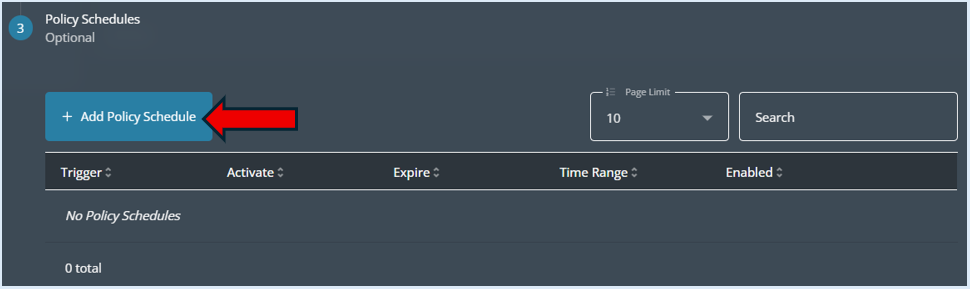
Select the ‘+ Add Policy Schedule’ button.
An options box will open.
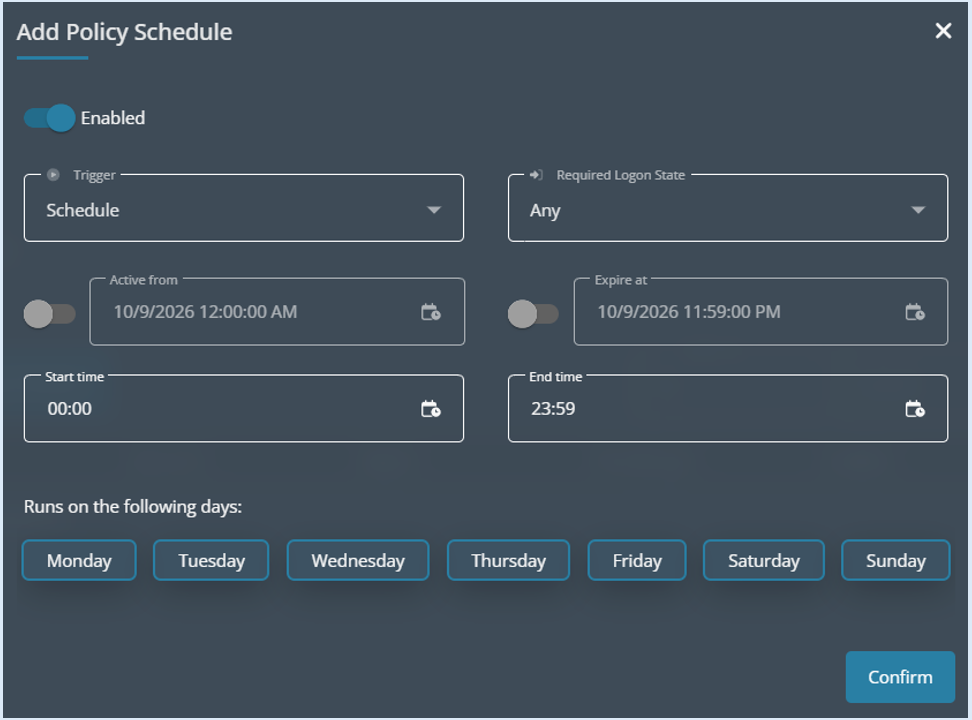
The ‘Trigger’ field has three options to select from;
Schedule – Runs within the specified time window; can be customised to target specific login states (e.g., when users are logged in or logged off).
Log On – Executes when a user signs in (disables the login state option as it’s not required)
Start Up – Executes when the device starts up (disables the login state option as it’s not required).
For this example, we are setting a specific time for the action so the trigger needs to be set to ‘Schedule’.
The next field ‘Required Logon State’, This provides three options. The action can take place if the devices are Logged On, Logged Off or Any. For this example, we are selecting ‘Any’.
The next two options are selecting the date range this policy is active from, this is used if the policy has a specific period it needs to be active. If this is not changed the policy will be active from its creation with no end date.

For this example, these options will stay switched off.
The next two options allow you to set both the Start time and End time, this is the time window that the policy will be active.
The time you want the action to start will need to be added, for this example it will be set at 16.00. An end time will be needed to allow the action to reach all of the desired devices. We recommend allowing 30 minutes. The end time for this example will be set to 16:30
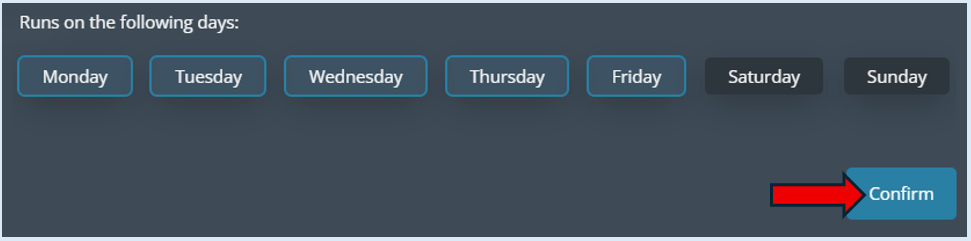
The final action to confirm the policy schedule, is to select the ‘Confirm’ button.
The schedule will now show on the page.
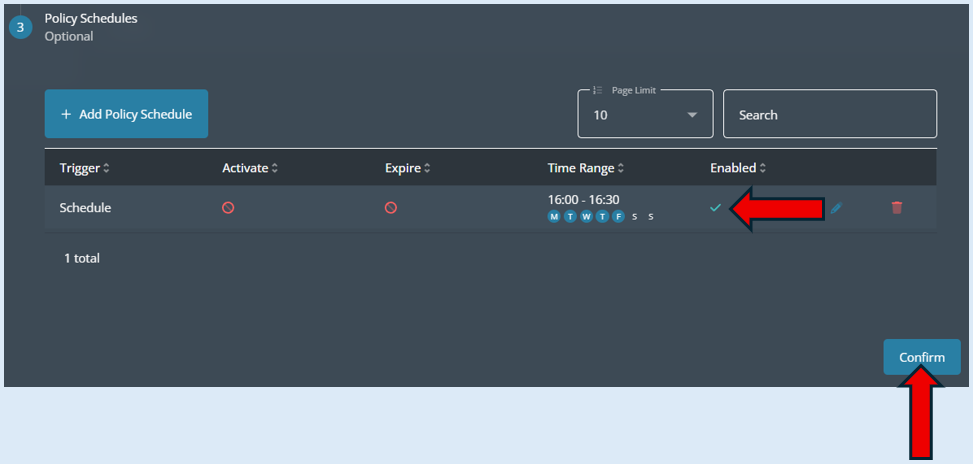
To complete the set up process of this policy, select the ‘Confirm’ button.
The policy will now show on the ‘Policies’ page.
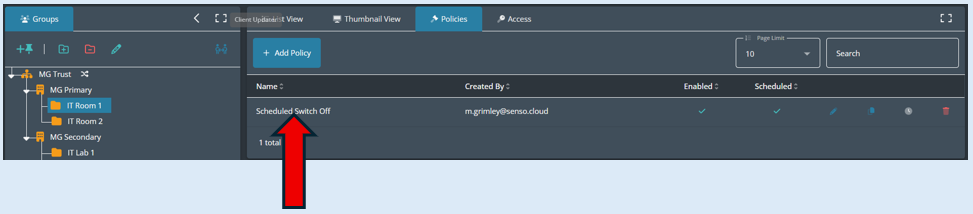
Please note this policy will only show when either the group, site or organisation that it was assigned to is selected in the groups tree.