
This guide will explain how to create a custom ruleset that will allow you to add whitelist items into, that will not be blocked by the Web Content Filter. This guide will also show you how to activate the ‘Whitelist’ ruleset within your Logging policy.
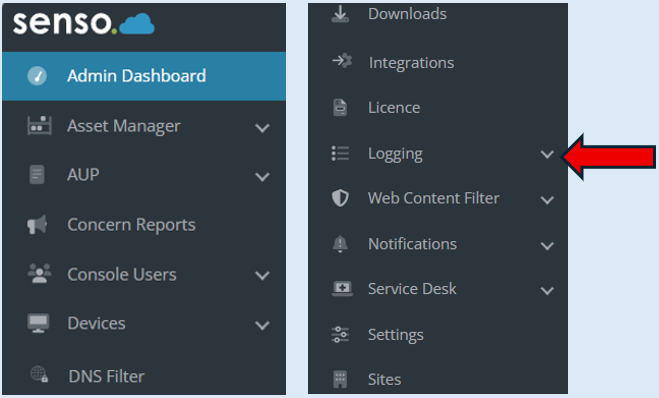
Click on ‘Admin Centre’.

From the drop-down list, select ‘Logging’.
Select ‘Rulesets’.
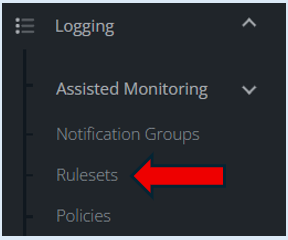
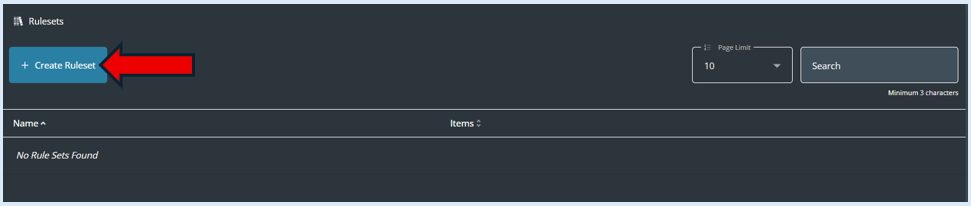
After selecting ‘Rulesets’ you may already have some Rulesets created in your environment that will show in the list. However, we would recommend that two rulesets are created if not already there. One being titled ‘Whitelist’ and another titled ‘Blocklist’. Having these two clear titles will help now and going forwards when items need to be added to either be allowed or blocked.
Select the ‘+Create Ruleset’ button.
Add in the title for this Ruleset. For this example we are naming the Ruleset ‘Whitelist’.
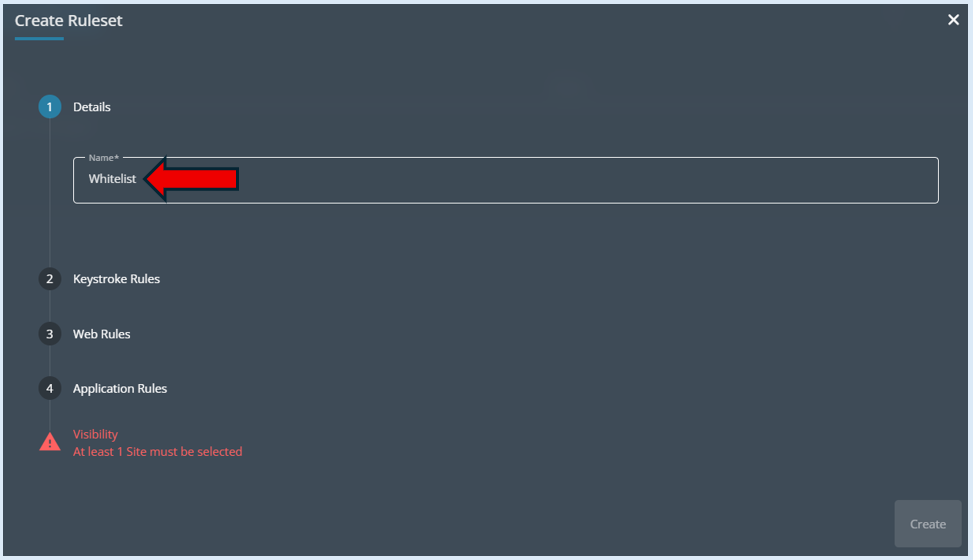
You do not need to complete either section 2 ‘Keystroke Rules’ or section 4 ‘Application rules’.
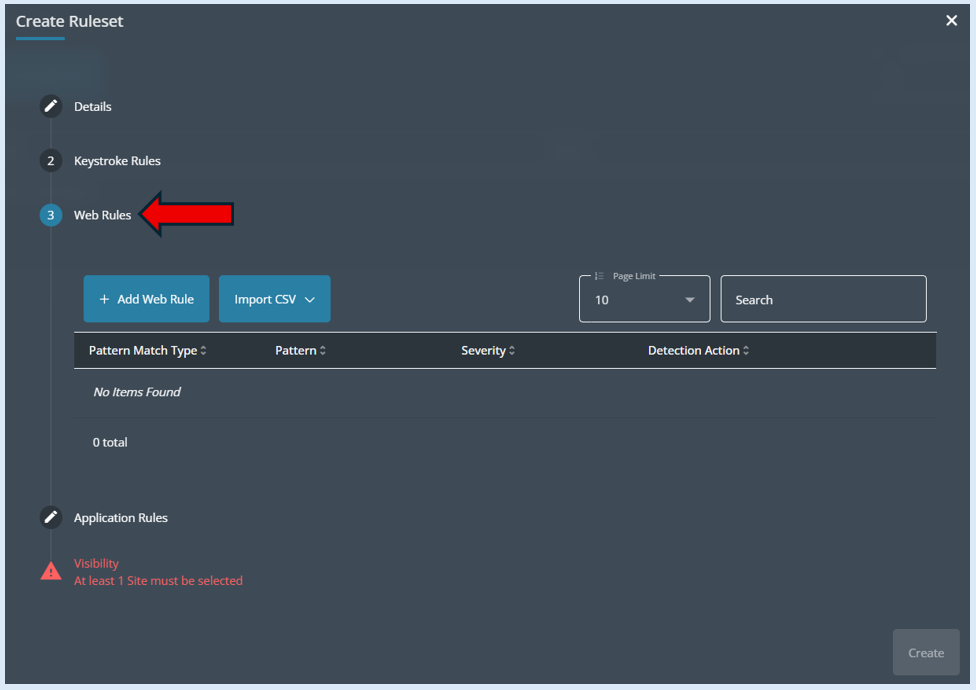
Click on section 3 ‘Web Rules’.
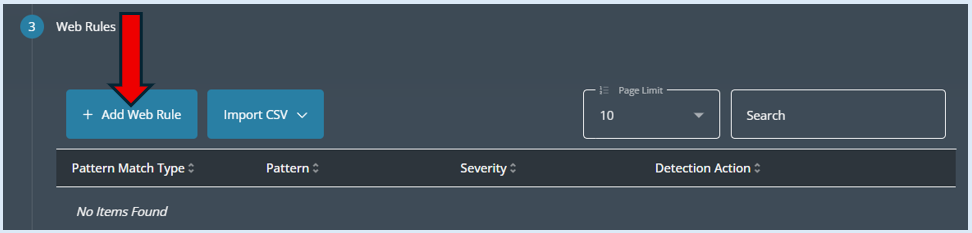
Then select the ‘+ Add Web Rule’ button.
This will open up a new options box.
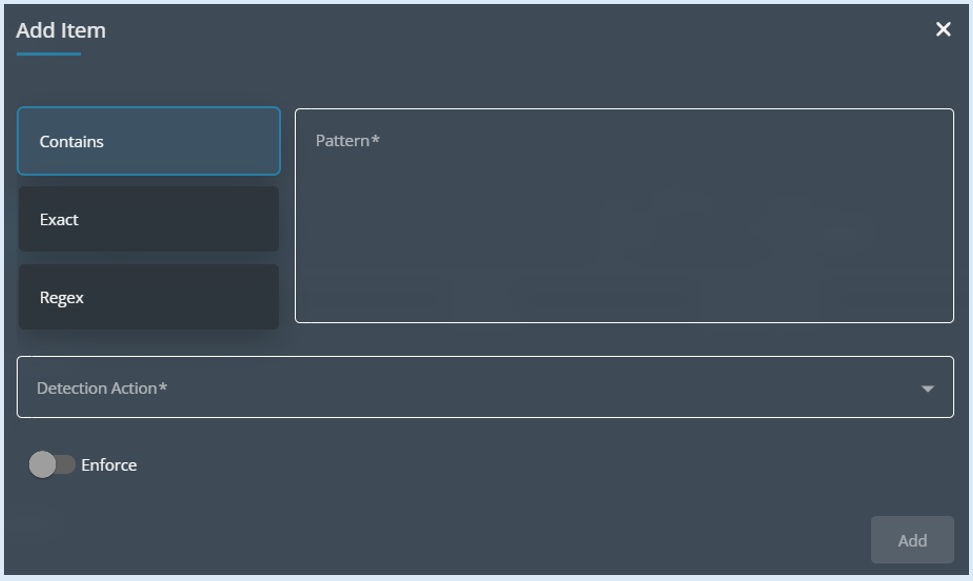
This is where items can be added into the Ruleset that will be allowed, users will be able to access these websites.
We recommend that the items are added in via the ‘Contains’ option. This means the words that are added in, if they are part of a web address they will be allowed. If you do have a specific website URL that needs to be allowed, then you can select the ‘Exact’ option, but it will only be that specific URL that will be allowed.
For this example, ‘senso.cloud’ has been typed in. Any URL that contains these words will be allowed to be accessed by users.
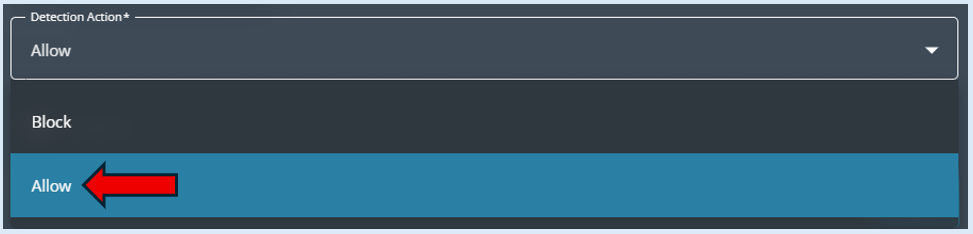
Next, the ‘Detection Action’ field will need to be selected. Select the ‘Allow’ option.
There is an option called ‘Enforce’. This is asking does this rule supersede other custom rules that have been set up. This will only need selecting if you are looking to whitelist part of a website that has been blocked by a custom rule.
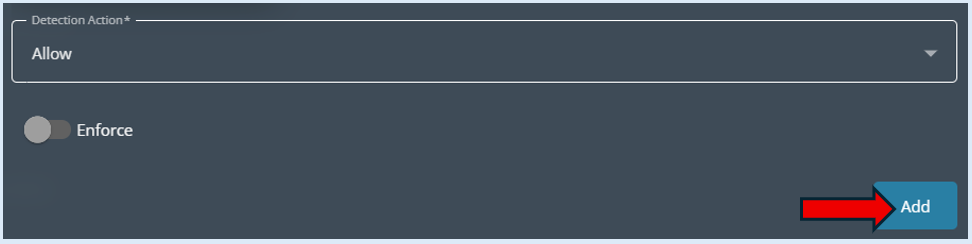
Select ‘Add’. This item will now show in the ‘Web Rules’ section.
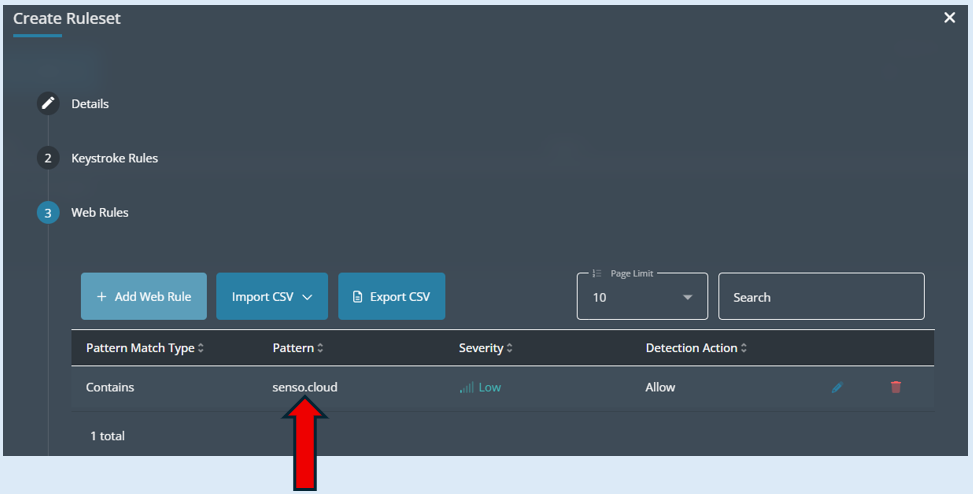
You can repeat this process to add additional items that you wish to allow.
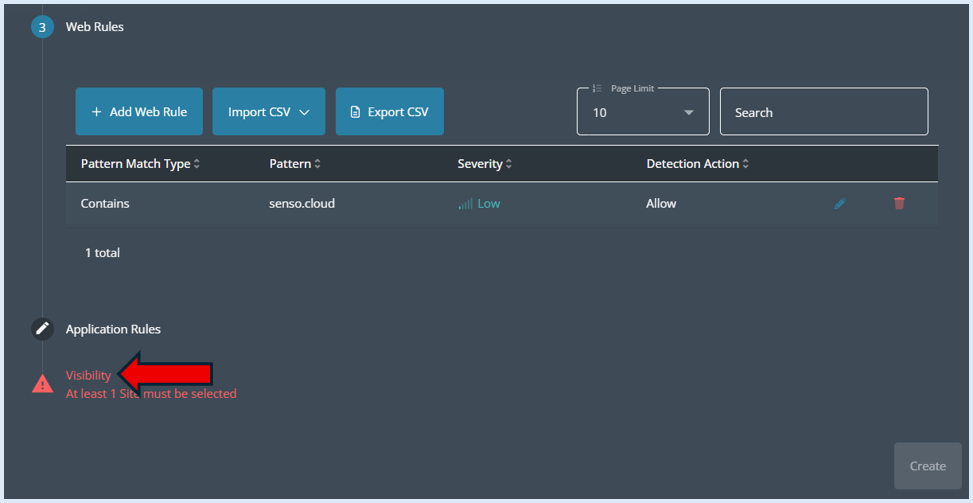
Next select ‘Visibility’.
Select which sites from the available list you would like to apply this ruleset against by enabling the toggle switch.
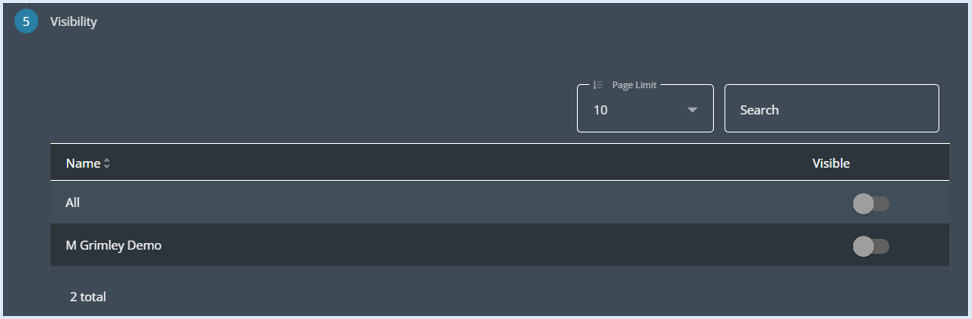

The final option is to select ‘Create’.
This Ruleset will now appear on the Rulesets page.

With the Ruleset now created, you will need to integrate this into a policy. Please note this only needs to be done on the first occasion as it is a brand-new Ruleset.
Please see the guide titled - Adding a Custom Ruleset to the Logging Policy.