
This guide will explain how to create a policy that will then allow you to use the Add Pin Group option on an ad hoc basis.
This policy can be set at different levels from the entire organisation or down to a specific group. The policy once created can be copied and assigned to any level. We would recommend that initially this would be set to a site level however your individual circumstances would dictate what this would need to be. If unsure then our customer service team would be able to advise.
This example is being based at a Site Level which means all groups that form the site will be impacted when the policy is activated.
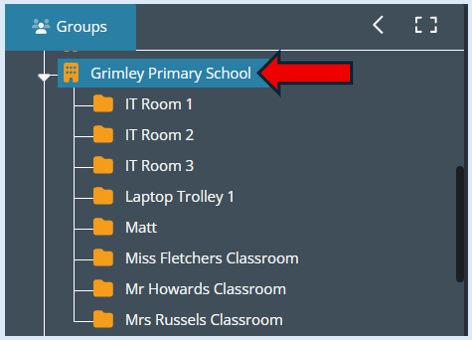
In the groups section of your console, select the site that you will be creating the policy for. We have selected at the site level ‘Grimley Primary School’. The eight groups within this site will be associated with the policy.
Next, you will need to select the ‘Policies’ icon.
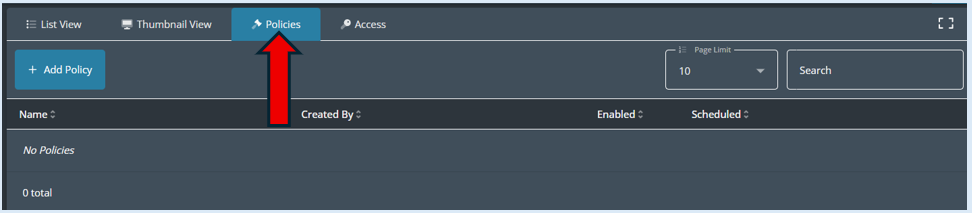
This will then show you all the policies associated with ‘Grimley Primary School’. Currently there are no policies set up.
To create a policy, select the ‘+ Add Policy’ button'.
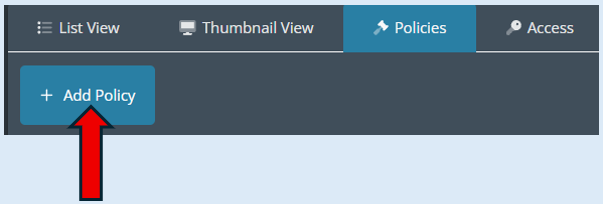
This will open up the options box.
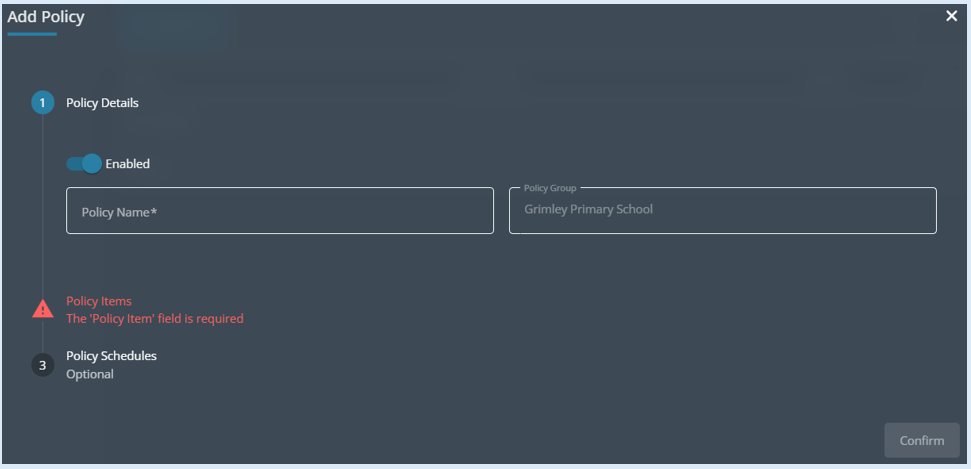
Add in the policy name ‘Add Pin Group’. The policy group field is populated with the previous selection ‘Grimley Primary School’.
Leave the ‘Enabled’ toggle switch in the active position.
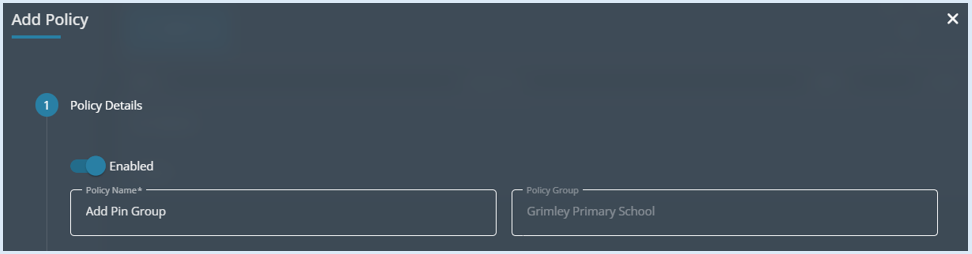
Next, select the ‘Policy Items’ section.
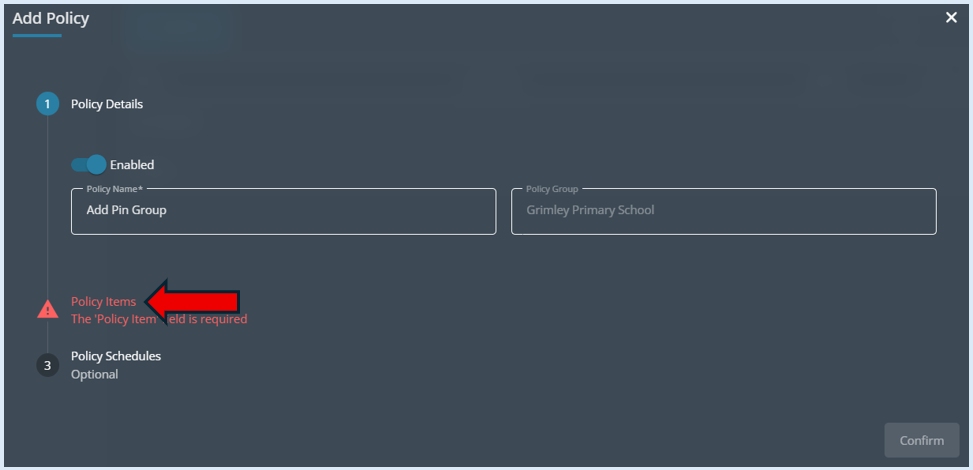
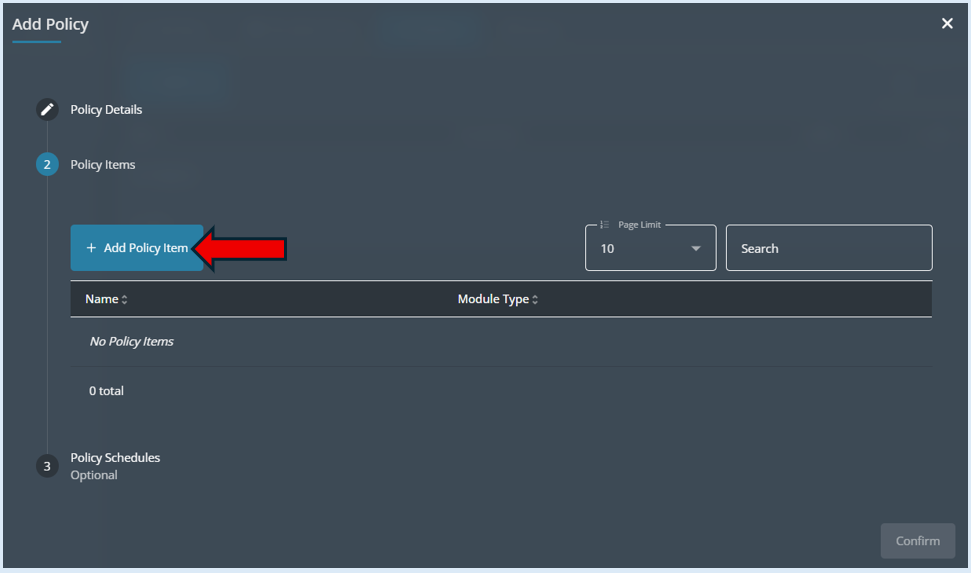
The ‘Policy Items’ section will open. Select the ‘+Add Policy Items’ button.
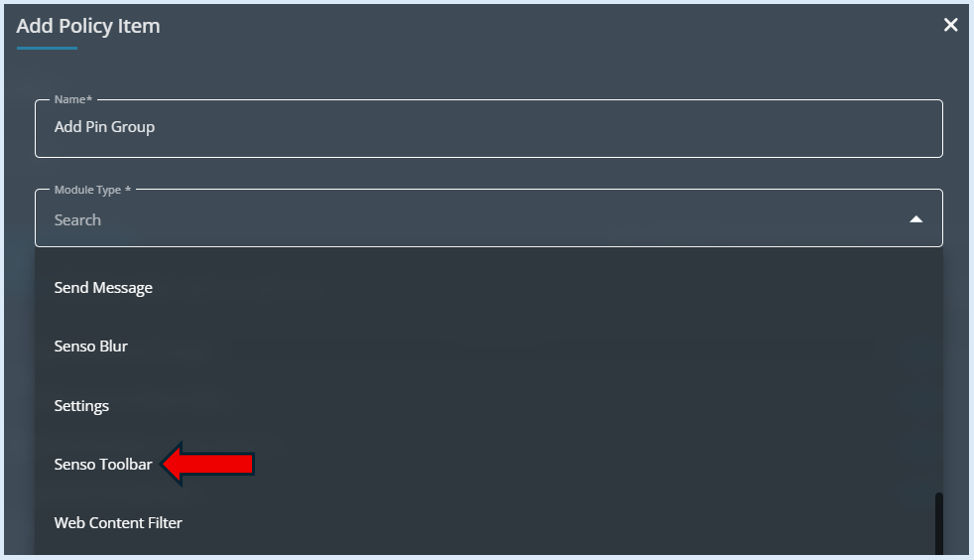
A new options box will open, add in the name ‘Pin Groups’. Then select the module type using the drop-down arrow. You need to select ‘Senso Toolbar’.
On selecting the ‘Module Type’, four toggle button options will appear.
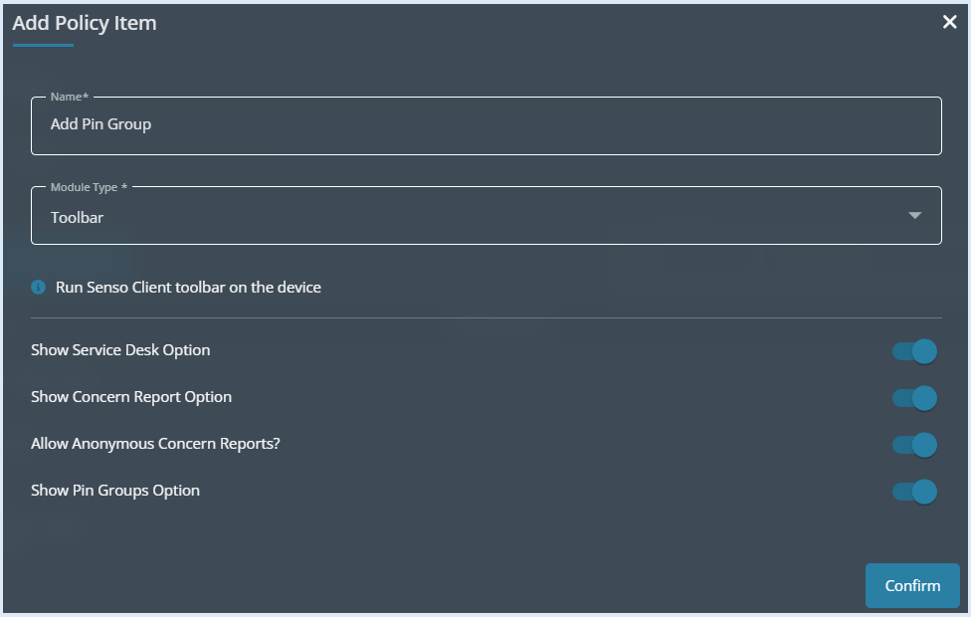
Switch the first 3 options to the ‘Off’ position only leaving the ‘Show Pin Groups Option’ selected.
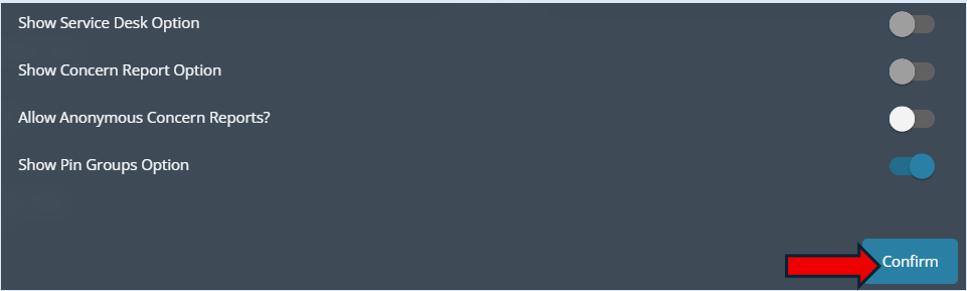
Select ‘Confirm’.
The Policy Item will now show on the page.
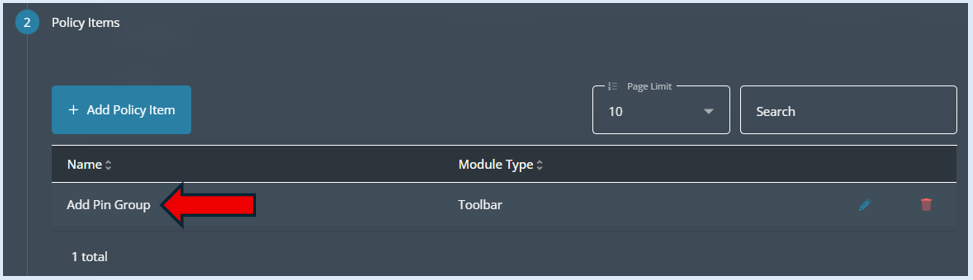
Next select the ‘Policy Schedules’ section.
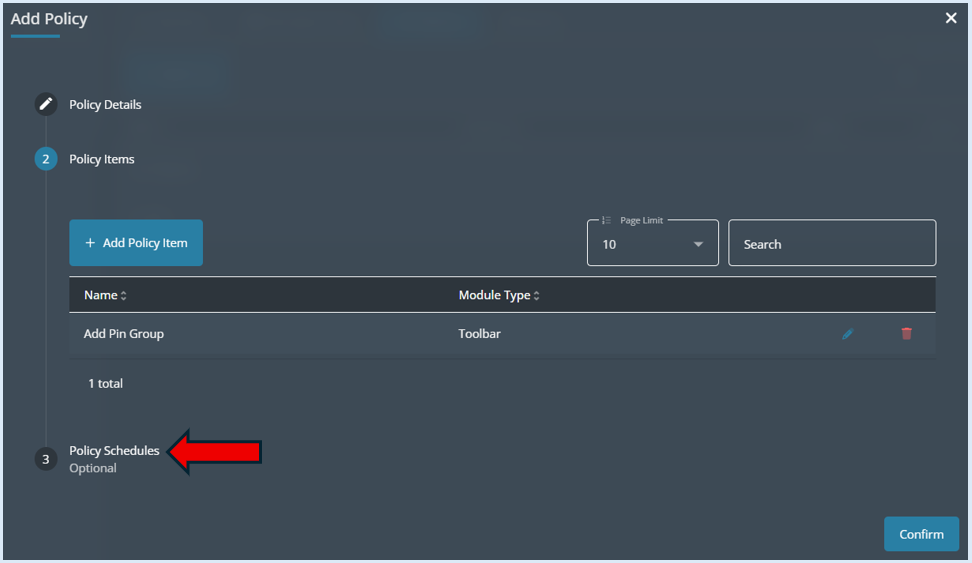
An options box will open.
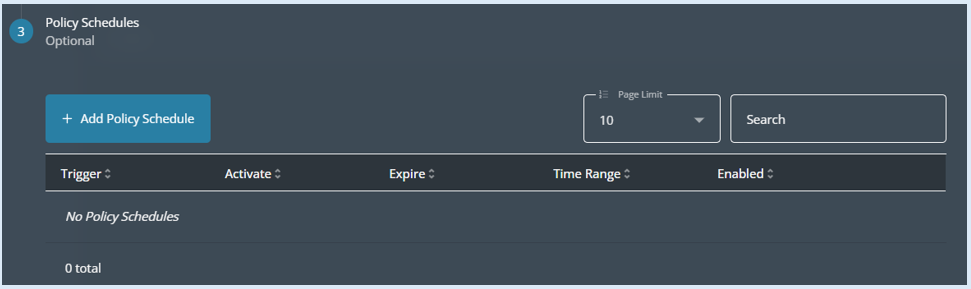
Select the ‘+ Add Policy Schedule’ button. The options for this will the open.
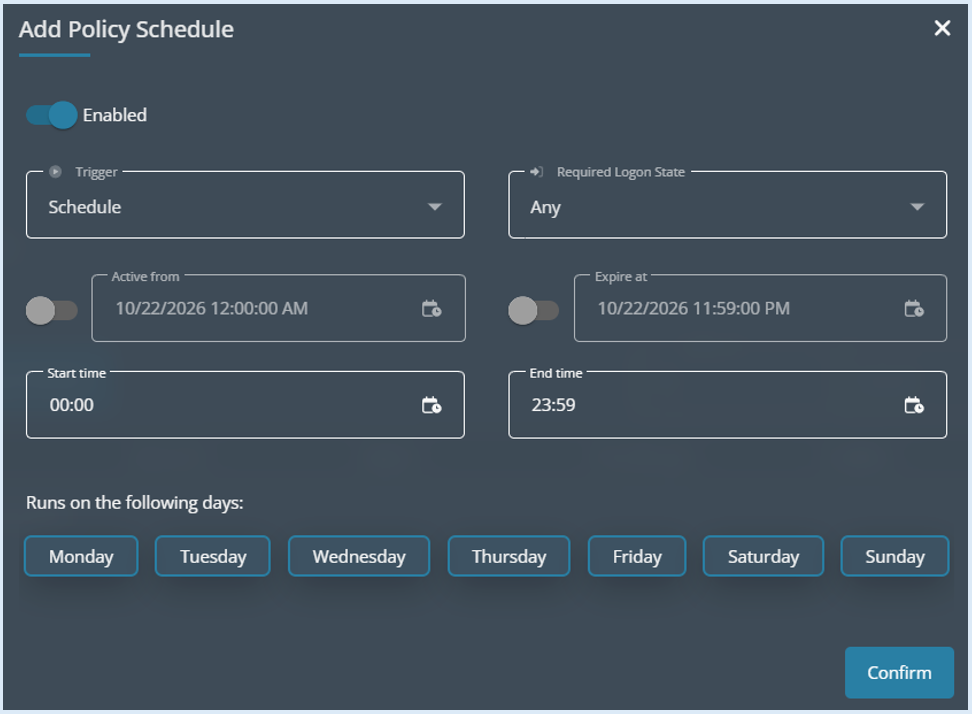
The ‘Trigger’ field needs to be set to ‘Logon’. This is our general recommendation.
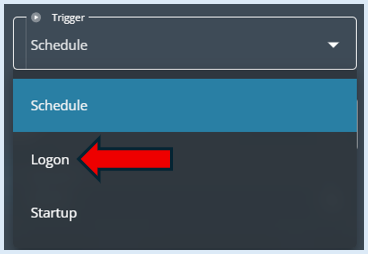
This means when a user logs on to their device the option for joining a pin group will be available.
The ‘Required/Logon State’ field can be left will disappear once the trigger field has been set to either Logon or Startup.

We want the policy to always be active, so no changes need to be made in the ‘Active From’ and ‘Expire at’ fields.

Both the ‘Start Time’ and ‘End Time’ fields can also be left with the default settings. This means the policy will be active 24 hours a day.

Finally on this page the days of the week that this policy is active for are all selected as the default. Any days that this policy does not need to be active can be de-selected. For example, the policy is not needed on a Saturday and Sunday.

You can now select the ‘Confirm’ button'.
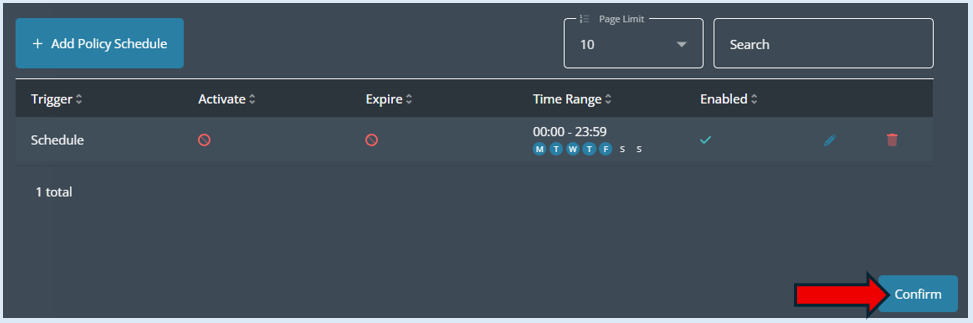
The policy schedule information will now show.
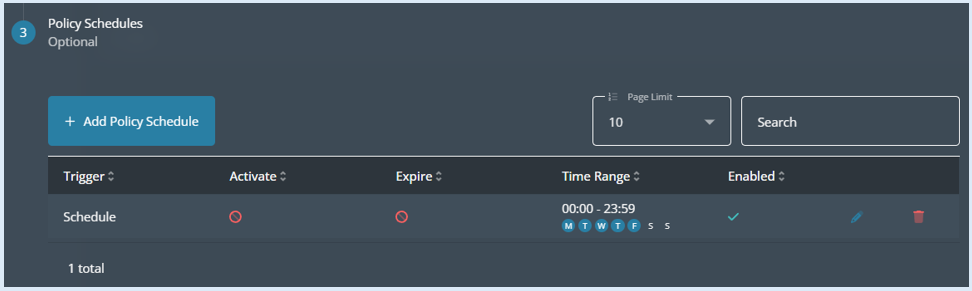
To complete the policy creation, select the ‘Confirm’ button.
The policy will now show in the Policies page.
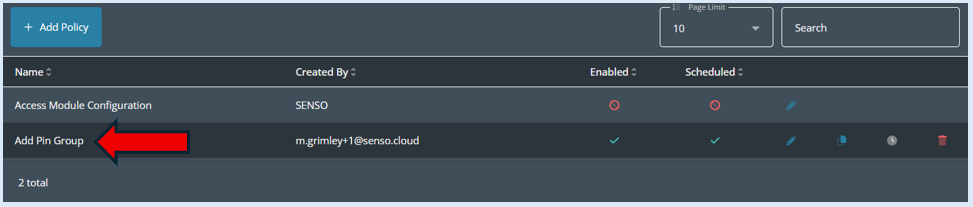
On this page you can see which policies have been ‘Enabled’ and if they are ‘Scheduled’. You can also edit, copy, change the schedule and delete any policy.