This guide will explain how to create a PIN Group and how this works, plus how a student will be able to join the group. This option will allow you to create a group that is not currently in your group structure. It allows you to create an ad hoc group, this group will be available to use until you decide it can be removed.
In the Lite Console the groups that you have access to will appear on the right-hand side of the console.
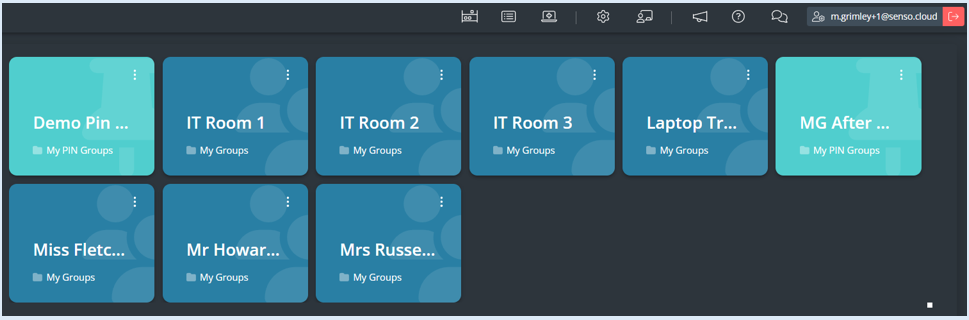
Each tile represents a group, will show the group name and the type of group. Currently there are two pin groups available to use. To quickly view all the pin groups, use the filter on the left-hand side by selected the ‘Pin’ option.
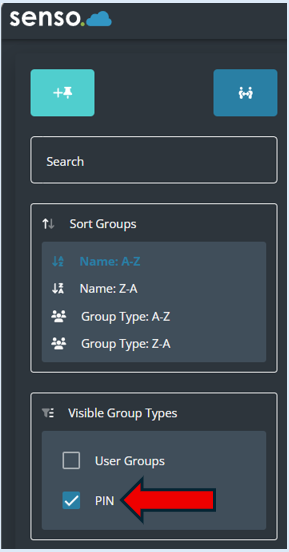
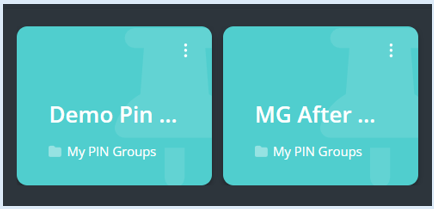
This will automatically filter the groups and just show the pin groups that you have access to.
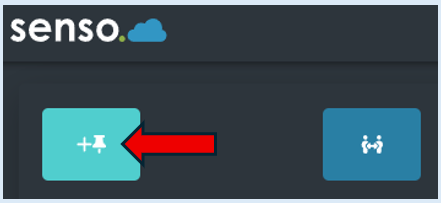
To create a new PIN Group, click on the ‘Add PIN Group’ icon.
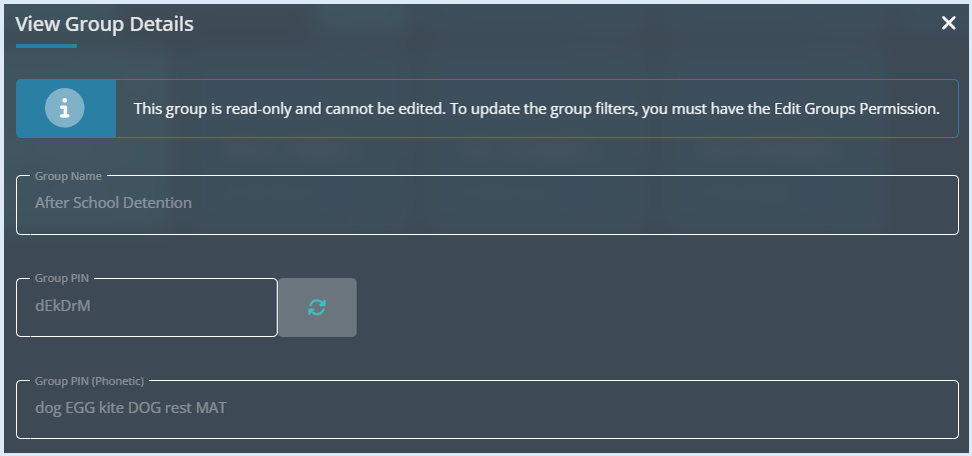
An additional options box will open. Enter in the group name. For this example we have added in ‘After School Detention’.
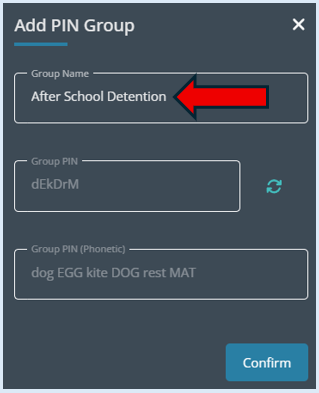
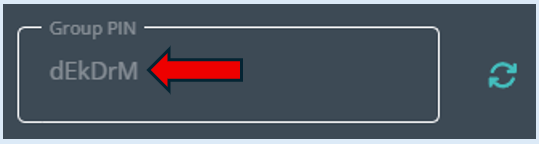
A group pin will automatically be generated.
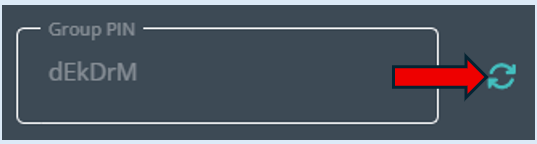
There is an icon next to the ‘Group Pin’ field that will allow you to change the pin if required.
The Group Pin will also show phonetically. This can be helpful when relaying the Pin verbally.
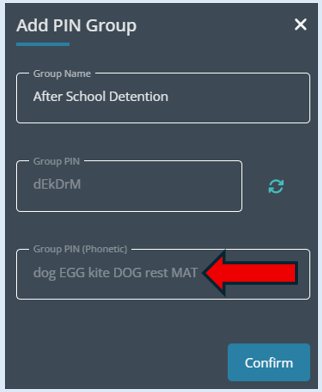
Select ‘Confirm’, this new group will appear in the group section.
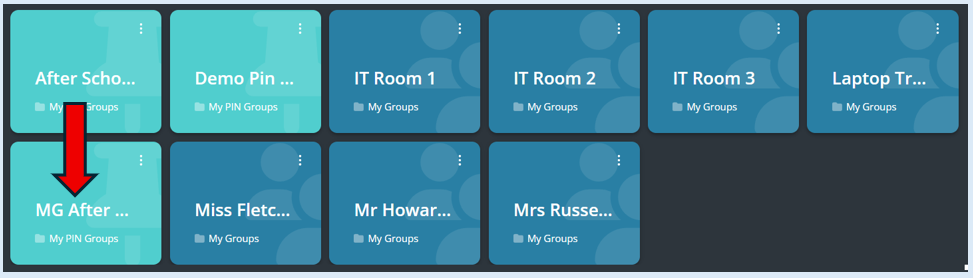
Any user who wants to join the group will need to enter in the ‘Group Pin’ to join the group.
Please Note – A specific policy needs to be created to allow users to access the Pin Group. There is a guide explaining how to do this. It is titled ‘Policy – Add Pin Group’.
When a user logs in to their device, the Add Pin Group pop-up box will automatically show.
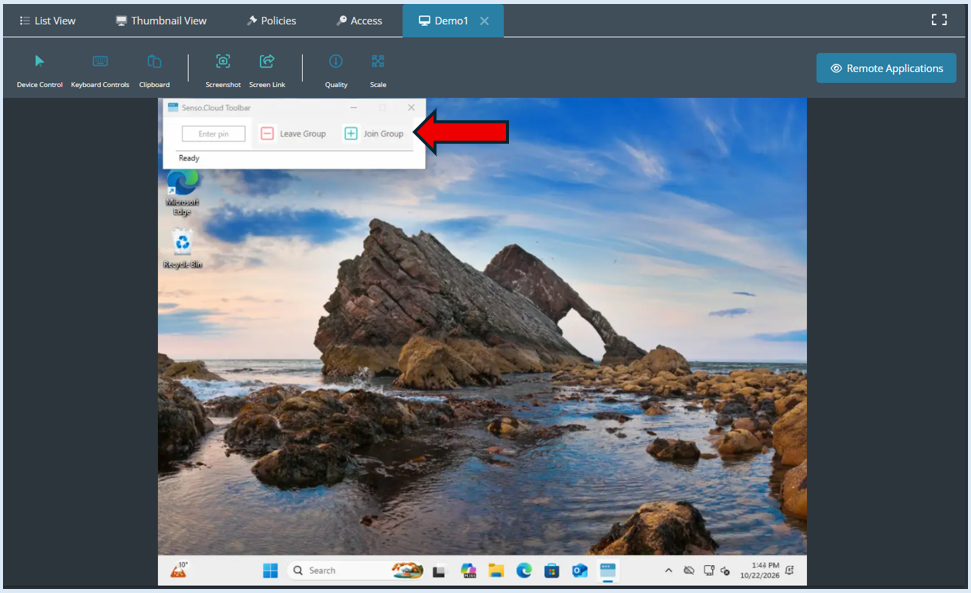
If at this point, there is no need to access a Pin group then this pop-up can be minimised.
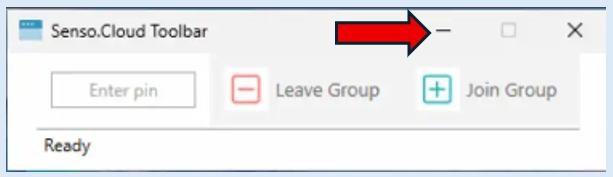
This can then be accessed by the user at any point from the icon on the user’s toolbar. Selecting this icon will reopen the pop-up box.
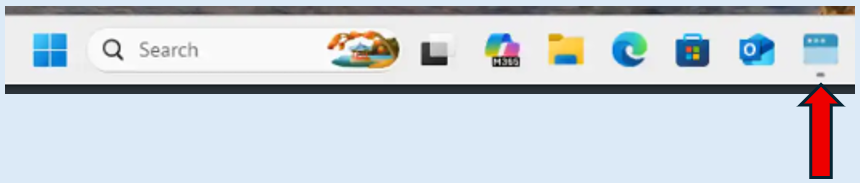
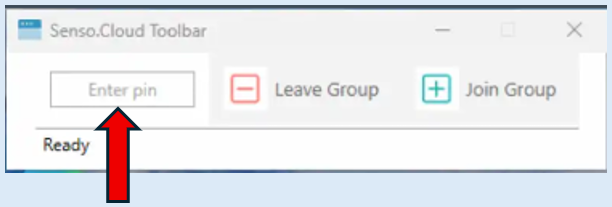
If the user is required to join a Pin Group, the console user will need to provide the users with the ‘Pin’. The user will need to enter this into the ‘Enter Pin’ field.
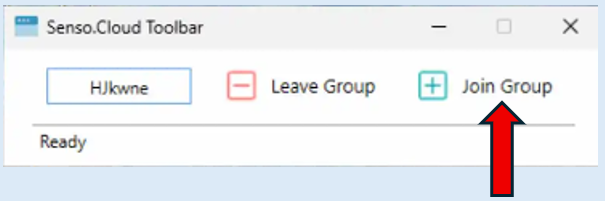
Once this has been entered, select ‘Join Group’.
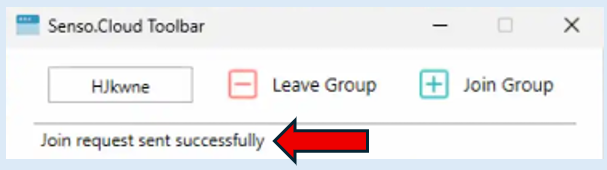
A message will show at the bottom of the pop-up box, stating ‘Join request has been successful’.
The user will now show within the pin group.
From the console users view, initially there will be no members of the group.
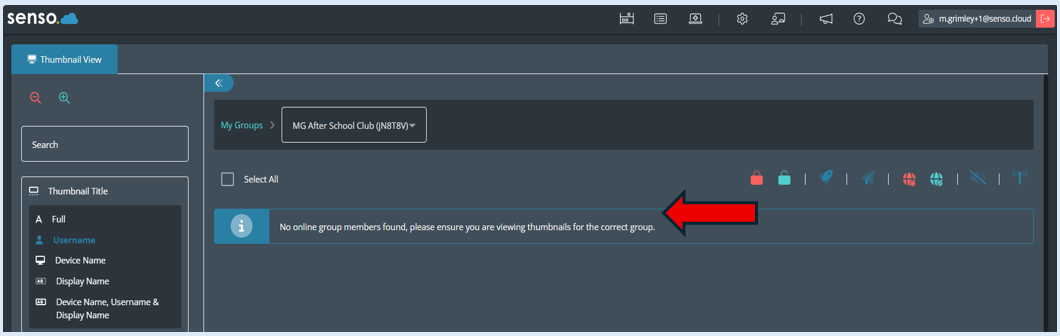
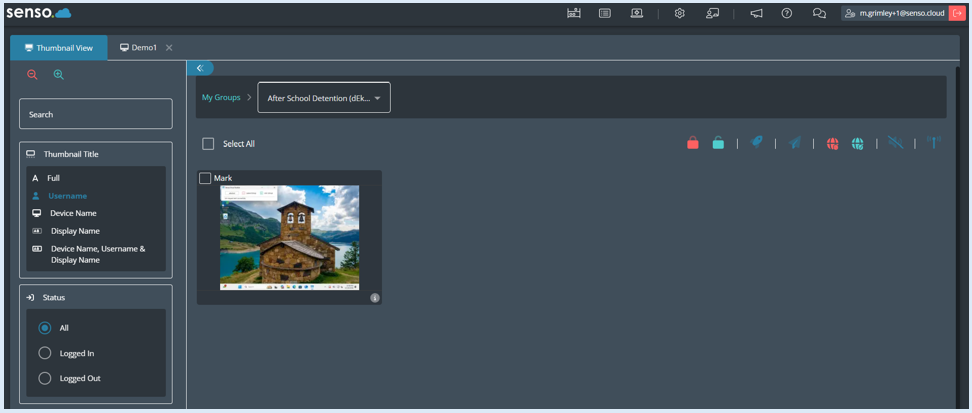
As soon as a user joins the group the thumbnail for their device will show. As more users join, more thumbnails will show.
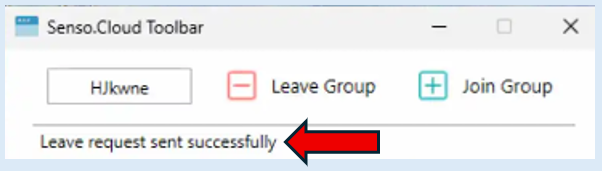
If the user needs to leave the group, they will select the ‘Leave group’ option and a message will appear confirming the action.
Please note - The pin group that has been created will always show in the groups section unless it is deleted. This Pin Group can be used at any time; it is just the case of providing the users with the Pin to join the group.
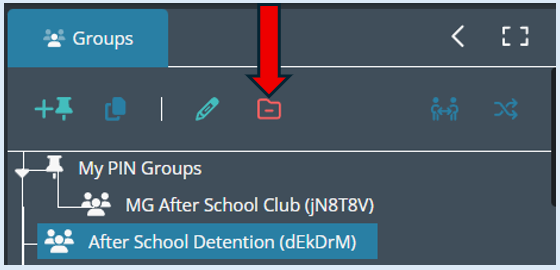
Currently to delete a group, the user will need access to the Technical Console or ask the School Admin user to perform this task for them. Once the user has accessed the Technical Console, they will need to select the ‘Remove Group’ icon.
Select the ‘Delete’ button
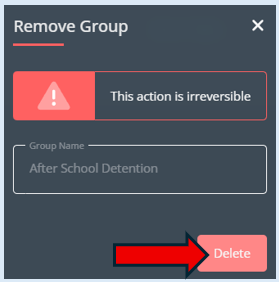
The pin group that you selected will now be deleted.
If you need to check on the Pin Group details, select the ‘Quick Actions’ icon on the group tile.
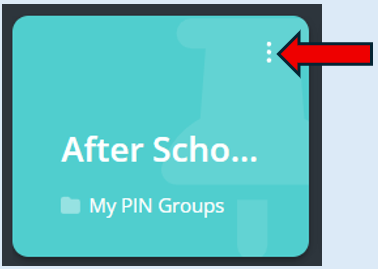
This will open two additional options.
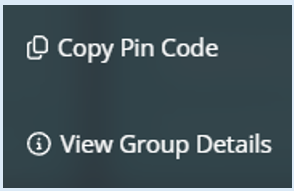
The first option ‘Copy Pin Code’ will copy the pin code and you can then paste it into the necessary location to share with others.
The second option ‘View Group Details’ will give you an overview of the group and the option to change the pin code.